To be clear, this tool really refreshes Facebook's cache of a particular page. In addition, this tool doesn't clear any caches in Facebook pages. Rather, it checks third party pages for updated content.
https://developers.facebook.com/tools/debug
I came across this while posting a status update with a link on a Page I manage. The link's preview showed some outdated information, which I knew had been updated already. Using this developer tool helped to update the cache to show the current information on the link preview.
Wednesday, October 17, 2012
Monday, September 24, 2012
TIPS & TRICKS: Microsoft Group Policy Settings Spreadsheet
Group policy can be daunting. I'm sure I've shared other people's frustrations when just simply looking for a particular setting. There's been countless times when I wished I could just do a search on the whereabouts of a particular setting. At least, these spreadsheets are searchable:
http://www.microsoft.com/en-us/download/details.aspx?id=25250
http://www.microsoft.com/en-us/download/details.aspx?id=25250
Tuesday, September 11, 2012
RANTS & RAVES: Fingerprint Reader Software by UPEK
I have my reservations about fingerprint readers. This article about how the UPEK software stores a users passwords in a very insecure way, serves to make me more wary about anything that stores passwords.
http://blog.crackpassword.com/2012/08/upek-fingerprint-readers-a-huge-security-hole/
Fortunately, the silver lining I'm pulling out of this story rests with the great advantage of using disk encryption such as BitLocker. If the disk is encrypted, then the not so securely stored password for the fingerprint reader turns out the encrypted just by virtue of being stored on the same disk. If you've got multiple drives or volumes, then make sure that the separate drives are encrypted too.
Lesson learned before I get into any trouble.
http://blog.crackpassword.com/2012/08/upek-fingerprint-readers-a-huge-security-hole/
Fortunately, the silver lining I'm pulling out of this story rests with the great advantage of using disk encryption such as BitLocker. If the disk is encrypted, then the not so securely stored password for the fingerprint reader turns out the encrypted just by virtue of being stored on the same disk. If you've got multiple drives or volumes, then make sure that the separate drives are encrypted too.
Lesson learned before I get into any trouble.
TIPS & TRICKS: Active Directory Users & Computers Filtering
Handy little LDAP query to filter users who have not changed passwords after a certain date (in this case, September 5th) (all one line):
Here are the steps to run the filter:
(&(objectCategory=user)(pwdLastSet>=129913020000000000)(!(userAccountControl:1.2.840.113556.1.4.803:=2)))
Here are the steps to run the filter:
- In ADUC, click on Set Filtering options icon
- click "Create custom", then Customize button
- click on Advanced tab, then enter (or copy/paste) LDAP query:
- (&(objectCategory=user)(pwdLastSet>=129913020000000000)(!(userAccountControl:1.2.840.113556.1.4.803:=2)))
- then click OK button, then OK again to close Filter Options
- In OU list at left, navigate to your OU, which will now show only users who have changed password since cutoff time.
- 129913020000000000 = number of 100 nanosecond intervals since Jan 1, 1601 to 9/5/2012 12:00 AM.
- (!(userAccountControl:1.2.840.113556.1.4.803:=2)) is a bitwise operation to exclude disabled users.
- If you want to return to seeing all users and objects, you need to clear the filter, by clicking on Set Filtering options icon, then click "Show all types of objects"
- You can reverse the query to see users who haven't changed password yet, by changing the query string >= to <=
Monday, April 23, 2012
TIPS & TRICKS: Recalibrate a Sticky iPhone Home Button
Didn't know about this trick until today. Apparently, if the home button on the iPhone is sticking or not responding, recalibrating it could help to get it working again. Here are the steps:
- Click on a native iOS application (i.e. Stocks, Email, Messages, etc.).
- Push and hold the power button on top until the "slide to power off" screen appears.
- Let go of the power button.
- Push and hold the home button until the "slide to power off" screen disappears and let go of the home button.
The home button should be recalibrated now.
Hope this helps someone.
Monday, April 09, 2012
TIPS & TRICKS: Adobe Acrobat Licensing Error
Encountered this error message:

The scenario is that this error shows up after deploying a custom Windows 7 image. When a new user logs into the machine and tries to launch a PDF file, this error message appears.
Here is Adobe's knowledge base article on this:
Part of the problem is that the user needs to have full access to \ProgramData\Adobe (I found that just giving an administrative account explicit access to that folder temporarily and launching Acrobat once was enough). However, the more specific problem is that Adobe forces a window on first launch of Adobe Acrobat that asks you to register the software. If that process can either get disabled or launched prior to imaging (without getting reset during the Sysprep process), then we can avoid this error message. Thanks a bunch Adobe.
Thursday, April 05, 2012
RANTS: The Day Has Finally Arrived
People have been saying for some time that Macs are safe and are not susceptible to malware infections. As a result, anti-malware software is not needed. The market more or less followed this trend. But, this has changed. Malware is not something that only PC users have to deal with anymore. I've been asked many times in the past whether anti-virus or other anti-malware was needed. I've always said that it's better to be proactive about protection than to wait until there's a problem. By then, the computer would've already been infected.
Here's a BBC news article about Macs becoming the right size target for attackers to pay attention:
http://www.bbc.co.uk/news/science-environment-17623422
Here's the F-Secure link about how to figure out if your Mac might be infected:
http://www.f-secure.com/v-descs/trojan-downloader_osx_flashback_i.shtml
Hope this helps someone.
Here's a BBC news article about Macs becoming the right size target for attackers to pay attention:
http://www.bbc.co.uk/news/science-environment-17623422
Here's the F-Secure link about how to figure out if your Mac might be infected:
http://www.f-secure.com/v-descs/trojan-downloader_osx_flashback_i.shtml
Hope this helps someone.
Monday, March 26, 2012
RANTS & RAVES: Reasons to Upgrade
I've got an iPhone 3G. You read that right, iPhone 3G. It's as slow as molasses. But, I've been holding off on upgrading for several reasons. First, I'd like to think that I'm environmentally conscious by taking longer to upgrade the device. Second, I think that the device has some life left in it. It does the basics for me. I just can't ask it to do more, which brings me to this post. Here's an ongoing list of the reasons why I really need to upgrade:
- Can't rotate photos. I took a photo of a sheet of paper, instead of photo copying it. Problem is I took it in landscape mode and I am unable to keep it in landscape view to keep the text upright. When the phone is in landscape the photo rotates to portrait mode and the text is sideways. My neck hurts.
- Photos are very low in quality. I'm capturing precious moments in very low quality. Great for hiding those pimples.
- No front facing camera. Can't Skype or Facetime.
Thursday, March 22, 2012
RAVES: Shadow IT
Good short article about reevaluating the role of IT departments. The two important points I got out of this article are:
- Users really want to consume more information.
- IT departments need to expand on productivity and capacity in order to meet the demand of their users to consume more information.
Monday, February 27, 2012
TIPS & TRICKS: Imaging Bootcamp Partition on a Mac
I haven't used this tool yet. But, it definitely came from a good recommendation source. OS X is already easy to clone and restore using various tools. The Bootcamp partition has not been quite as easy. Hopefully, this tool makes cloning as easy as the OS X side.
Sunday, February 19, 2012
TIPS & TRICKS: Testing RAM on a Mac
For years, I've used memtest86 to test RAM on PC's. On Macs, I've used TechTools. However, Apple stopped including TechTools Deluxe with AppleCare. Luckily, the open source community comes through again. A tool called memtest, which is a port to Macs from the PC version, does the job.
http://www.command-tab.com/2008/01/11/how-to-test-ram-under-mac-os-x/
This write-up was more thorough and how I came across this tool in the first place:
http://www.littleprojects.org/blog/2011/02/03/testing-ram-on-a-macbook-pro/
http://www.command-tab.com/2008/01/11/how-to-test-ram-under-mac-os-x/
This write-up was more thorough and how I came across this tool in the first place:
http://www.littleprojects.org/blog/2011/02/03/testing-ram-on-a-macbook-pro/
Friday, January 27, 2012
TIPS & TRICKS: Managing Permissions on Folders
Scenario: I get a call from a staff member, who I support. She wanted to see if she could obtain permission to some folders in a particular directory on my Windows 2003 file server. Without getting into the non-technical authorization of the situation and tossing the idea back and forth with my boss, I decided that we really needed was to get a listing of permissions of all the sub-folders in the directory in question.
I poked around the web a bit, until I discovered a Microsoft tool that helps to manage permissions using the command line. GUIs are great for one-off tasks, but command line is necessary handle these types of tasks. Here's the gist of how I ended up with the results I needed:
- Download Xcacls.vbs from the Microsoft link below. http://support.microsoft.com/kb/825751
- Open a command prompt window.
- At the command prompt, navigate to the location where Xcacls.vbs is saved.
- Type in Xcacls.vbs \\server\share\folder\* > c:\output.txt
This got me the output I needed. I did need to clean up the the output a bit because there were some extraneous files in the directory that was not necessary to the task. I know this tool can go further than just listing permissions. When I need to modify permissions across multiple files/folders I will try this out.
Monday, November 28, 2011
TIPS & TRICKS: Adding a Networked Printer on OS X Lion
Apple recommends adding a networked printer, which is visible via Bonjour. The default installation of Lion does not have very many printer drivers pre-installed. I went to the printer manufacturer's site and found that I should be able to get the driver through Software Updates on OS X, though this only works either on USB or on a printer available via Bonjour. What can you do if the printer is networked, but not available via Bonjour?
I was trying to add a networked printer manually using LPD protocol and discovered that the driver for the printer was not available in "Select Printer Software" under "Print Using." Finally found that Apple has a bunch of drivers for various printer manufacturers available for download from the Apple Support site:
Installing drivers from here, should make them available in the Printer Software box.
Tuesday, November 22, 2011
TIPS & TRICKS: Internet Explorer 9 Compatibility
I knew previously that Internet Explorer 9 had a built-in compatibility mode. Even so, there were some sites that just didn't work on IE9. Just figured out there's another way to control how IE9 behaves. There is a developer tool built-in that allow IE9 to emulate specific previous versions:
- With IE9 open, Hit F12
- Click on Browser Mode: IE9 at the bottom of the window
- Select the version that might work for you
Simple. There will probably still be sites that don't quite work, but having options is helpful.
- With IE9 open, Hit F12
- Click on Browser Mode: IE9 at the bottom of the window
- Select the version that might work for you
Simple. There will probably still be sites that don't quite work, but having options is helpful.
Sunday, November 13, 2011
TIPS & TRICKS: "Randomly" Waking Windows 7 Computer
Awhile back, I noticed my workstation was waking up in the middle of the night. After checking the system logs, I found that there was a Google update service that woke the computer up. I fixed that one. To my surprise, I found my computer on again at 1:41am. Another piece of update software woke up the machine. This useful command helped to confirm my findings in the log:
powercfg -lastwake
Just need to make sure to run it from a command prompt as and administrator:
- Click Start
- Type cmd in the Search programs and files box
- right click cmd under Programs and select "Run as Administrator"
If this line is included in the results after the powercfg -lastwake command is issued:
Windows will execute 'MicrosoftWindowsMedia Centermcupdate_scheduled' scheduled task that requested waking the computer.
Then, here's the fix:
- Go to Start > All Programs > Accessories > System Tools > Task Scheduler
- Expand Task Scheduler Library > Microsoft > Windows > Media Center
- Find mcupdate_scheduled (note: make sure to find this one because there's another one called just mcupdate)
- Right click on mcupdate_scheduled and select "Properties".
- Select the Conditions tab
- Uncheck "wake the computer to run this task"
powercfg -lastwake
Just need to make sure to run it from a command prompt as and administrator:
- Click Start
- Type cmd in the Search programs and files box
- right click cmd under Programs and select "Run as Administrator"
If this line is included in the results after the powercfg -lastwake command is issued:
Windows will execute 'MicrosoftWindowsMedia Centermcupdate_scheduled' scheduled task that requested waking the computer.
Then, here's the fix:
- Go to Start > All Programs > Accessories > System Tools > Task Scheduler
- Expand Task Scheduler Library > Microsoft > Windows > Media Center
- Find mcupdate_scheduled (note: make sure to find this one because there's another one called just mcupdate)
- Right click on mcupdate_scheduled and select "Properties".
- Select the Conditions tab
- Uncheck "wake the computer to run this task"
- Hit OK to exit.
Just did this to my workstation and will see if it works. Credit goes to this site:
http://www.beirtech.com/blogs.php?action=view&bid=6
Just did this to my workstation and will see if it works. Credit goes to this site:
http://www.beirtech.com/blogs.php?action=view&bid=6
Tuesday, October 25, 2011
RANTS & RAVES: OS X Printing to Windows Print Server
Found a nice write-up of getting OS X printing to Windows Print Servers. This write-up includes advantages and disadvantages of 4 different methods:
http://www.softwareshelf.com/news/printmanager/tips/MacOSX_Printing_via_the_Windows_Print_Server.pdf
If the document no longer exists, let me know as I've saved a copy of the PDF.
- LPD
- Windows Print Sharing
- Windows Print Services for Macintosh; and
- Direct IP printing.
http://www.softwareshelf.com/news/printmanager/tips/MacOSX_Printing_via_the_Windows_Print_Server.pdf
If the document no longer exists, let me know as I've saved a copy of the PDF.
Wednesday, October 19, 2011
TIPS & TRICKS: Outlook 2011 Keyboard Shortcuts
I've always been a fan of keyboard shortcuts. Mousing is faster for somethings, but keyboard shortcuts really help to cut down time to do repetitive tasks. Here's a bunch of Outlook 2011 keyboard shortcuts from Microsoft:
http://mac2.microsoft.com/help/office/14/en-us/outlook/item/3b58300d-6f02-47f3-b1fc-9cbe8bb4eac7
Got any of your own you can't live without?
http://mac2.microsoft.com/help/office/14/en-us/outlook/item/3b58300d-6f02-47f3-b1fc-9cbe8bb4eac7
Got any of your own you can't live without?
RANTS & RAVES: Design - The Difference Between Adoption and Failure
With all the Apple hype out there, I have come to realize what really makes Apple the company it is today. For a long time, I thought it was purely because Apple controlled both the hardware and software side of things. But, it's more than just controlling the different aspects of hardware and software. It's design. Steve Jobs was all about design. His singularly focused fanaticism on design results in Apple products that everyone either really wants or can't stop talking about.
The point of this post is a case describing the other end of the spectrum where design and usability is nothing more than an marketing topic. This example is quite simple really. I installed a piece of software call Kurzweil 3000 on a few machines. The department had not yet purchased new licenses for these machines so I had to install the trial version while we waited for the licenses to arrive. When they did arrive, I checked out some documentation online that said I had to merely call up the registration process under the existing installations Help menu and enter in the code to activate the software. The link to the registration process was not available. I called Kurzweil Support and they told me that I had to uninstall the old version first and then install the new version. Instead of taking a couple minutes to complete the process, I'm now over an hour into this update process.
Simple thing like design and usability can go such a long way.
The point of this post is a case describing the other end of the spectrum where design and usability is nothing more than an marketing topic. This example is quite simple really. I installed a piece of software call Kurzweil 3000 on a few machines. The department had not yet purchased new licenses for these machines so I had to install the trial version while we waited for the licenses to arrive. When they did arrive, I checked out some documentation online that said I had to merely call up the registration process under the existing installations Help menu and enter in the code to activate the software. The link to the registration process was not available. I called Kurzweil Support and they told me that I had to uninstall the old version first and then install the new version. Instead of taking a couple minutes to complete the process, I'm now over an hour into this update process.
Simple thing like design and usability can go such a long way.
Monday, October 17, 2011
TIPS & TRICKS: Google Chrome Behavior of Green Zoom/Maximize Button in Lion
Apparently, Chrome is still using the pre-Lion behavior of the green button, which is as a zoom button. In Lion, this basically means that when a Chrome window that is not full screen and the green button is pushed, then the Chrome window stretches full screen only vertically and not horizontally. I thought one of the best features of Lion was Apple's redesign of the green button to be a true full screen.
The fix for this is to hold down the shift button while hitting the green button. This will make the Chrome window fill the screen.
The fix for this is to hold down the shift button while hitting the green button. This will make the Chrome window fill the screen.
Tuesday, October 04, 2011
TIPS & TRICKS: Open Source Software (OSS) Imaging Tools & Process
Found a really nice write-up on using a couple of open source software (OSS) tools for imaging a drive.
http://geekyprojects.com/storage/how-to-clone-hard-drive-to-smaller-drive/
I've been using these tools for awhile and find them quite useful. This little write-up also helped to streamline my own basic imaging process. The extra hurdle I wanted to overcome was imaging from an larger drive/partition to a smaller drive/partition. In order to accomplish this scenario, gparted, one of the OSS tools we are talking about here, is used to shrink the Windows partition to something smaller than the new destination. Here's the summary of steps for my scenario:
- Adjust partition with GParted
- Reboot and let OS rebuild the file system (this is a CRUCIAL step)
- Use Clonezilla to save drive/partition to another drive (imaging rather than cloning works best for me)
- Restore the image to smaller destination drive
Again, the link has a much more detailed and well-documented write-up.
http://geekyprojects.com/storage/how-to-clone-hard-drive-to-smaller-drive/
I've been using these tools for awhile and find them quite useful. This little write-up also helped to streamline my own basic imaging process. The extra hurdle I wanted to overcome was imaging from an larger drive/partition to a smaller drive/partition. In order to accomplish this scenario, gparted, one of the OSS tools we are talking about here, is used to shrink the Windows partition to something smaller than the new destination. Here's the summary of steps for my scenario:
- Adjust partition with GParted
- Reboot and let OS rebuild the file system (this is a CRUCIAL step)
- Use Clonezilla to save drive/partition to another drive (imaging rather than cloning works best for me)
- Restore the image to smaller destination drive
Again, the link has a much more detailed and well-documented write-up.
Friday, September 30, 2011
TIPS & TRICKS: Previous Recipients in Apple Mail
Learn something new everyday. I had an idea that Apple Mail saved some sort of list of previously entered email addresses. But, I didn't know where it was stored or how to manage that list. Of course, it's really simple.
With Mail open, click on Window > Previous Recipients. Up comes a window where you can see the list, remove entries in the list, or even add to the Address Book. Simple.

With Mail open, click on Window > Previous Recipients. Up comes a window where you can see the list, remove entries in the list, or even add to the Address Book. Simple.

Tuesday, August 23, 2011
TIPS & TRICKS: Free Backup Tool - EaseUS Todo Backup
Heard about this free local backup tool that seems to have a set of good tools built-in, including an all-important scheduling mechanism. In addition, there's also incremental & differential backup, disk cloning, selective file and folder backup, restoring to dissimilar hardware, and auto deletion of old images.
http://www.todo-backup.com/
I haven't actually tried this tool yet, but I will as I need a better tool than the built-in Windows one for one of my boxes.
http://www.todo-backup.com/
I haven't actually tried this tool yet, but I will as I need a better tool than the built-in Windows one for one of my boxes.
TIPS & TRICKS: Know about cookies? What about super cookies?
Nice little write-up about additional information stored on the machine about you. I did notice that running in Private Browsing or Incognito seems to prevent any data from getting stored in cookies or super cookies. The software that uses these super cookies? Adobe Flash Player.
http://www.gpanswers.com/blog/138-lockdown/700-supercookies-the-ugly-snack-you-can-kill-using-group-policy.html
http://www.gpanswers.com/blog/138-lockdown/700-supercookies-the-ugly-snack-you-can-kill-using-group-policy.html
Thursday, August 18, 2011
TIPS & TRICKS: Transferring Outlook 2007 AutoComplete Email Addresses to Outlook 2010
Most people probably don't know that Outlook saves frequently used email addresses, which is completely separate from Outlook Contacts. Those addresses are very useful to migrate along with your other Outlook files over to Outlook 2010.
There are 3rd party tools out there that help to do the migration. But, I'm always one to try to use native tools first, as long as they work well. I found this tool from Microsoft that seems to work well:
http://support.microsoft.com/kb/980542#ImportNK2Files_Outlook
In addition, to this being a useful tool, the article also points out that Outlook 2010 no longer uses a .NK2 file to store these frequently used addresses. I didn't figure out where Outlook 2010 now stores these addresses. Perhaps there's some tie-in in the future to Microsoft's Live Services, in which case I would expect it to be in some sort of web-enabled file (i.e. XML or similar).
One thing I haven't figure out is if the machine is in a domain/Exchange, then what happens to those names that are not complete email addresses because of Exchange resolution in Outlook 2007. Do those names (i.e. usernames) get imported and become duplicates? I just did this for someone. We'll find out soon enough.
There are 3rd party tools out there that help to do the migration. But, I'm always one to try to use native tools first, as long as they work well. I found this tool from Microsoft that seems to work well:
http://support.microsoft.com/kb/980542#ImportNK2Files_Outlook
In addition, to this being a useful tool, the article also points out that Outlook 2010 no longer uses a .NK2 file to store these frequently used addresses. I didn't figure out where Outlook 2010 now stores these addresses. Perhaps there's some tie-in in the future to Microsoft's Live Services, in which case I would expect it to be in some sort of web-enabled file (i.e. XML or similar).
One thing I haven't figure out is if the machine is in a domain/Exchange, then what happens to those names that are not complete email addresses because of Exchange resolution in Outlook 2007. Do those names (i.e. usernames) get imported and become duplicates? I just did this for someone. We'll find out soon enough.

Thursday, July 28, 2011
NEWS: Sniffer hijacks secure traffic from unpatched iPhones
Unpatched iPhones can be exploited even with availability of SSL. One of the methods, published 9 years ago, is so easy that "my mother could actually use this", says Chet Wisniewski, a security researcher with Sophos.
Moral of the story, unless you have iOS 5 with over-the-air-updates, make sure to plug in your iPhone and get it updated.
Moral of the story, unless you have iOS 5 with over-the-air-updates, make sure to plug in your iPhone and get it updated.
Thursday, July 07, 2011
TIPS & TRICKS: MLGPOs
Learned something new today. There's Active Directory Group Policies Objects (GPOs) and Local Group Policies. Starting with Vista, there is now something called Multiple Local Group Policy Objects (MLGPOs). Here's a quick summary of how these work:
Level 1: Affects everyone
Level 2A: Affects the person if they're a Joe User
Level 2B: Affects the person if they're a local Admin
Level 3: Affects a specific person based on username
With AD GPO's available, I'm not sure why LGPOs are needed. However, I do like having granularity with MLGPOs. Hope I find it useful at some point.
Here's a blog post about it:
http://www.gpanswers.com/blog/140-gp-client-and-internals/695-why-local-gpos-matter.html
Level 1: Affects everyone
Level 2A: Affects the person if they're a Joe User
Level 2B: Affects the person if they're a local Admin
Level 3: Affects a specific person based on username
With AD GPO's available, I'm not sure why LGPOs are needed. However, I do like having granularity with MLGPOs. Hope I find it useful at some point.
Here's a blog post about it:
http://www.gpanswers.com/blog/140-gp-client-and-internals/695-why-local-gpos-matter.html
Friday, June 10, 2011
TIPS & TRICKS: Google Chrome, Windows 7, and Last Window Placement
If you know me, you'll know that I routinely use private browsing all the time. I don't care to have the browser remember any of my personal data or what sites I've visited. If I really wanted to remember something, then I will bookmark or blog the page. This means that when I use Google Chrome, I'm using its Incognito mode all the time.
One drawback to Incognito is that it also doesn't remember the screen location of the last window you used. In other words, I want the Incognito Chrome window to open in the same place on my screen every time I open a new window. This is actually a good feature because Incognito's purpose is to remember NOTHING. This should also include locally stored settings like screen location.
To get the window to open in the same place, just open a normal Chrome window, move it to the place you want it, close that normal window. Next time an Incognito window is opened, it should open in the last location where the normal window was closed.
Happy Computing.
One drawback to Incognito is that it also doesn't remember the screen location of the last window you used. In other words, I want the Incognito Chrome window to open in the same place on my screen every time I open a new window. This is actually a good feature because Incognito's purpose is to remember NOTHING. This should also include locally stored settings like screen location.
To get the window to open in the same place, just open a normal Chrome window, move it to the place you want it, close that normal window. Next time an Incognito window is opened, it should open in the last location where the normal window was closed.
Happy Computing.
Thursday, March 10, 2011
TIPS & TRICKS: Denying Access to Browsers for Specific Users
Had an interesting request about denying internet access to a particular user account on a Windows machine. This exercise showed me again that is usually more than one way to accomplish something. The first hurdle was that this needed to be done on different versions of Windows. It was already done on a Windows XP machine via NTFS permissions. I had to find a way to do it on Windows Vista Home Premium and Windows 7 Enterprise.
On Windows Vista Home Premium (HP), the process was actually fairly easy. Windows Vista HP has Parental Controls in it, which helped us accomplish our goal. Specifically, it was the Vista Web Filtering tools built-in to the Parental Controls. First, turn on the Parental Controls found in Control Panel. Next click through to the Web Filtering tool and enable the sites allowed option. The key to make this work is to make sure to NOT list any sites to be allowed. This will block all connections via a web browser. What's more, I tested this through Firefox in the account controlled by Parental Controls as well and it worked too.
Windows 7 did away with the Web Filter tools in Parental Controls. Had to find another way to do it. A Google search yielded the path of using a proxy address to control the flow. The nice thing about this solution is that proxy configurations are now user-specific, which means it only affects the one user and not all users. Here are the steps:
1. While in the user account that needs to be limited, setup a proxy server address in Internet Options > Connections > LAN settings. I used 127.0.0.1.
2. Log out and login to an account with administrative access.
3. Launch Local Group Policy Editor (gpedit.msc).
4. Under User Configuration > Administrative Templates > Windows Components > Internet Explorer > Browser Menus, enable the Tools menu: Disable Internet Options... menu option. This will disable access to Internet Options from Internet Explorer.
5. In the same window for Local Group Policy Editor, go to User Configuration > Administrative Templates and click on Control Panel.
6. Open the option for Hide specified Control Panel items and enable it. Then click on the Show button.
7. In a blank field under the Value column, type in Microsoft.InternetOptions. This disables access to the Internet Options area from the Windows Control Panel.
8. Hit OK, OK, and close out the Local Group Policy Editor.
A few pertinent notes here: we were only concerned with blocking browser access. There are, of course, other ways to get connected, but that's a task for another day. Also, these machines were not joined to any domain, only setup as stand-alone machines. Finally, the locking out of Internet Options at the Internet Explorer level and the Control Panel level is effective for all users, unlike the proxy setting that only affects the one user. Also, always make sure to test before deploying.
Update (2012_02_02): Before locking out Internet Options, check this setting. In Internet Options > Connections > LAN Settings, make sure to uncheck Automatically detect settings. This ensures that the proxy settings are used every time (Thanks to my colleague, Erin for pointing this out.)
Happy Computing.
On Windows Vista Home Premium (HP), the process was actually fairly easy. Windows Vista HP has Parental Controls in it, which helped us accomplish our goal. Specifically, it was the Vista Web Filtering tools built-in to the Parental Controls. First, turn on the Parental Controls found in Control Panel. Next click through to the Web Filtering tool and enable the sites allowed option. The key to make this work is to make sure to NOT list any sites to be allowed. This will block all connections via a web browser. What's more, I tested this through Firefox in the account controlled by Parental Controls as well and it worked too.
Windows 7 did away with the Web Filter tools in Parental Controls. Had to find another way to do it. A Google search yielded the path of using a proxy address to control the flow. The nice thing about this solution is that proxy configurations are now user-specific, which means it only affects the one user and not all users. Here are the steps:
1. While in the user account that needs to be limited, setup a proxy server address in Internet Options > Connections > LAN settings. I used 127.0.0.1.
2. Log out and login to an account with administrative access.
3. Launch Local Group Policy Editor (gpedit.msc).
4. Under User Configuration > Administrative Templates > Windows Components > Internet Explorer > Browser Menus, enable the Tools menu: Disable Internet Options... menu option. This will disable access to Internet Options from Internet Explorer.
5. In the same window for Local Group Policy Editor, go to User Configuration > Administrative Templates and click on Control Panel.
6. Open the option for Hide specified Control Panel items and enable it. Then click on the Show button.
7. In a blank field under the Value column, type in Microsoft.InternetOptions. This disables access to the Internet Options area from the Windows Control Panel.
8. Hit OK, OK, and close out the Local Group Policy Editor.
A few pertinent notes here: we were only concerned with blocking browser access. There are, of course, other ways to get connected, but that's a task for another day. Also, these machines were not joined to any domain, only setup as stand-alone machines. Finally, the locking out of Internet Options at the Internet Explorer level and the Control Panel level is effective for all users, unlike the proxy setting that only affects the one user. Also, always make sure to test before deploying.
Update (2012_02_02): Before locking out Internet Options, check this setting. In Internet Options > Connections > LAN Settings, make sure to uncheck Automatically detect settings. This ensures that the proxy settings are used every time (Thanks to my colleague, Erin for pointing this out.)
Happy Computing.
Tuesday, March 01, 2011
TIPS & TRICKS: OS X Security Tips
Found some good information on how to secure Mac OS X, presented by Sophos:
http://nakedsecurity.sophos.com/2011/01/25/top-tips-for-os-x-security-part-1/
http://nakedsecurity.sophos.com/2011/02/02/top-tips-for-mac-os-x-security-part-2/
http://nakedsecurity.sophos.com/2011/02/21/top-tips-for-mac-os-x-security-part-3/
Sophos also offers free anti-virus for OS X here:
http://www.sophos.com/products/free-tools/free-mac-anti-virus/
http://nakedsecurity.sophos.com/2011/01/25/top-tips-for-os-x-security-part-1/
http://nakedsecurity.sophos.com/2011/02/02/top-tips-for-mac-os-x-security-part-2/
http://nakedsecurity.sophos.com/2011/02/21/top-tips-for-mac-os-x-security-part-3/
Sophos also offers free anti-virus for OS X here:
http://www.sophos.com/products/free-tools/free-mac-anti-virus/
Thursday, February 24, 2011
TIPS & TRICKS: Installing Language Packs in Windows 7
Okay there's plenty of postings on instructions for installing language packs in Windows 7. Here's a couple of Microsoft's instructions:
http://support.microsoft.com/kb/972813
http://windows.microsoft.com/en-us/windows7/products/features/language-packs
All these instructions indicate the best way to obtain the language packs are through Microsoft Update that is built-in to Windows 7. These instructions are great, except for one missing step. When you get to the Microsoft Update window on a new machine, there isn't a link for Optional Updates, where the language packs reside.
To get there, you'll need to first click on the link that says "Check online for updates from Microsoft Update". After the machine checks for updates, it will show the link for the Optional Updates.
Hope this helps you save some time. Happy Computing.
http://support.microsoft.com/kb/972813
http://windows.microsoft.com/en-us/windows7/products/features/language-packs
All these instructions indicate the best way to obtain the language packs are through Microsoft Update that is built-in to Windows 7. These instructions are great, except for one missing step. When you get to the Microsoft Update window on a new machine, there isn't a link for Optional Updates, where the language packs reside.
To get there, you'll need to first click on the link that says "Check online for updates from Microsoft Update". After the machine checks for updates, it will show the link for the Optional Updates.
Hope this helps you save some time. Happy Computing.
Tuesday, January 11, 2011
TIPS & TRICKS: Save As Popup for Outlook 2010
User got a new MacBook Pro on which I installed Bootcamp and Parallels. User boots into OS X, uses Parallels to start the Bootcamp partition of Windows 7 Enterprise 64-bit. On that Windows 7 installation is Office 2010. In migrating over the user's almost 10GB worth of email data, I suggested we dump all of that archived email into Exchange. That's a lot of email data, I know. But, we had the space and figured we'd give it a go.
User opens up his PST files in Outlook 2010 and starts to move things into the Exchange area. After the first 1+ GB of data, he starts to get this window:

This annoying popup that came up every few minutes or so. Here are the things I tried:
- I checked to see if this would happen in another user's account on the same machine. It did not.
- I had him login to another machine to see if the problem would occur. It did not.
- I had him try just accepting the download for awhile. It did not stop.
- I created another Outlook profile to see if would continue. It did not.
- I tried to reinstall Outlook to see if it would stop the problem. It did not.
- I deleted his entire Windows user profile and created a new profile to see if it would stop the popups. It did not.
- Finally, I found this thread online: http://social.answers.microsoft.com/Forums/en-US/outlooksend/thread/5bf5f5a4-e36b-48f0-a28c-eaa94518bbf2
Basically, the problem is probably a combination of one or more email messages in his account that is trying to interact with Microsoft's new Social Connector called People Pane. Since he didn't need this feature, I disabled it in Outlook > View > People Pane > Off. The popups all went away.
I guess it's one of those things where old data meets new software.
User opens up his PST files in Outlook 2010 and starts to move things into the Exchange area. After the first 1+ GB of data, he starts to get this window:

This annoying popup that came up every few minutes or so. Here are the things I tried:
- I checked to see if this would happen in another user's account on the same machine. It did not.
- I had him login to another machine to see if the problem would occur. It did not.
- I had him try just accepting the download for awhile. It did not stop.
- I created another Outlook profile to see if would continue. It did not.
- I tried to reinstall Outlook to see if it would stop the problem. It did not.
- I deleted his entire Windows user profile and created a new profile to see if it would stop the popups. It did not.
- Finally, I found this thread online: http://social.answers.microsoft.com/Forums/en-US/outlooksend/thread/5bf5f5a4-e36b-48f0-a28c-eaa94518bbf2
Basically, the problem is probably a combination of one or more email messages in his account that is trying to interact with Microsoft's new Social Connector called People Pane. Since he didn't need this feature, I disabled it in Outlook > View > People Pane > Off. The popups all went away.
I guess it's one of those things where old data meets new software.
Friday, October 08, 2010
RANTS: Apple Migration Assistant
Just had (luckily) only my second user data loss in my IT career. The first experience helps guide how I operate with other people's data today. I can't have too many backups or can't be too careful.
Fortunately, this second experience was not a complete repeat of my first experience, though I definitely could have used extra backups here. I had a user who had a disk corruption on his MacBook Pro. Nothing I could to to recover, except reload the entire machine. I loaded a clean copy of OS X on an external hard drive. From there, I booted off the external hard drive off the disabled MacBook Pro. Then I ran Migration Assistant from the external hard drive and pointed it to the internal hard drive on the MacBook Pro. At this point, I assumed that the external hard drive had all the files from the internal hard drive. I wiped the internal hard drive. I reloaded the internal hard drive with a fresh copy of OS X. I connected up the external hard drive again and ran Migration Assistant from the internal hard drive to copy over all the files.
At this point, I figured I was just about done. I tested logging into a user account and reconfigured a few things on the new reload. User even logged in and found his files on the desktop he needed. A day or two later, he discovered that his mail was no where to found. Long story short, Migration Assistant did not copy over the contents of Mail at all. I checked the external hard drive and found nothing. All his mail inside of Mail was lost. I felt terrible, even if this user was quite understanding.
Now that I think of it, the hard drive corruption could have caused Migration Assistant to fail to copy over the contents of Mail. I, then, have to wonder how many other files were lost.
Yet another hard lesson learned. Don't rely on one process. Even the method/solution should be backed up, not just the data.
(Not so) Happy Computing.
Update: 10/28/2010, revisiting this machine, I figured it that it wasn't my fault that the data did not come over. Migration Assistant failed due to the drive corruption. Granted, I should have checked it before wiping the drive and reinstalling. The way I found out was that the user did a search on the freshly rebuilt OS with migrated data and found some of the messages he needed. Turned out the messages were moved over to a folder at the root of the drive probably because the messages were sitting in an area that was affected by the corruption. The folder was actually created by DiskWarrior when it attempted to recover the original build. Whew!
Fortunately, this second experience was not a complete repeat of my first experience, though I definitely could have used extra backups here. I had a user who had a disk corruption on his MacBook Pro. Nothing I could to to recover, except reload the entire machine. I loaded a clean copy of OS X on an external hard drive. From there, I booted off the external hard drive off the disabled MacBook Pro. Then I ran Migration Assistant from the external hard drive and pointed it to the internal hard drive on the MacBook Pro. At this point, I assumed that the external hard drive had all the files from the internal hard drive. I wiped the internal hard drive. I reloaded the internal hard drive with a fresh copy of OS X. I connected up the external hard drive again and ran Migration Assistant from the internal hard drive to copy over all the files.
At this point, I figured I was just about done. I tested logging into a user account and reconfigured a few things on the new reload. User even logged in and found his files on the desktop he needed. A day or two later, he discovered that his mail was no where to found. Long story short, Migration Assistant did not copy over the contents of Mail at all. I checked the external hard drive and found nothing. All his mail inside of Mail was lost. I felt terrible, even if this user was quite understanding.
Now that I think of it, the hard drive corruption could have caused Migration Assistant to fail to copy over the contents of Mail. I, then, have to wonder how many other files were lost.
Yet another hard lesson learned. Don't rely on one process. Even the method/solution should be backed up, not just the data.
(Not so) Happy Computing.
Update: 10/28/2010, revisiting this machine, I figured it that it wasn't my fault that the data did not come over. Migration Assistant failed due to the drive corruption. Granted, I should have checked it before wiping the drive and reinstalling. The way I found out was that the user did a search on the freshly rebuilt OS with migrated data and found some of the messages he needed. Turned out the messages were moved over to a folder at the root of the drive probably because the messages were sitting in an area that was affected by the corruption. The folder was actually created by DiskWarrior when it attempted to recover the original build. Whew!
Friday, October 01, 2010
TIPS & TRICKS: Changing Power Settings for Non-Administrative User via Registry
Okay, so this is more of a note to myself. Actually, this whole blog is a giant note to myself. But, I hope someone else finds it useful too.
I have a user who insists on purchasing using a notebook with a docking solution, just so she can leave the notebook in the dock about 95% of the time and remote into it. I'm not even going to get into how much sense that makes. The problem here is that the notebook goes to sleep as it should. But, that doesn't work well for someone who needs to remote in (Wake On LAN is disabled). She's also a standard user with not administrative access. The registry setting to control power settings is located here:
HKEY_CURRENT_USER\Control Panel\PowerCfg\PowerPolicies
I'm going to try adjusting this at a later time. I'm hoping that temporarily giving her administrative rights and making the change at this setting will make the desired power settings stick permanently.
If anyone else tries, this please let me know how it works for you.
Happy Computing.
I have a user who insists on purchasing using a notebook with a docking solution, just so she can leave the notebook in the dock about 95% of the time and remote into it. I'm not even going to get into how much sense that makes. The problem here is that the notebook goes to sleep as it should. But, that doesn't work well for someone who needs to remote in (Wake On LAN is disabled). She's also a standard user with not administrative access. The registry setting to control power settings is located here:
HKEY_CURRENT_USER\Control Panel\PowerCfg\PowerPolicies
I'm going to try adjusting this at a later time. I'm hoping that temporarily giving her administrative rights and making the change at this setting will make the desired power settings stick permanently.
If anyone else tries, this please let me know how it works for you.
Happy Computing.
Thursday, August 19, 2010
TIPS & TRICKS: Use for grep
I'm not going to remember this one, so here it is:
grep username /var/aliases
It's a tool I could have used in the office awhile back, but glad that I have it now.
Update 4/9/2012:
another one:
grep searchterm /var/home/role/hostmast/new-raddb/vpn-users
grep username /var/aliases
It's a tool I could have used in the office awhile back, but glad that I have it now.
Update 4/9/2012:
another one:
grep searchterm /var/home/role/hostmast/new-raddb/vpn-users
Friday, July 16, 2010
RANTS / TIPS: Vulnerable Home Routers
Home routers have been vulnerable in the past and will likely be vulnerable in the future, especially when most people don't know how to secure them right out of the box. This article:
http://www.notebooks.com/2010/07/15/how-to-secure-your-router-against-a-hack-compromising-many-popular-routers/
talks about how a vulnerability in many home routers makes them susceptible to a potential attack. The interesting thing about this particular method is that it can affect so many different routers, rather than target a particular make or model.
The gist:
1. Make sure your router has a very strong password. Remember this password is the one used to access the controls of the router and not necessarily your wifi password.
2. Make sure firmware on the router is the latest from the manufacturer.
Happy Computing.
http://www.notebooks.com/2010/07/15/how-to-secure-your-router-against-a-hack-compromising-many-popular-routers/
talks about how a vulnerability in many home routers makes them susceptible to a potential attack. The interesting thing about this particular method is that it can affect so many different routers, rather than target a particular make or model.
The gist:
1. Make sure your router has a very strong password. Remember this password is the one used to access the controls of the router and not necessarily your wifi password.
2. Make sure firmware on the router is the latest from the manufacturer.
Happy Computing.
Tuesday, May 25, 2010
RANTS & RAVES: Latest MacBook Pro (with i7 Core Processor) and Snow Leopard
First, Apple has made yet another decision to make life harder for Sysadmins. In reloading a brand new MacBook Pro with i7 Core processor, I discovered that my Snow Leopard (OS X 10.6) images would not work. I further realized that none of my Snow Leopard media (DVDs) worked either. In fact, as of this moment, no retail copy of Snow Leopard sitting on store shelves will work with these newly released MacBook Pros. The only bootable Snow Leopard disk that works right now is the one that came with the machine. As such, I had to build a new image using this media.
Second, I attempted to save some time by partitioning the HD before reloading the OS. I planned to use Bootcamp to install Windows 7 64-bit onto the MacBook Pro. I also found that this step doesn't work. When launching Bootcamp from the application located in Utilities, Bootcamp does not recognize the partition I setup for the Windows partition prior to loading OS X. Luckily, I had already imaged the OS X load and could easily wipe the drive again and just reimage. The raves of this post is, of course, the ability to image without having to start all over. How frustrating would it be have to start over? I don't want to find out.
Hope this helps you save some time.
Happy Computing.
Second, I attempted to save some time by partitioning the HD before reloading the OS. I planned to use Bootcamp to install Windows 7 64-bit onto the MacBook Pro. I also found that this step doesn't work. When launching Bootcamp from the application located in Utilities, Bootcamp does not recognize the partition I setup for the Windows partition prior to loading OS X. Luckily, I had already imaged the OS X load and could easily wipe the drive again and just reimage. The raves of this post is, of course, the ability to image without having to start all over. How frustrating would it be have to start over? I don't want to find out.
Hope this helps you save some time.
Happy Computing.
Thursday, May 06, 2010
TIPS & TRICKS: Software Licensing Manager
Learned to how to obtain more detailed information about Windows 7 activation. There's a tool built into Windows 7 called Software Licensing Manager. Running it in a Windows 7 command prompt with admin rights will yield information like:
- Activation ID
- Installation ID
- Partial Product Key
- License status
- Remaining Windows rearm count
This last piece of information is important to Windows 7 imaging. I've found that if this rearm count gets to zero (start with 3 on a fresh install), then Windows will no longer boot properly.
The command to use at the command prompt to retrieve this information is slmgr /dlv. There are other parameters that can be applied, but /dlv is the most detailed. After running the command, a Windows Script Host window will be displayed with the information.
Hope this helps you. Happy Computing.
- Activation ID
- Installation ID
- Partial Product Key
- License status
- Remaining Windows rearm count
This last piece of information is important to Windows 7 imaging. I've found that if this rearm count gets to zero (start with 3 on a fresh install), then Windows will no longer boot properly.
The command to use at the command prompt to retrieve this information is slmgr /dlv. There are other parameters that can be applied, but /dlv is the most detailed. After running the command, a Windows Script Host window will be displayed with the information.
Hope this helps you. Happy Computing.
Wednesday, May 05, 2010
RANT: Got hacked.
Not me, thankfully. But, I did feel the effects of someone else getting hacked. Does the name Fred Cabasa ring a bell for anyone? I have no recollection about how I know this person. I even have this person in my contacts, but it was before I started noting down how I met people. Thus, this person had his information (i.e. email account(s), phone, computer, etc.) compromised in some way and I received some of the consequences.
How do I know that this person was compromised? I've got a fairly good idea of how spammers work and an email that seems like it's coming from someone I know is no real indicator. In this case, however, I received additional information leading me to believe that this person should really be careful about his personal information from here on out. Here's the message:

First, the email message only contained a link and no other text in the body of the message. The sender was Fred Cabasa using an email address I had on file for him, separately. The message also looked like it was sent to a small number of people at the beginning of the alphabet. Finally, the real tell-tale-sign about this message was that it included another email address of mine that I no longer use.
There's one other way that indicated Fred got hacked. I received a junk text message on my cell phone. This was no ordinary text message. This text message contained the same link as in the email I described earlier.
There are a million ways people could have obtained this information: from hacking his computer, to something as simple as finding his old cell phone or other device that contains this information Fred might have disposed of without properly wiping the data.
Moral of the story? Don't give your personal contact information out to anyone, ever. Wait, check that comment. Some times my paranoia gets the best of me. Seriously though, I think the moral of the story here is to make sure you protect your data and your devices. It's too easy to obtain information these days. If we all do our part (even if we don't care about our own information), we'll also protect those people who could be affected by information theft.
Hope this helps you. Happy Computing.
How do I know that this person was compromised? I've got a fairly good idea of how spammers work and an email that seems like it's coming from someone I know is no real indicator. In this case, however, I received additional information leading me to believe that this person should really be careful about his personal information from here on out. Here's the message:

First, the email message only contained a link and no other text in the body of the message. The sender was Fred Cabasa using an email address I had on file for him, separately. The message also looked like it was sent to a small number of people at the beginning of the alphabet. Finally, the real tell-tale-sign about this message was that it included another email address of mine that I no longer use.
There's one other way that indicated Fred got hacked. I received a junk text message on my cell phone. This was no ordinary text message. This text message contained the same link as in the email I described earlier.
There are a million ways people could have obtained this information: from hacking his computer, to something as simple as finding his old cell phone or other device that contains this information Fred might have disposed of without properly wiping the data.
Moral of the story? Don't give your personal contact information out to anyone, ever. Wait, check that comment. Some times my paranoia gets the best of me. Seriously though, I think the moral of the story here is to make sure you protect your data and your devices. It's too easy to obtain information these days. If we all do our part (even if we don't care about our own information), we'll also protect those people who could be affected by information theft.
Hope this helps you. Happy Computing.
Tuesday, May 04, 2010
TIPS & TRICKS: Blackberry Enterprise Activation Duplicates
A user with a Blackberry connecting up to our Blackberry Enterprise Server was having trouble with syncing between Exchange and her mobile device. The device was originally configured over the wireless without ever plugging in to a machine and/or any desktop software. Everything had been functioning normally until recently. The Blackberry was not syncing over new appointments or contacts, though email was flowing normally. One other aspect was that there was an assistant to the user who also helped enter in contacts and appointments to the user's Exchange account. The appointments and contacts entered by the assistant were also not syncing onto the Blackberry. However, the information was showing up fine in the Exchange account through both Outlook Web Access and Outlook on a Windows machine.
One possible reason was that Exchange accounts were recently migrated from one store to another. A possible fix for this problem was to rerun an Blackberry Enterprise Activation to see if the Blackberry would reestablish the sync for contacts and calendar items. This did not work. The problem persisted.
The most drastic solution would be to wipe the Blackberry and rerun the Blackberry Enterprise Activation as if the Blackberry just came from the factory. However, I wanted to avoid this as the user had data residing on the Blackberry that was not backed up, especially since we did not create a connection between the Blackberry and any desktop software.
I finally figured out that there were duplicate contact lists and calendar lists. Somehow the Blackberry lost connection to the BES and when it did reestablish itself, it did not recognize that there was an existing list of contact items and calendar items. This is why there were only duplicates on the Blackberry, but not inside of Exchange. After some testing, I figured out which one of the calendar and contact lists were the actively synced lists and which were the ones with the lost connection. I configured the contact and calendar lists that lost the sync connection to no longer display (I may have even found a way to delete those lists after further investigation). This removed the duplicates. it's likely that a wipe and running of Enterprise Activation would have solved this problem. But, since we needed to find a more manual method, configuring the broken lists of contacts and calendars did the trick this time around.
Here's where I got my inspiration this time around:
http://www.blackberryforums.com/bes-admin-corner/122095-duplicate-contacts-after-new-enterprise-activation.html
Hope this helps you. Happy Computing.
One possible reason was that Exchange accounts were recently migrated from one store to another. A possible fix for this problem was to rerun an Blackberry Enterprise Activation to see if the Blackberry would reestablish the sync for contacts and calendar items. This did not work. The problem persisted.
The most drastic solution would be to wipe the Blackberry and rerun the Blackberry Enterprise Activation as if the Blackberry just came from the factory. However, I wanted to avoid this as the user had data residing on the Blackberry that was not backed up, especially since we did not create a connection between the Blackberry and any desktop software.
I finally figured out that there were duplicate contact lists and calendar lists. Somehow the Blackberry lost connection to the BES and when it did reestablish itself, it did not recognize that there was an existing list of contact items and calendar items. This is why there were only duplicates on the Blackberry, but not inside of Exchange. After some testing, I figured out which one of the calendar and contact lists were the actively synced lists and which were the ones with the lost connection. I configured the contact and calendar lists that lost the sync connection to no longer display (I may have even found a way to delete those lists after further investigation). This removed the duplicates. it's likely that a wipe and running of Enterprise Activation would have solved this problem. But, since we needed to find a more manual method, configuring the broken lists of contacts and calendars did the trick this time around.
Here's where I got my inspiration this time around:
http://www.blackberryforums.com/bes-admin-corner/122095-duplicate-contacts-after-new-enterprise-activation.html
Hope this helps you. Happy Computing.
Tuesday, April 20, 2010
TIPS & TRICKS: Login to Windows 7 Without Knowing Machine Name
When Windows 7 is joined to a domain, the default login prompt automatically allows a domain user to login to the machine with just username/password. However, a local account user would need to know the name of the machine to login to the machine (i.e. machinename\user).
At least that's what I thought, until now. I don't always remember the name of the computer that I'm working on. The workaround the login prompt and not knowing the machine name is to substitute a period for the computer name. For example, if my machine name is PC-1 and my username is bobama, then for the username field, I would enter:
.\bobama (instead of PC-1\bobama)
Hope this helps someone. Happy computing.
At least that's what I thought, until now. I don't always remember the name of the computer that I'm working on. The workaround the login prompt and not knowing the machine name is to substitute a period for the computer name. For example, if my machine name is PC-1 and my username is bobama, then for the username field, I would enter:
.\bobama (instead of PC-1\bobama)
Hope this helps someone. Happy computing.
Friday, April 16, 2010
TIPS & TRICKS: Microsoft Outlook Unable to Open
PROBLEM:
Attempted to launch Outlook 2007. Received an error message of:
Here's a screen shot:
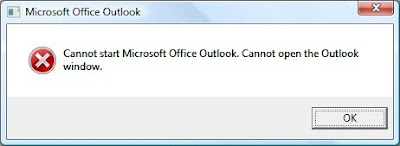
Outlook, like most other programs, can be run from a command line, albeit Microsoft's version. This usually means that there should be options in launching Outlook. Originally, I wanted to start Outlook in Safe Mode. This works by holding the CTRL key down while clicking on the Outlook icon, not a command line. However, this did not work and I received the same message.
THE FIX:
Still not quite a command line option, but close. With Outlook and the error message gone, click on Start > Run (or Start, and type run in the search field in Windows Vista and 7). Type outlook.exe /resetnavpane.
This solved my problem. If your problem is different, here's a site that has a list of different options:
http://www.howto-outlook.com/howto/commandlineswitches.htm
Be careful, though. I would find a way to backup your data in Outlook before attempting something you are not certain about. Most of the commands will not affect your data, but it's better to be safe.
Attempted to launch Outlook 2007. Received an error message of:
Cannot start Microsoft Office Outlook. Cannot open the Outlook window.
Here's a screen shot:

Outlook, like most other programs, can be run from a command line, albeit Microsoft's version. This usually means that there should be options in launching Outlook. Originally, I wanted to start Outlook in Safe Mode. This works by holding the CTRL key down while clicking on the Outlook icon, not a command line. However, this did not work and I received the same message.
THE FIX:
Still not quite a command line option, but close. With Outlook and the error message gone, click on Start > Run (or Start, and type run in the search field in Windows Vista and 7). Type outlook.exe /resetnavpane.
This solved my problem. If your problem is different, here's a site that has a list of different options:
http://www.howto-outlook.com/howto/commandlineswitches.htm
Be careful, though. I would find a way to backup your data in Outlook before attempting something you are not certain about. Most of the commands will not affect your data, but it's better to be safe.
Tuesday, March 23, 2010
TIPS & TRICKS: ARD, AppleScript and Logging into a Remote Mac
Received this handy tip:
Not that I would enter in a password into a script permanently. But, for a quick run of the script using a dedicated account for this purpose could be useful when combined with other routines.
Thanks Tony! Happy Computing.
This script example shows how to combine AppleScript with Apple Remote Desktop's "Send UNIX Command" to enter a username and password at the login window of a Mac you control.
osascript -e 'tell application "System Events" to keystroke "REPLACE_WITH_YOUR_USERNAME"';
osascript -e 'tell application "System Events" to keystroke tab';
osascript -e 'tell application "System Events" to delay 0.5';
osascript -e 'tell application "System Events" to keystroke "REPLACE_WITH_YOUR_PASSWORD"';
osascript -e 'tell application "System Events" to delay 0.5';
osascript -e 'tell application "System Events" to keystroke return';
Replace the two strings with your username and password. Note: there are some single and double quotes in the script above, so edit carefully.
Not that I would enter in a password into a script permanently. But, for a quick run of the script using a dedicated account for this purpose could be useful when combined with other routines.
Thanks Tony! Happy Computing.
Tuesday, March 09, 2010
RANTS: HTC Android Phone Comes with Malware Pre-Installed
Straight-from-the-factory, Android mobile device from HTC comes with a bot client, a worm, and a password stealing tool. How do we protect ourselves when we can't even trust a brand new device to be clean? I've always been an advocate of wiping anything and everything before using it. It takes a bit more time to setup, but you'll be sure that you'll have a clean device from the beginning. Here's the full story:
http://threatpost.com/en_us/blogs/htc-phones-pre-installed-mariposa-bot-client-030910
http://threatpost.com/en_us/blogs/htc-phones-pre-installed-mariposa-bot-client-030910
Monday, March 01, 2010
TIPS & TRICKS: Vista and Multiple Simultaneous Network Connections
I've been observing Windows connection problems via wireless for quite some time now. I'm hoping this might be a fix for many of those problems. Basically, there are multiple connections to the same wireless network. This could, potentially, cause some confusion by the OS.
Vista has a wireless profile manager. However, there is yet another place where wireless connections are stored. This is the network location manager. This stores the previously used wireless networks even if a profile was not created. You should be able to find this under Network and Sharing Center > Customize > Manage or delete network locations. This will allow for the deletion (or merging) of duplicate network locations.
Note: I have not yet had a chance to test this with Windows 7. However, I suspect the behavior is similar.
Here's where I originally found this solution and the complete steps:
http://www.annoyances.org/exec/show/article04-500
Happy Computing.
UPDATE: Found it in Windows 7. In Network and Sharing Center, under View your active networks, click on the icon (not the text). The next window will be the Network Properties, where you'll find Merge or delete network locations. The follow the same steps as previously noted.
Vista has a wireless profile manager. However, there is yet another place where wireless connections are stored. This is the network location manager. This stores the previously used wireless networks even if a profile was not created. You should be able to find this under Network and Sharing Center > Customize > Manage or delete network locations. This will allow for the deletion (or merging) of duplicate network locations.
Note: I have not yet had a chance to test this with Windows 7. However, I suspect the behavior is similar.
Here's where I originally found this solution and the complete steps:
http://www.annoyances.org/exec/show/article04-500
Happy Computing.
UPDATE: Found it in Windows 7. In Network and Sharing Center, under View your active networks, click on the icon (not the text). The next window will be the Network Properties, where you'll find Merge or delete network locations. The follow the same steps as previously noted.
Thursday, February 25, 2010
RAVES: Apple to Replace HD in some MacBooks
Though not an official recall, this is the primary reason why Apple Support has rated so high in recent years. Don't get me wrong. Apple is far from perfect, but I think they are closer than some other manufacturers.
Here's the NY Times article:
http://gadgetwise.blogs.nytimes.com/2010/02/19/apple-to-replace-bad-hard-drives/?em
Hope this helps you. Happy Computing.
Here's the NY Times article:
http://gadgetwise.blogs.nytimes.com/2010/02/19/apple-to-replace-bad-hard-drives/?em
Hope this helps you. Happy Computing.
Wednesday, February 03, 2010
RANTS: Connecting to a Windows 7 machine from RDP on OS X
The basics:
- OS X.4.11
- PowerPC G5 machine
- Remote Desktop Connection Client for Mac v2.0.1
- Connecting to a Windows 7 64-bit machine with latest RDP client
The symptoms:
- Connection can be made to Windows 7 machine
- Mouse functions work normally
- As soon as a key is pressed on the keyboard of the G5, the RDP client on the G5 quits.
- Problem does not seem to be the Windows 7 machine, as I can connect to it from an Intel-based Mac.
Guess:
- Problem likely has to do with that the G5 is a PowerPC processor. Any guesses?
- OS X.4.11
- PowerPC G5 machine
- Remote Desktop Connection Client for Mac v2.0.1
- Connecting to a Windows 7 64-bit machine with latest RDP client
The symptoms:
- Connection can be made to Windows 7 machine
- Mouse functions work normally
- As soon as a key is pressed on the keyboard of the G5, the RDP client on the G5 quits.
- Problem does not seem to be the Windows 7 machine, as I can connect to it from an Intel-based Mac.
Guess:
- Problem likely has to do with that the G5 is a PowerPC processor. Any guesses?
Tuesday, January 12, 2010
TIPS & TRICKS: Connecting to OS X Share from Windows 7
For some reason, I had not yet tried an AFP connection to an OS X server share from Windows 7 yet. So, I tried it today. Opened Computer, clicked on Map network drive and proceeded to map the drive. After providing the correct credentials, Windows 7 would not connect.
What do I do next? Search for an answer online (okay, I googled it). It took me a couple tries, but I finally found the following answer. Go to Administrative Tools > Local Security Policy > Local Policies - Security Options. Find the policy that's called:
Network security: LAN Manager authentication level
Then modify the setting to show Send LM & NTLM responses. Next, in the same location, find the policy that's called:
Network security: Minimum session security for NTLM SSP
Then modify the setting to disable Require 128-bit encryption. In my attempt, I only modified the first setting and was able to get in. The second setting was listed in the answer I found here:
http://www.tomshardware.com/forum/75-63-windows-samba-issue
Basically, regardless of the type of connection (i.e. Samba, AFP, etc.) Windows needs to be able to send the correct type of challenge/response authentication protocol. By default, Windows 7 is not allowed to send the right one/type to OS X. This change in the local policies worked for me.
Happy Computing.
What do I do next? Search for an answer online (okay, I googled it). It took me a couple tries, but I finally found the following answer. Go to Administrative Tools > Local Security Policy > Local Policies - Security Options. Find the policy that's called:
Network security: LAN Manager authentication level
Then modify the setting to show Send LM & NTLM responses. Next, in the same location, find the policy that's called:
Network security: Minimum session security for NTLM SSP
Then modify the setting to disable Require 128-bit encryption. In my attempt, I only modified the first setting and was able to get in. The second setting was listed in the answer I found here:
http://www.tomshardware.com/forum/75-63-windows-samba-issue
Basically, regardless of the type of connection (i.e. Samba, AFP, etc.) Windows needs to be able to send the correct type of challenge/response authentication protocol. By default, Windows 7 is not allowed to send the right one/type to OS X. This change in the local policies worked for me.
Happy Computing.
TIPS & TRICKS: Installing Windows 7 on Dell Optiplex 755
Just ran through a clean installation of Windows 7 Enterprise 64-bit on a Dell Optiplex 755. Took a little more than 30 minutes. After the setup completed and I got to the Windows 7 desktop, I popped open Device Manager to see what drivers were missing. There were only 2 items needing drivers (PCI Serial Port & PCI Simple Communications Controller).
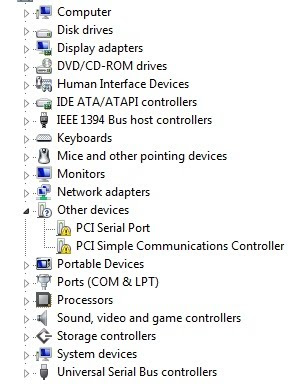
As I usually do, I went over to the Dell Support site to find the drivers. I put in the service tag of my machine and discovered that Dell, apparently, is not supporting Windows 7 running on an Optiplex 755. They had no drivers available for Windows 7, only XP and Vista. I thought for a moment and wondered if I should have backed up my previous Vista installation. Luckily, I found I was in better shape than I thought.
First, I realized that Windows 7 had drivers for the most crucial items in Device Manager (i.e. network connection, various controllers, audio/video, optical drives, etc.). Second, I searched and found others who had the same problem:
http://en.community.dell.com/forums/t/19299853.aspx
The 2 missing drivers were for components necessary for the Intel Management Engine, which can be disabled via the BIOS tool (CTRL-P). If the Intel Management Engine is disabled then the 2 components missing drivers will not appear in Device Manager.
Just in case, I decided to use the Vista drivers for the these two components, even though the Intel Management Engine will be disabled when I'm through with the setup. The installation worked fine.
Now, I'm off to check a whole bunch of other apps, including ADUC and Filemaker Pro, which had started to fail under Vista.
Happy Computing.

As I usually do, I went over to the Dell Support site to find the drivers. I put in the service tag of my machine and discovered that Dell, apparently, is not supporting Windows 7 running on an Optiplex 755. They had no drivers available for Windows 7, only XP and Vista. I thought for a moment and wondered if I should have backed up my previous Vista installation. Luckily, I found I was in better shape than I thought.
First, I realized that Windows 7 had drivers for the most crucial items in Device Manager (i.e. network connection, various controllers, audio/video, optical drives, etc.). Second, I searched and found others who had the same problem:
http://en.community.dell.com/forums/t/19299853.aspx
The 2 missing drivers were for components necessary for the Intel Management Engine, which can be disabled via the BIOS tool (CTRL-P). If the Intel Management Engine is disabled then the 2 components missing drivers will not appear in Device Manager.
Just in case, I decided to use the Vista drivers for the these two components, even though the Intel Management Engine will be disabled when I'm through with the setup. The installation worked fine.
Now, I'm off to check a whole bunch of other apps, including ADUC and Filemaker Pro, which had started to fail under Vista.
Happy Computing.
Thursday, January 07, 2010
RANTS: iPhone WiFi Problem
A few months back, I was asked to troubleshoot a wifi problem on an iPhone 3G 8GB. The problem was that the wifi would be able to see the wireless networks in the area. However, when attempting to connect to a network, the iPhone would present a message saying that it was unable to connect to the network. This behavior exhibited itself when connecting to any wireless network, whether the network required authentication or not. After surveying the phone, duplicating the problem and asking the user what he had done just prior to this discovery, I briefly pondered what could cause this problem. I came to the possibility that some application installed on the iPhone caused the wifi problem. Based on what the user told me, I uninstalled a couple of apps he had installed an the problem vanished. It worked!
That was a few months ago. The user returned today and showed me the same problem. We think the problem returned this time because he restored his iPhone from an old backup, which could have restored the old app. Unfortunately, I don't remember which app was the problem. I've spent the afternoon trying to figure out which app while I was searching online for an answer. I came across the following:
http://discussions.apple.com/thread.jspa?threadID=2044754&start=0&tstart=0
http://www.everythingicafe.com/forum/archive/index.php/t-58045.html
The first link shows that it's a pretty widespread problem. In fact, this is the first time I've seen a discussion forum post with over 100 pages of posts. The second link has more advanced content about the potential problem, but still no real solution yet.
I'm still working on the app angle. Hopefully, I'll be able to figure out if it is indeed an app that is causing the problem. I didn't read through the 100+ pages of posts in the Apple Support page. But, in reading through many pages of posts, I don't see any indication that anyone has approached this problem from this angle. I frequently read that people restored their phones from backups after doing hard resets or getting a whole new phone. What if this restoration process just brought the problem back? I'll post more as I find out more.
Happy Computing.
That was a few months ago. The user returned today and showed me the same problem. We think the problem returned this time because he restored his iPhone from an old backup, which could have restored the old app. Unfortunately, I don't remember which app was the problem. I've spent the afternoon trying to figure out which app while I was searching online for an answer. I came across the following:
http://discussions.apple.com/thread.jspa?threadID=2044754&start=0&tstart=0
http://www.everythingicafe.com/forum/archive/index.php/t-58045.html
The first link shows that it's a pretty widespread problem. In fact, this is the first time I've seen a discussion forum post with over 100 pages of posts. The second link has more advanced content about the potential problem, but still no real solution yet.
I'm still working on the app angle. Hopefully, I'll be able to figure out if it is indeed an app that is causing the problem. I didn't read through the 100+ pages of posts in the Apple Support page. But, in reading through many pages of posts, I don't see any indication that anyone has approached this problem from this angle. I frequently read that people restored their phones from backups after doing hard resets or getting a whole new phone. What if this restoration process just brought the problem back? I'll post more as I find out more.
Happy Computing.
Saturday, October 03, 2009
RANTS: iPhone Network Issues Since OS3.1 Update
I've been using my 3G iPhone for over a year now. I still field occasional questions about my take on the device, and, I still hesitate with my answer. I wholeheartedly admit that I've been able to do lots of things that I could only dream of doing with a basic phone and a separate wifi-enabled PDA device, like type out this post, look up quick information on the web, and check/reply to urgent email.
Now that I've become dependent on the iPhone, any interruption could cause some frustrations. The latest problem is the lack of connectivity. Basically, unbeknownst to me, the iPhone will lose it's ability to make/receive phone calls, connect to the web over 3G, and send/receive email. It's not until I try to make a phone call that I figure out connectivity has been lost. This means that if someone attempts to call or text, the iPhone does not ring or beep.
Restarting the iPhone will reconnect it to the network. Of course, this is cumbersome, to say the least, not to mention the potential missed calls and texts. I also spent 20 minutes with an AT&T CSR to troubleshoot the problem and the result there was to try replacing the SIM card. Of course, I went online to look for more answers. I found this thread on Apple's website:
http://discussions.apple.com/thread.jspa?threadID=2168883&start=0&tstart=0
It's quite probable that the problem is the latest upgrade to OS 3.1, which I did recently. As I reflect on it, these problems only seemed to have started to occur after the upgrade. The fix that seems to work for everyone is to turn off 3G. I haven't tried that yet, but will do so soon. Let's hope Apple figures this one out soon and posts a fix.
UPDATE, 10/8/2009:
Plugged my iPhone in to sync and found this message:

The most useful to me was the second bullet point that this update fixes "intermittent issue that may interrupt cellular network services until restart."
If this works properly, then it's another great piece of evidence that Apple has the resources to both listen to their customers and resolve their issues in a timely manner. Now if AT&T could get their act together, I would never need to think about switching to Verizon again.
Hope this helps you. Happy computing.
Now that I've become dependent on the iPhone, any interruption could cause some frustrations. The latest problem is the lack of connectivity. Basically, unbeknownst to me, the iPhone will lose it's ability to make/receive phone calls, connect to the web over 3G, and send/receive email. It's not until I try to make a phone call that I figure out connectivity has been lost. This means that if someone attempts to call or text, the iPhone does not ring or beep.
Restarting the iPhone will reconnect it to the network. Of course, this is cumbersome, to say the least, not to mention the potential missed calls and texts. I also spent 20 minutes with an AT&T CSR to troubleshoot the problem and the result there was to try replacing the SIM card. Of course, I went online to look for more answers. I found this thread on Apple's website:
http://discussions.apple.com/thread.jspa?threadID=2168883&start=0&tstart=0
It's quite probable that the problem is the latest upgrade to OS 3.1, which I did recently. As I reflect on it, these problems only seemed to have started to occur after the upgrade. The fix that seems to work for everyone is to turn off 3G. I haven't tried that yet, but will do so soon. Let's hope Apple figures this one out soon and posts a fix.
UPDATE, 10/8/2009:
Plugged my iPhone in to sync and found this message:

The most useful to me was the second bullet point that this update fixes "intermittent issue that may interrupt cellular network services until restart."
If this works properly, then it's another great piece of evidence that Apple has the resources to both listen to their customers and resolve their issues in a timely manner. Now if AT&T could get their act together, I would never need to think about switching to Verizon again.
Hope this helps you. Happy computing.
Thursday, September 24, 2009
RANTS: List of Incompatibilities with Snow Leopard Upgrade
Finally upgraded to OS X.6. Wanted to keep a running log of things that didn't work after the upgrade:
- Printing to a Xerox WorkCentre Pro 238 stopped working, needed to update driver.
- Windows Remote Desktop, needed to delete the old one and download the new one from Microsoft.
- Cisco AnyConnect VPN client, needed to do a manual download of a newer version.
Update 10/3/2009:
- Sophos 7 hasn't been able to update in the past week or so. Ran the installer again and Sophos now updates normally.
- Possible problem with VPN allowing browser content. VPN connects fine and pinging works, but browser never connects. Need to test in a different location...Tested and found that the wireless router I was connected to did not allow a proper VPN connection. Not a Snow Leopard problem.
- Printing to a Xerox WorkCentre Pro 238 stopped working, needed to update driver.
- Windows Remote Desktop, needed to delete the old one and download the new one from Microsoft.
- Cisco AnyConnect VPN client, needed to do a manual download of a newer version.
Update 10/3/2009:
- Sophos 7 hasn't been able to update in the past week or so. Ran the installer again and Sophos now updates normally.
- Possible problem with VPN allowing browser content. VPN connects fine and pinging works, but browser never connects. Need to test in a different location...Tested and found that the wireless router I was connected to did not allow a proper VPN connection. Not a Snow Leopard problem.
Wednesday, September 16, 2009
TIPS & TRICKS: Dell Optiplex 960 Remote Desktop Freezes and Video Problems
I was presented with a Dell Optiplex 960, which had some video problems and would not allow Windows Remote Desktop connections. My concern was heightened because this machine was built off an image that I was sure worked properly.
The screen would exhibit "snow-like" conditions, like you would see on old TV sets using "rabbit-ears" or a screen that had some electrical interference. Also, the problem would only appear intermittently. There nothing specific that I could attribute to its cause. This, obviously, would be a clear case of a video problem.
The other problem involved Windows Remote Desktop. When I would try to connect to the machine via Remote Desktop (from a Windows machine and a Mac running the Windows Remote Desktop client), the connection would attempt to connect. However, the Optiplex machine would freeze and the remote connection would never connect beyond a blue screen.
I was pondering whether the problems could be related or if they were separate issues that were only related by sheer coincidence. I was hovering around possible video and/or memory problems preventing the Remote Desktop connection. I attempted to tackle the Remote Desktop problem first, hoping that it would also solve the video problem at the same time. A search on Remote Desktop freezes yielded several scenarios of similar problems, including freezes that occurred only when there was a user already logged in, but nothing that gave me a workable solution.
I turned my attention to the video problem. After some poking around and searching for answers online, I finally came to the solution of a updated video driver for the nVidia Quadro 420 video card. The driver was posted on the Dell website and, even more coincidental, the date of the posted driver was yesterday. This problem seemed to have a known solution. After installing the driver and restarting several times (by no means a thorough test) I assumed that the problem was resolved.
Going back to the Remote Desktop problem, I tested to see if the updated video driver now allowed the Remote Desktop connection to work. No dice. Remote Desktop would still freeze the session on the Optiplex 960 and the remote session still wouldn't connect. After more searching, I finally went back to the Dell site to search more current solutions. This is when I found this:
http://en.community.dell.com/forums/p/19271963/19476610.aspx#19476610
Basically, we are putting in a new registry entry in the following location:
HKeyLocalMachine > SYSTEM > CurrentControlSet > Control > Session Manager > Memory Management
Right click to add a DWORD and call it: SessionImageSize
The value of the entry is in hexadecimal. The thread I referenced above used a value of 20. However, I checked another machine that didn't have any problems and found a value of 30. For now, just use 20. This could be a place to adjust if there are further problems.
Hope this helps someone. Happy computing.
The screen would exhibit "snow-like" conditions, like you would see on old TV sets using "rabbit-ears" or a screen that had some electrical interference. Also, the problem would only appear intermittently. There nothing specific that I could attribute to its cause. This, obviously, would be a clear case of a video problem.
The other problem involved Windows Remote Desktop. When I would try to connect to the machine via Remote Desktop (from a Windows machine and a Mac running the Windows Remote Desktop client), the connection would attempt to connect. However, the Optiplex machine would freeze and the remote connection would never connect beyond a blue screen.
I was pondering whether the problems could be related or if they were separate issues that were only related by sheer coincidence. I was hovering around possible video and/or memory problems preventing the Remote Desktop connection. I attempted to tackle the Remote Desktop problem first, hoping that it would also solve the video problem at the same time. A search on Remote Desktop freezes yielded several scenarios of similar problems, including freezes that occurred only when there was a user already logged in, but nothing that gave me a workable solution.
I turned my attention to the video problem. After some poking around and searching for answers online, I finally came to the solution of a updated video driver for the nVidia Quadro 420 video card. The driver was posted on the Dell website and, even more coincidental, the date of the posted driver was yesterday. This problem seemed to have a known solution. After installing the driver and restarting several times (by no means a thorough test) I assumed that the problem was resolved.
Going back to the Remote Desktop problem, I tested to see if the updated video driver now allowed the Remote Desktop connection to work. No dice. Remote Desktop would still freeze the session on the Optiplex 960 and the remote session still wouldn't connect. After more searching, I finally went back to the Dell site to search more current solutions. This is when I found this:
http://en.community.dell.com/forums/p/19271963/19476610.aspx#19476610
Basically, we are putting in a new registry entry in the following location:
HKeyLocalMachine > SYSTEM > CurrentControlSet > Control > Session Manager > Memory Management
Right click to add a DWORD and call it: SessionImageSize
The value of the entry is in hexadecimal. The thread I referenced above used a value of 20. However, I checked another machine that didn't have any problems and found a value of 30. For now, just use 20. This could be a place to adjust if there are further problems.
Hope this helps someone. Happy computing.
Thursday, August 27, 2009
RANTS: Hackers Targeting Credit Unions
http://threatpost.com/blogs/attackers-sending-malware-infected-cds-credit-unions-127
It's interesting that these people are targeting Credit Unions for their attacks. It's a pretty safe bet that the larger institutions will be much less vulnerable to this type of attack. How can we make Credit Unions safer? Would the person who found the CDs question the validity and source of the content? Or would he/she mindlessly try to run the CD because that's just what people do? At the end of the day, if everyone were educated on potential vulnerabilities work and we took conscious steps to protect ourselves and those things that are entrusted to us, then the hackers would have a much harder accomplishing their goals.
It's interesting that these people are targeting Credit Unions for their attacks. It's a pretty safe bet that the larger institutions will be much less vulnerable to this type of attack. How can we make Credit Unions safer? Would the person who found the CDs question the validity and source of the content? Or would he/she mindlessly try to run the CD because that's just what people do? At the end of the day, if everyone were educated on potential vulnerabilities work and we took conscious steps to protect ourselves and those things that are entrusted to us, then the hackers would have a much harder accomplishing their goals.
Saturday, August 01, 2009
RANTS: Don't Think You're Safe By Giving Junk Email Address
The gist of this is that there are marketers out there there who are paying retailers, not just for your contact information, but for your financial information as well.
Have you ever made an online purchase and during the check-out process, you are presented with some sort of coupon or discount deal through some sort of customer loyalty program? You might think that you are safe from marketers by giving your junk email address in this situation. However, the act of giving your junk email address has given permission to the retailer to give your financial information to the partner marketer who now has permission to charge your credit card, even on a recurring basis. Basically, the third party marketer can charge you for a "loyalty program" for which you didn't know you were signing up, even though you didn't given them your credit card number. Here is CNET's article about this:
http://news.cnet.com/8301-1023_3-10293633-93.html
Have you ever made an online purchase and during the check-out process, you are presented with some sort of coupon or discount deal through some sort of customer loyalty program? You might think that you are safe from marketers by giving your junk email address in this situation. However, the act of giving your junk email address has given permission to the retailer to give your financial information to the partner marketer who now has permission to charge your credit card, even on a recurring basis. Basically, the third party marketer can charge you for a "loyalty program" for which you didn't know you were signing up, even though you didn't given them your credit card number. Here is CNET's article about this:
http://news.cnet.com/8301-1023_3-10293633-93.html
RANTS/RAVES: Apple Releases iPhone OS 3.0.1 to Address SMS Security Vulnerability
Rant because it was there in the first place. Rave because of the fast turn around. Here's a MacRumors posting on it:
http://www.macrumors.com/2009/07/31/apple-releases-iphone-os-3-0-1-to-address-sms-security-vulnerability/
http://www.macrumors.com/2009/07/31/apple-releases-iphone-os-3-0-1-to-address-sms-security-vulnerability/
Monday, July 20, 2009
RANTS: Email Excess
I work with plenty of fairly high-level people. I see these people's email boxes. There really is no easy way to really manage one's email. Let's think about that for a second because you may say "How hard is it to hit delete on messages you don't want?"
First, the sheer volume of email that some people receive is mind-boggling in itself. My email address is subscribed to multiple pertinent mailing lists. Some of the content from those subscriptions is interesting and I may want to read it. Then there are messages of varying importance sent, specifically, to me. These messages may or may not require action on my part beyond reading the message. But, just reading a message will take time. Then there's the spam. I'm pretty good at filtering spam without even opening the message. But, again, that takes more time. Finally, there are messages that come in the form of confirmations and acknowledgments. These messages include, but are not limited to, things like purchase and shipping confirmations.
Now take that and multiply the volume by 10 or more and remember that there are actual things that need to be done in your day besides reading and responding to email. As I said before, mind-boggling. It's no wonder that as I happen to glance at other people's subject lines, I realize that there's probably at least half of all email received by one person is not read because assumptions are made on the content (i.e. shipping confirmations). If she needed to go back to find something, she'll vaguely remember that it's in her email box.
Now will there ever be email filters or other automated processes that help us filter our messages? I'm not talking about spam filters because we know that those already work. I'm talking about filters or other tools that will help us take our electronic receipts and file them away so that we will be confident that we will be able to find them in the future? Something that will take our electronic newsletters and file them away so that when we have time to go back and read them, we will know exactly where to find them; or the message will automatically delete because I might have read about the latest mobile technology elsewhere.
At the end of the day, the closest thing these fairytale filters is an real life assistant. But, even in my dealings with people's assistants, they have too much of their own mail to handle.
What's the next management tool for email? As much as I hear that other tools will replace email, I don't think email will disappear any time soon. It's too universal, too prevalent, and we rely too much on it. I predict that he who invents this holy grail of email will make a killing. Let me get back to the drawing board...
Happy computing.
First, the sheer volume of email that some people receive is mind-boggling in itself. My email address is subscribed to multiple pertinent mailing lists. Some of the content from those subscriptions is interesting and I may want to read it. Then there are messages of varying importance sent, specifically, to me. These messages may or may not require action on my part beyond reading the message. But, just reading a message will take time. Then there's the spam. I'm pretty good at filtering spam without even opening the message. But, again, that takes more time. Finally, there are messages that come in the form of confirmations and acknowledgments. These messages include, but are not limited to, things like purchase and shipping confirmations.
Now take that and multiply the volume by 10 or more and remember that there are actual things that need to be done in your day besides reading and responding to email. As I said before, mind-boggling. It's no wonder that as I happen to glance at other people's subject lines, I realize that there's probably at least half of all email received by one person is not read because assumptions are made on the content (i.e. shipping confirmations). If she needed to go back to find something, she'll vaguely remember that it's in her email box.
Now will there ever be email filters or other automated processes that help us filter our messages? I'm not talking about spam filters because we know that those already work. I'm talking about filters or other tools that will help us take our electronic receipts and file them away so that we will be confident that we will be able to find them in the future? Something that will take our electronic newsletters and file them away so that when we have time to go back and read them, we will know exactly where to find them; or the message will automatically delete because I might have read about the latest mobile technology elsewhere.
At the end of the day, the closest thing these fairytale filters is an real life assistant. But, even in my dealings with people's assistants, they have too much of their own mail to handle.
What's the next management tool for email? As much as I hear that other tools will replace email, I don't think email will disappear any time soon. It's too universal, too prevalent, and we rely too much on it. I predict that he who invents this holy grail of email will make a killing. Let me get back to the drawing board...
Happy computing.
TIPS & TRICKS: No video for Skype, Photo Booth, and iChat
In the office, I've been imaging new Macs with an image I have been keeping updated off an external hard drive. I captured the image from a newer Intel machine, though I don't recall which Apple model. It was most likely one of the notebooks.
I used this image to reload a brand new 24" silver iMac. The image process with Carbon Copy Cloner (http://www.bombich.com/software/ccc.html) worked flawlessly. The only thing, I had to beyond the image was update the software, install some Adobe software, and install the iLife suite. Everything else seemed to work fine, until I received a request to install Skype.
The Skype install went fine. However, the testing did not. Photo Booth, which I used because Skype was not working either, with this message:
I checked to make sure that the camera was showing up in System Profiler, which it did. I also tested iChat to see if it would find the built-in camera and that was unsuccessful.
After a few restarts, I decided to call Apple. Unfortunately, they were not much help either. They recommended an Archive & Install mainly because I told them my image came from a different machine. Not wanting to take the time to do that unless absolutely necessary, I decided to reset the PRAM. The key combination is Command-Option-P-R. While starting up the machine before the Apple logo showing up, hit this key combination and hold it all down until, at least, 2 bongs are heard.
This step fixed my problem. Skype, Photo Booth, and iChat were all able to detect the built-in web cam after the PRAM was reset. I also happened to search for the error message and found this link on Apple's Discussion Forums:
http://discussions.apple.com/thread.jspa?threadID=1753144&tstart=0
Hope this helps. Happy computing.
I used this image to reload a brand new 24" silver iMac. The image process with Carbon Copy Cloner (http://www.bombich.com/software/ccc.html) worked flawlessly. The only thing, I had to beyond the image was update the software, install some Adobe software, and install the iLife suite. Everything else seemed to work fine, until I received a request to install Skype.
The Skype install went fine. However, the testing did not. Photo Booth, which I used because Skype was not working either, with this message:
Photo Booth cannot open.
The graphics card installed in this computer does not support Photo Booth.
I checked to make sure that the camera was showing up in System Profiler, which it did. I also tested iChat to see if it would find the built-in camera and that was unsuccessful.
After a few restarts, I decided to call Apple. Unfortunately, they were not much help either. They recommended an Archive & Install mainly because I told them my image came from a different machine. Not wanting to take the time to do that unless absolutely necessary, I decided to reset the PRAM. The key combination is Command-Option-P-R. While starting up the machine before the Apple logo showing up, hit this key combination and hold it all down until, at least, 2 bongs are heard.
This step fixed my problem. Skype, Photo Booth, and iChat were all able to detect the built-in web cam after the PRAM was reset. I also happened to search for the error message and found this link on Apple's Discussion Forums:
http://discussions.apple.com/thread.jspa?threadID=1753144&tstart=0
Hope this helps. Happy computing.
Friday, June 19, 2009
RAVES: Continue using original iPhone without cellular service
It's hard not to be an Apple enthusiast, when they seem to think of things ahead of time. For those of you who are upgrading from your original iPhone to iPhone 3GS, you'll be happy to know that your original iPhone is still usable after you've moved your AT&T cellular service over to the new iPhone. Here's the instructions from Apple:
http://support.apple.com/kb/HT3406
Good luck and happy computing.
http://support.apple.com/kb/HT3406
Good luck and happy computing.
Thursday, June 18, 2009
RANTS: Finally, Active Directory Users and Computers for Vista
It sure took MS a long time to get this out, considering Server 2008 has been available for awhile. In any case, I'm installing it now and am excited to finally be able to administer from my Vista box, though I'll probably be upgrading to Win7 soon.
Here's the official MS link:
http://support.microsoft.com/kb/941314
Here's the official MS link:
http://support.microsoft.com/kb/941314
Wednesday, June 17, 2009
TIPS & TRICKS: How To Stop iTunes From Launching When iPhone Is Plugged In
The iPhone battery leaves me wanting more. Some day we won't even worry about battery life. For now, I find that I have to charge pretty regularly. I don't think I can get through a full day of pretty regular usage without charging. Because of the short battery life, I always keep the charging cable with me. However, I don't keep the USB to AC adapter with me. Usually, I'm near a computer with a USB port to help charge the iPhone.
In this process, one minor annoyance is that iTunes insists on launching when the iPhone is plugged in. Since, I don't always plug into the same machine that I normally sync with, I wanted to find a way to keep iTunes from launching when I plug into other machines for charging purposes. Googled it and couldn't find a quick answer.
Here's the simple way to do it. Remove the iTunes Helper application from running on startup. In Mac OS X, go to System Preferences > Accounts > Your User Account > Login Items and remove the iTunes Helper Application. The next time you login to your profile and plug in your iPhone, iTunes will not launch. I haven't tried it on a Windows machine yet, but I know that there is an iTunes Helper Application there too. Just remove it and iTunes will not launch.
Hope this helps with this slightly annoying problem. Happy computing.
In this process, one minor annoyance is that iTunes insists on launching when the iPhone is plugged in. Since, I don't always plug into the same machine that I normally sync with, I wanted to find a way to keep iTunes from launching when I plug into other machines for charging purposes. Googled it and couldn't find a quick answer.
Here's the simple way to do it. Remove the iTunes Helper application from running on startup. In Mac OS X, go to System Preferences > Accounts > Your User Account > Login Items and remove the iTunes Helper Application. The next time you login to your profile and plug in your iPhone, iTunes will not launch. I haven't tried it on a Windows machine yet, but I know that there is an iTunes Helper Application there too. Just remove it and iTunes will not launch.
Hope this helps with this slightly annoying problem. Happy computing.
Wednesday, June 03, 2009
RAVES: Social Networking for Enterprise
The explosion of social networking sites has been incredible. Facebook, Twitter, LinkedIn, etc all have people updating themselves in one way or another. However, in the enterprise environment, I'm tasked with the duty of keeping data, content and IP safe. This goal and public social networking sites do not go well together.
Enter enterprise-level business networking sites. I just finished reading the eWeek article reviewing 3 potential solutions: Socialcast, Socialtext, and Huddle. We are seriously considering our options for capturing, processing, and presenting different types of videos. In reading the article, I kept an eye out for these sites to include video. Not much to be said, but the video aspect may be something that draws us into SAAS (Software As A Service) solution.
At the end of the day, our users are becoming more savvy. The way they handle personal business will easily carry over to work-related business and make them more productive if we provide the tools to do it.
More to come, I'm sure. Happy computing.
Enter enterprise-level business networking sites. I just finished reading the eWeek article reviewing 3 potential solutions: Socialcast, Socialtext, and Huddle. We are seriously considering our options for capturing, processing, and presenting different types of videos. In reading the article, I kept an eye out for these sites to include video. Not much to be said, but the video aspect may be something that draws us into SAAS (Software As A Service) solution.
At the end of the day, our users are becoming more savvy. The way they handle personal business will easily carry over to work-related business and make them more productive if we provide the tools to do it.
More to come, I'm sure. Happy computing.
Monday, May 11, 2009
RANTS: Hackers Turn to Extortion
http://www.theregister.co.uk/2009/05/05/virginia_medical_records_extortion/
On or offline, there are plenty of people out there who want to take advantage because of greed. This is no different. I bring this up to continue to illustrate that security is not a confined job of your friendly neighborhood IT person. We all have a part in this process by having strong passwords, not sharing our passwords, and not letting anyone use our computers, among other things. Let's face it, as we become more connected in this online world, the tools that make work easy for us also make it easy for those who seek to do us harm.
Moral of the story? Don't plan to make every part of your online life easy. Some complexity is good.
Happy (and safe) computing.
On or offline, there are plenty of people out there who want to take advantage because of greed. This is no different. I bring this up to continue to illustrate that security is not a confined job of your friendly neighborhood IT person. We all have a part in this process by having strong passwords, not sharing our passwords, and not letting anyone use our computers, among other things. Let's face it, as we become more connected in this online world, the tools that make work easy for us also make it easy for those who seek to do us harm.
Moral of the story? Don't plan to make every part of your online life easy. Some complexity is good.
Happy (and safe) computing.
Thursday, April 30, 2009
RAVES: Print Greener and Make PDFs
I haven't yet tried this tool:
http://printgreener.com/
But, the motivation behind it is good. It doesn't seem that much different than a print preview, except that you can modify the print job further before hitting the actual printer AND it's a PDF creator, which means no need to go out and purchase Acrobat. I know Acrobat has lots of additional features, but most people only need basic PDF creation and this could be a good tool.
http://printgreener.com/
But, the motivation behind it is good. It doesn't seem that much different than a print preview, except that you can modify the print job further before hitting the actual printer AND it's a PDF creator, which means no need to go out and purchase Acrobat. I know Acrobat has lots of additional features, but most people only need basic PDF creation and this could be a good tool.
Tuesday, April 21, 2009
RANTS: OS X-targeted Malware is Increasing
http://www.f-secure.com/v-descs/trojan_osx_dnschanger.shtml
As Apple gains marketshare, malware for OS X is on the rise. Here's a quote from a recent email I received:
Please make sure to practice safe surfing. Remember, just because OS X has very few viruses that you've heard of, doesn't mean that your Mac is 100% safe. Nothing is 100%.
Happy "safe" computing.
As Apple gains marketshare, malware for OS X is on the rise. Here's a quote from a recent email I received:
About 35% of [some org] is OS X and 73% Windows yet [some org] has had _more_ OS X boxes infected with the DNS changer than Windows boxes.
Please make sure to practice safe surfing. Remember, just because OS X has very few viruses that you've heard of, doesn't mean that your Mac is 100% safe. Nothing is 100%.
Happy "safe" computing.
Thursday, April 16, 2009
TIPS & TRICKS: Binding OS X Leopard to Active Directory
I neglected to document how I successfully did it the first time around. In trying to retrace my steps, I started with this site:
http://www.makemacwork.com/bind-to-active-directory.htm
After following these steps, I was expecting the login screen of OS X to show blank fields for the username and password. However, I still saw the original list of users.
After poking around the settings a bit more, I realized that there were a couple settings that I changed when binding the machine to the AD the first time. After clicking on Bind... OS X asks for AD credentials that have permission to bind machines to the Active Directory. Just below the username and password fields there are a couple of check boxes that should be left checked. Here's what they should look like:
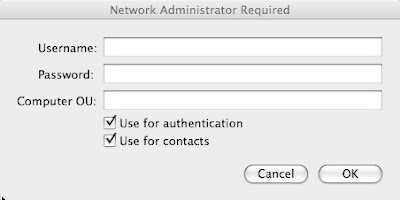
After I unbinded the machine and rebinded with those boxes checked, I was able to login to the machine with my AD credentials. NOTE: You might also be able to specify the directory domain on the Authentication server and contacts lists under Directory Utility > Search Policy without unbinding and rebinding. Just go to the Authentication tab click the plus button and check to see if the directory domain is listed. This can also be done with the contacts as well.
One other note, I would also go into System Preferences > Accounts > Login Options and change Display login window as: to Name and password for security and clarity that the user needs to provide their own username and password.
Happy computing...
http://www.makemacwork.com/bind-to-active-directory.htm
After following these steps, I was expecting the login screen of OS X to show blank fields for the username and password. However, I still saw the original list of users.
After poking around the settings a bit more, I realized that there were a couple settings that I changed when binding the machine to the AD the first time. After clicking on Bind... OS X asks for AD credentials that have permission to bind machines to the Active Directory. Just below the username and password fields there are a couple of check boxes that should be left checked. Here's what they should look like:

After I unbinded the machine and rebinded with those boxes checked, I was able to login to the machine with my AD credentials. NOTE: You might also be able to specify the directory domain on the Authentication server and contacts lists under Directory Utility > Search Policy without unbinding and rebinding. Just go to the Authentication tab click the plus button and check to see if the directory domain is listed. This can also be done with the contacts as well.
One other note, I would also go into System Preferences > Accounts > Login Options and change Display login window as: to Name and password for security and clarity that the user needs to provide their own username and password.
Happy computing...
TIPS & TRICKS: MacBook Pro, 3-Time Blinking Sleep Light on Startup
Symptom: Sleep light on MacBook Pro blinks 3 times quickly, pauses, blinks 3 times quickly again, and repeats.
Reason: Startup process is finding a RAM problem.
Not confirmed, but I'm betting that this also applies to other Apple notebooks that have the sleep light.
Reason: Startup process is finding a RAM problem.
Not confirmed, but I'm betting that this also applies to other Apple notebooks that have the sleep light.
Thursday, April 09, 2009
RANTS: Network Outage in the Bay Area
http://www.sfgate.com/cgi-bin/article.cgi?f=/c/a/2009/04/09/BAP816VTE6.DTL&tsp=1
I'm uneasy about how easy it is to disrupt so many people with one act of "vandalism." If this infrastructure plays such a centralized role in how so many people and business do their work, shouldn't it be more heavily protected. I have already come across at least one report of the connectivity problem in the Bay Area affecting work down here in San Diego.
Also, could this constitute "terrorism"?
I'm uneasy about how easy it is to disrupt so many people with one act of "vandalism." If this infrastructure plays such a centralized role in how so many people and business do their work, shouldn't it be more heavily protected. I have already come across at least one report of the connectivity problem in the Bay Area affecting work down here in San Diego.
Also, could this constitute "terrorism"?
Tuesday, March 17, 2009
RANTS: The search for a Latitude E6400 USB device driver
I'm still amazed that drivers are still so cumbersome to find and install. I consider Dell to be a bit better at providing stand-alone drivers, which is handy because I like to build the software on machines from scratch, as opposed to running a restore image from a manufacturer. In this case, I'm having trouble finding the correct driver for a USB Device, according to Device Manager in Windows XP.
I tried talking to Dell Support yesterday via online chat. The CSR gave me two things to try, but I ended the session because I thought of something else that I needed to do before trying the two suggest downloads. The two downloads were the AMT HECI and AMT SOL/LMS drivers. Neither of these installed correctly. Both resulted the following error message:
Today, I got back online to talk to Dell Support again via chat. We ran through all the usual drivers and possible problems. At some point, I gave him the Device ID from Device Manager for the device in question, which was USB\VID_413C&PID_8149\6&6060274&0&1. I believe this helped him with discovering that the Dell HTML site does not have a driver (R197537) for the radio control on the bluetooth chip. This is different than the bluetooth driver (R197513) on the included discs, which I already installed. The HTML site did not have either of these drivers listed for Windows XP.
For future reference, here's the link to that driver:
http://ftp.us.dell.com/network/R197537.EXE
Hope this helps someone. Happy computing...
I tried talking to Dell Support yesterday via online chat. The CSR gave me two things to try, but I ended the session because I thought of something else that I needed to do before trying the two suggest downloads. The two downloads were the AMT HECI and AMT SOL/LMS drivers. Neither of these installed correctly. Both resulted the following error message:
This computer does not meet the minimum requirements for installing the software. Setup will exit.
Today, I got back online to talk to Dell Support again via chat. We ran through all the usual drivers and possible problems. At some point, I gave him the Device ID from Device Manager for the device in question, which was USB\VID_413C&PID_8149\6&6060274&0&1. I believe this helped him with discovering that the Dell HTML site does not have a driver (R197537) for the radio control on the bluetooth chip. This is different than the bluetooth driver (R197513) on the included discs, which I already installed. The HTML site did not have either of these drivers listed for Windows XP.
For future reference, here's the link to that driver:
http://ftp.us.dell.com/network/R197537.EXE
Hope this helps someone. Happy computing...
Thursday, March 12, 2009
RANTS/RAVES: Researchers find ways to sniff keystrokes from thin air
On one hand, I'm excited to see the research that people are doing and the results from it. On the other hand, it's another security threat that I might need to address in the future. How would I protect against this? Touch-screen keyboard like the iPhone? Virtual keyboard like the bluetooth Virtual Laser Keyboard? More importantly, what are the chances that there are people who would go to the great lengths carry out this plan?
Here's the rest of the story:
http://www.itworld.com/security/64193/researchers-find-ways-sniff-keystrokes-thin-air
Here's the rest of the story:
http://www.itworld.com/security/64193/researchers-find-ways-sniff-keystrokes-thin-air
Thursday, February 26, 2009
RANTS: Time Warner DNS Woes
I was talking with someone last week about how he was having problems with internet connectivity. His TW cable modem was working, the router was working and the computers all were working fine. Only thing was that the browsers were not serving up web pages. He was telling me how he figured out that TWs DNS servers were not working properly. I told him that I wasn't experiencing any of the those problems.
I spoke too soon. Starting yesterday, I had the exact same symptoms. The fix is to change your router's (or computer's) DNS servers. Open DNS seems to be the easiest solution. Here are the instructions:
https://www.opendns.com/start
A quick search shows that Time Warner has had this problem for some time now and many people are plagued by it. When will they realize it and deal with it?
I spoke too soon. Starting yesterday, I had the exact same symptoms. The fix is to change your router's (or computer's) DNS servers. Open DNS seems to be the easiest solution. Here are the instructions:
https://www.opendns.com/start
A quick search shows that Time Warner has had this problem for some time now and many people are plagued by it. When will they realize it and deal with it?
Thursday, February 19, 2009
TIPS & TRICKS: Leopard Quick Look
In OS X (10.5), there's a feature called Quick Look:
http://www.apple.com/macosx/features/quicklook.html
I knew it was there, but never really bothered to integrate it into my everyday usage. But, I saw yet another tip for it today and decided to see if it will help productivity. The basics:
1. Highlight a file (or folder)
2. Hit the space bar or command y
I love keyboard shortcuts so this will likely stay in my bag of tools, mostly because, in addition to being able to preview contents of a file without waiting for the application to launch (we all know how long it takes for Word or Excel to launch), I can hit the esc key to close it out. Yet another way to avoid needing to reach for the mouse.
http://www.apple.com/macosx/features/quicklook.html
I knew it was there, but never really bothered to integrate it into my everyday usage. But, I saw yet another tip for it today and decided to see if it will help productivity. The basics:
1. Highlight a file (or folder)
2. Hit the space bar or command y
I love keyboard shortcuts so this will likely stay in my bag of tools, mostly because, in addition to being able to preview contents of a file without waiting for the application to launch (we all know how long it takes for Word or Excel to launch), I can hit the esc key to close it out. Yet another way to avoid needing to reach for the mouse.
Thursday, February 05, 2009
TIPS & TRICKS: Do Not Run As Admin
Continuing evidence of why no one should run as administrator or with administrative privileges on their user account:
http://www.computerworld.com/action/article.do?command=viewarticlebasic&articleid=9127318&source=rss_news
Yes, when you first purchase a new computer, you'll need admin privileges to install your software. But, after all the software is installed, there will be few instances where admin rights are need to execute anything. This holds true for all operating systems and all devices, especially internet devices, including mobile devices.
The main point from the article above:
http://www.computerworld.com/action/article.do?command=viewarticlebasic&articleid=9127318&source=rss_news
Yes, when you first purchase a new computer, you'll need admin privileges to install your software. But, after all the software is installed, there will be few instances where admin rights are need to execute anything. This holds true for all operating systems and all devices, especially internet devices, including mobile devices.
The main point from the article above:
Nine of out 10 critical bugs reported by Microsoft Corp. last year could have been made moot, or at least made less dangerous, if people ran Windows without administrative rights, a developer of enterprise rights management software claimed today.
Wednesday, February 04, 2009
RANT/RAVE: OS X Network Locations
Earlier this evening I worked on a client's Apple MacBook Pro. The machine had many configurations setup by someone else, other than the user. One of these configuration steps included configuring the network locations. First, within a network location (Apple > System Preferences > Network > Location), there can be multiple active network ports. By default Apple includes 4 ports: Airport, Bluetooth, Ethernet, and FireWire. Each of these can be set to inactive simply by selecting the port and clicking the button with the picture of a gear below the list and choosing Make Service Inactive.
This was important because I found that there was 2 network locations set: Airport and Ethernet. The Airport network location had everything else disabled, including Ethernet, FireWire, and Bluetooth. The Ethernet network location had everything else disabled, including Airport, FireWire, and Bluetooth. Initially, I wondered why this was configured this way. It could be inconvenient to have to manually switch network locations just to switch between Ethernet and Airport.
Then I understood why a network port having a dedicated Network Location might be important. Unexpected behavior may result if a Network Location has multiple active network ports. Fortunately, my personal experience has resulted in very few issues, if at all. In fact, Apple OS X's default configuration is for a single location to have all the network ports active simultaneously.
Nevertheless, to avoid problems it might be good practice in specific situations. At the end of the day, there should be a good balance between usability and preventing problems. I would say that this practice of separating the network ports is only good practice is a few situations. For the general user, it's more useful to just keep one network location with all the network ports active, as Apple has done by default.
This was important because I found that there was 2 network locations set: Airport and Ethernet. The Airport network location had everything else disabled, including Ethernet, FireWire, and Bluetooth. The Ethernet network location had everything else disabled, including Airport, FireWire, and Bluetooth. Initially, I wondered why this was configured this way. It could be inconvenient to have to manually switch network locations just to switch between Ethernet and Airport.
Then I understood why a network port having a dedicated Network Location might be important. Unexpected behavior may result if a Network Location has multiple active network ports. Fortunately, my personal experience has resulted in very few issues, if at all. In fact, Apple OS X's default configuration is for a single location to have all the network ports active simultaneously.
Nevertheless, to avoid problems it might be good practice in specific situations. At the end of the day, there should be a good balance between usability and preventing problems. I would say that this practice of separating the network ports is only good practice is a few situations. For the general user, it's more useful to just keep one network location with all the network ports active, as Apple has done by default.
Thursday, January 08, 2009
TIPS & TRICKS: Vista WiFi Connectivity Problems
Found this article
http://windowssecrets.com/comp/081211#story1
that has a simple write up on why so many Vista users are having trouble with wireless connectivity. From the description of the fix listed here,:
http://support.microsoft.com/kb/928233/en-us
this problem extends to wired connections as well. Remember that editing the registry could irreparably harm your computer. Please be careful and ask a qualified professional (or at least someone who knows what they are doing) for help.
Hope this helps someone. Good luck and happy computing.
http://windowssecrets.com/comp/081211#story1
that has a simple write up on why so many Vista users are having trouble with wireless connectivity. From the description of the fix listed here,:
http://support.microsoft.com/kb/928233/en-us
this problem extends to wired connections as well. Remember that editing the registry could irreparably harm your computer. Please be careful and ask a qualified professional (or at least someone who knows what they are doing) for help.
Hope this helps someone. Good luck and happy computing.
TIPS & TRICKS: Thunderbird Fails to Update as Non-Adminstrator
I already knew that some software fails to update when running as non-administrator in Windows XP. Thunderbird is one of those pieces of software. Firefox also has the same problem. Another part of this problem is that both Thunderbird and Firefox, by default, run automatic Software Updates even as non-administrator. When Software Update runs automatically as non-administrator, the update will fail. The solution to the non-administrator problem seems to be to, periodically, run the updates manually as a user with administrative rights before the Software Update process has a chance to check. You can take this a step further and disable the automatic Software Update process in the non-administrator profile by going to Tools > Options > Advanced > Update and change to Ask me what I want to do.
To throw in an added complexity, Logitech webcam software also causes Thunderbird to not update. This is the error message I received:
This fix is documented on mozillazine.org here:
http://kb.mozillazine.org/Software_Update
This seems to affect even users with administrative rights to install software. The fix is, basically, shutdown the Logitech webcam software and the update will run normally.
Good luck and happy computing.
To throw in an added complexity, Logitech webcam software also causes Thunderbird to not update. This is the error message I received:
"Software Update Failed. One or more files could not be updated. Please make sure all other applications are closed and that you have permission to modify files, and then restart Thunderbird to try again."
This fix is documented on mozillazine.org here:
http://kb.mozillazine.org/Software_Update
This seems to affect even users with administrative rights to install software. The fix is, basically, shutdown the Logitech webcam software and the update will run normally.
Good luck and happy computing.
Tuesday, December 30, 2008
TIPS & TRICKS: Connecting to OS X Server from Vista
I ran into trouble connecting to an Apple XServe running OS X.3.9. It worked fine from another OS X.4 machine, from a Windows XP machine. However, from a newly reloaded Vista Ultimate machine, I could not map the same network drive. I found on Apple's website a fix that modified LAN Manager Authentication settings. Here's the link:
http://discussions.apple.com/thread.jspa?messageID=8540006�
Since I, begrudgingly, manage several Vista machines I setup a Group Policy with the following setting:
Computer Configruation > Windows Settings > Security Settings > Local Policies > Security Options > Network Security: LAN Manager Authentication level. (By default this read "Send NTLMv2 response only.") > Send LM & NTLM -- use NTLMv2 session security if negotiated.
After making the change on the Group Policy side, I forced the Vista machine to grab the update. After the update, I reattempted to map the network drive and it worked just as it does on my Windows XP boxes.
Now to figure out if I opened up any unnecessary holes in our security scheme. Happy computing.
http://discussions.apple.com/thread.jspa?messageID=8540006�
Since I, begrudgingly, manage several Vista machines I setup a Group Policy with the following setting:
Computer Configruation > Windows Settings > Security Settings > Local Policies > Security Options > Network Security: LAN Manager Authentication level. (By default this read "Send NTLMv2 response only.") > Send LM & NTLM -- use NTLMv2 session security if negotiated.
After making the change on the Group Policy side, I forced the Vista machine to grab the update. After the update, I reattempted to map the network drive and it worked just as it does on my Windows XP boxes.
Now to figure out if I opened up any unnecessary holes in our security scheme. Happy computing.
TIPS & TRICKS: Windows Update KB929777 Fails with Error 8000FFFF
This is a newly reloaded Windows Vista Ultimate build that was added to our Active Directory, loaded with Sophos Anti-Virus from our Management Console, and all other Windows Updates up to this point applied.
This update (KB929777) failed twice before I went searching for the answer. I found this posting on Microsoft's TechNet forums:
http://social.technet.microsoft.com/Forums/en-US/itprovistasecurity/thread/6b9f6a7c-1b91-422f-a803-11440418008f/
The post in the middle with the fewest steps seemed to work for me. Here's the gist:
Here's what it looks like after the solution is applied:
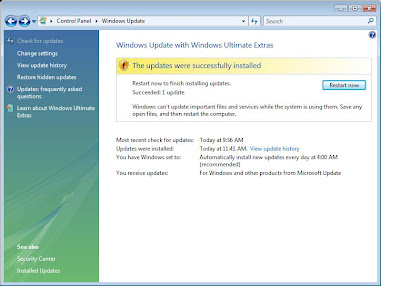
Rule of Thumb for future problems on Vista: Look for and/or remove previously installed Hotfixe and reload to see if it will solve the problem.
This update (KB929777) failed twice before I went searching for the answer. I found this posting on Microsoft's TechNet forums:
http://social.technet.microsoft.com/Forums/en-US/itprovistasecurity/thread/6b9f6a7c-1b91-422f-a803-11440418008f/
The post in the middle with the fewest steps seemed to work for me. Here's the gist:
1: Open up "Control Panel" and navigate your way to "Programs and Features".
2: Click "View installed updates" on the left hand side.
3: Find the update KB929777 and uninstall it.
4: Attempt to install the update again in Windows Update
5: Once successful, restart your PC.
Here's what it looks like after the solution is applied:

Rule of Thumb for future problems on Vista: Look for and/or remove previously installed Hotfixe and reload to see if it will solve the problem.
TIPS & TRICKS: Deploying Sophos Anti-Virus to Vista
Using Sophos Enterprise Console 3.0.0.2321 to deploy Sophos to Vista did not work out of the box. Sophos gives a work-around here:
http://www.sophos.com/support/knowledgebase/article/15027.html
In my own testing, I found that steps 1 & 2 were sufficient and did not require a reboot to take effect. However, I do not know how much of it was also due to our AD Group Policies. I did realize that when I tried to deploy from the Console yesterday, our Group Policies had not propagated down to the workstation yet. Today, I see that they have come down to the machine. Nevertheless, I was unable to deploy until I took the first two steps Sophos recommended.
http://www.sophos.com/support/knowledgebase/article/15027.html
In my own testing, I found that steps 1 & 2 were sufficient and did not require a reboot to take effect. However, I do not know how much of it was also due to our AD Group Policies. I did realize that when I tried to deploy from the Console yesterday, our Group Policies had not propagated down to the workstation yet. Today, I see that they have come down to the machine. Nevertheless, I was unable to deploy until I took the first two steps Sophos recommended.
Monday, December 29, 2008
TIPS & TRICKS: Sophos Error 3057
Updated this post:
http://acctu.blogspot.com/2007/08/fix-sophos-stand-alone-installation.html
About 2/3 through the installation, I came across this message:
Sophos now has a knowledge base article on it:
http://www.sophos.com/support/knowledgebase/article/22862.html
However, the article is not clear at all on how to hack the registry to get it to install properly. Here are the steps that worked for me:
1. Run Regedit. If you don't know what this is, I would suggest seeking the help of someone who does. Any wrong setting made with this tool could cripple your machine.
2. Navigate to HKEY_LOCAL_MACHINE > Software.
3. Right-click on the software key and select Permissions.
4. Explicitly add your currently logged-in user with full permissions.
5. Close out and reinstall Sophos.
This worked for me without the steps listed in my previous post on the problem. Now off to retrace the steps to install from the Management Console. Happy computing.
http://acctu.blogspot.com/2007/08/fix-sophos-stand-alone-installation.html
About 2/3 through the installation, I came across this message:
Error 3057. There was an unexpected error while attempting to create, repair or delete a user account. Contact your support personnel.
Sophos now has a knowledge base article on it:
http://www.sophos.com/support/knowledgebase/article/22862.html
However, the article is not clear at all on how to hack the registry to get it to install properly. Here are the steps that worked for me:
1. Run Regedit. If you don't know what this is, I would suggest seeking the help of someone who does. Any wrong setting made with this tool could cripple your machine.
2. Navigate to HKEY_LOCAL_MACHINE > Software.
3. Right-click on the software key and select Permissions.
4. Explicitly add your currently logged-in user with full permissions.
5. Close out and reinstall Sophos.
This worked for me without the steps listed in my previous post on the problem. Now off to retrace the steps to install from the Management Console. Happy computing.
RANTS: Digital Picture Frames Come With Free Viruses
If you've purchased or received a Samsung Digital Picture frame from Amazon, take a look at this posting by Amazon:
http://www.amazon.com/gp/forum/cd/discussion.html?ie=UTF8&cdForum=Fx20DX5GEB7TUX8&cdThread=Tx2LOAXBDR3N47W
This is not the first time this has happened:
http://www.foxnews.com/story/0,2933,337848,00.html?sPage=fnc/scitech/cybersecurity
It won't be the last. I've already heard of these types of things happening with hard drives, which is why I do a wipe of all new hard drives before I deploy.
How To Protect Yourself:
- Always run an anti-virus program on your computer.
- Always keep that anti-virus program updated.
- When purchasing or obtaining anything that may hold data (i.e. digital picture frame, hard drives, USB flash drives, etc.), make sure to, at least, do a virus scan on the device. The better thing to do is to wipe and/or format the device before your first use.
Good luck and happy computing.
http://www.amazon.com/gp/forum/cd/discussion.html?ie=UTF8&cdForum=Fx20DX5GEB7TUX8&cdThread=Tx2LOAXBDR3N47W
This is not the first time this has happened:
http://www.foxnews.com/story/0,2933,337848,00.html?sPage=fnc/scitech/cybersecurity
It won't be the last. I've already heard of these types of things happening with hard drives, which is why I do a wipe of all new hard drives before I deploy.
How To Protect Yourself:
- Always run an anti-virus program on your computer.
- Always keep that anti-virus program updated.
- When purchasing or obtaining anything that may hold data (i.e. digital picture frame, hard drives, USB flash drives, etc.), make sure to, at least, do a virus scan on the device. The better thing to do is to wipe and/or format the device before your first use.
Good luck and happy computing.
Wednesday, December 17, 2008
TIPS & TRICKS: Problems Scrolling with Apple Mighty Mouse
Recently, I started experiencing scrolling problems with my Apple Bluetooth Mighty Mouse. The scroll button started intermittently working and then stopped working altogether. I always thought of the scroll button on the Mighty Mouse as a delicate precision button and treated it as such. However, after a good hard push, some canned air, and a wet cloth later, I got it back to working smoothly. For some specific instructions, I found this site helpful:
http://theappleblog.com/2008/09/27/revive-your-mighty-mouse-scroll-ball/
I'm still excited when I can fix something myself. Passing it along is just a bonus. Happy computing.
http://theappleblog.com/2008/09/27/revive-your-mighty-mouse-scroll-ball/
I'm still excited when I can fix something myself. Passing it along is just a bonus. Happy computing.
Subscribe to:
Posts (Atom)