I've always been a fan of keyboard shortcuts. Mousing is faster for somethings, but keyboard shortcuts really help to cut down time to do repetitive tasks. Here's a bunch of Outlook 2011 keyboard shortcuts from Microsoft:
http://mac2.microsoft.com/help/office/14/en-us/outlook/item/3b58300d-6f02-47f3-b1fc-9cbe8bb4eac7
Got any of your own you can't live without?
Showing posts with label outlook. Show all posts
Showing posts with label outlook. Show all posts
Wednesday, October 19, 2011
Thursday, August 18, 2011
TIPS & TRICKS: Transferring Outlook 2007 AutoComplete Email Addresses to Outlook 2010
Most people probably don't know that Outlook saves frequently used email addresses, which is completely separate from Outlook Contacts. Those addresses are very useful to migrate along with your other Outlook files over to Outlook 2010.
There are 3rd party tools out there that help to do the migration. But, I'm always one to try to use native tools first, as long as they work well. I found this tool from Microsoft that seems to work well:
http://support.microsoft.com/kb/980542#ImportNK2Files_Outlook
In addition, to this being a useful tool, the article also points out that Outlook 2010 no longer uses a .NK2 file to store these frequently used addresses. I didn't figure out where Outlook 2010 now stores these addresses. Perhaps there's some tie-in in the future to Microsoft's Live Services, in which case I would expect it to be in some sort of web-enabled file (i.e. XML or similar).
One thing I haven't figure out is if the machine is in a domain/Exchange, then what happens to those names that are not complete email addresses because of Exchange resolution in Outlook 2007. Do those names (i.e. usernames) get imported and become duplicates? I just did this for someone. We'll find out soon enough.
There are 3rd party tools out there that help to do the migration. But, I'm always one to try to use native tools first, as long as they work well. I found this tool from Microsoft that seems to work well:
http://support.microsoft.com/kb/980542#ImportNK2Files_Outlook
In addition, to this being a useful tool, the article also points out that Outlook 2010 no longer uses a .NK2 file to store these frequently used addresses. I didn't figure out where Outlook 2010 now stores these addresses. Perhaps there's some tie-in in the future to Microsoft's Live Services, in which case I would expect it to be in some sort of web-enabled file (i.e. XML or similar).
One thing I haven't figure out is if the machine is in a domain/Exchange, then what happens to those names that are not complete email addresses because of Exchange resolution in Outlook 2007. Do those names (i.e. usernames) get imported and become duplicates? I just did this for someone. We'll find out soon enough.

Tuesday, January 11, 2011
TIPS & TRICKS: Save As Popup for Outlook 2010
User got a new MacBook Pro on which I installed Bootcamp and Parallels. User boots into OS X, uses Parallels to start the Bootcamp partition of Windows 7 Enterprise 64-bit. On that Windows 7 installation is Office 2010. In migrating over the user's almost 10GB worth of email data, I suggested we dump all of that archived email into Exchange. That's a lot of email data, I know. But, we had the space and figured we'd give it a go.
User opens up his PST files in Outlook 2010 and starts to move things into the Exchange area. After the first 1+ GB of data, he starts to get this window:

This annoying popup that came up every few minutes or so. Here are the things I tried:
- I checked to see if this would happen in another user's account on the same machine. It did not.
- I had him login to another machine to see if the problem would occur. It did not.
- I had him try just accepting the download for awhile. It did not stop.
- I created another Outlook profile to see if would continue. It did not.
- I tried to reinstall Outlook to see if it would stop the problem. It did not.
- I deleted his entire Windows user profile and created a new profile to see if it would stop the popups. It did not.
- Finally, I found this thread online: http://social.answers.microsoft.com/Forums/en-US/outlooksend/thread/5bf5f5a4-e36b-48f0-a28c-eaa94518bbf2
Basically, the problem is probably a combination of one or more email messages in his account that is trying to interact with Microsoft's new Social Connector called People Pane. Since he didn't need this feature, I disabled it in Outlook > View > People Pane > Off. The popups all went away.
I guess it's one of those things where old data meets new software.
User opens up his PST files in Outlook 2010 and starts to move things into the Exchange area. After the first 1+ GB of data, he starts to get this window:

This annoying popup that came up every few minutes or so. Here are the things I tried:
- I checked to see if this would happen in another user's account on the same machine. It did not.
- I had him login to another machine to see if the problem would occur. It did not.
- I had him try just accepting the download for awhile. It did not stop.
- I created another Outlook profile to see if would continue. It did not.
- I tried to reinstall Outlook to see if it would stop the problem. It did not.
- I deleted his entire Windows user profile and created a new profile to see if it would stop the popups. It did not.
- Finally, I found this thread online: http://social.answers.microsoft.com/Forums/en-US/outlooksend/thread/5bf5f5a4-e36b-48f0-a28c-eaa94518bbf2
Basically, the problem is probably a combination of one or more email messages in his account that is trying to interact with Microsoft's new Social Connector called People Pane. Since he didn't need this feature, I disabled it in Outlook > View > People Pane > Off. The popups all went away.
I guess it's one of those things where old data meets new software.
Friday, April 16, 2010
TIPS & TRICKS: Microsoft Outlook Unable to Open
PROBLEM:
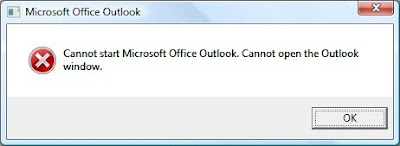
Attempted to launch Outlook 2007. Received an error message of:
Here's a screen shot:
Outlook, like most other programs, can be run from a command line, albeit Microsoft's version. This usually means that there should be options in launching Outlook. Originally, I wanted to start Outlook in Safe Mode. This works by holding the CTRL key down while clicking on the Outlook icon, not a command line. However, this did not work and I received the same message.
THE FIX:
Still not quite a command line option, but close. With Outlook and the error message gone, click on Start > Run (or Start, and type run in the search field in Windows Vista and 7). Type outlook.exe /resetnavpane.
This solved my problem. If your problem is different, here's a site that has a list of different options:
http://www.howto-outlook.com/howto/commandlineswitches.htm
Be careful, though. I would find a way to backup your data in Outlook before attempting something you are not certain about. Most of the commands will not affect your data, but it's better to be safe.
Attempted to launch Outlook 2007. Received an error message of:
Cannot start Microsoft Office Outlook. Cannot open the Outlook window.
Here's a screen shot:

Outlook, like most other programs, can be run from a command line, albeit Microsoft's version. This usually means that there should be options in launching Outlook. Originally, I wanted to start Outlook in Safe Mode. This works by holding the CTRL key down while clicking on the Outlook icon, not a command line. However, this did not work and I received the same message.
THE FIX:
Still not quite a command line option, but close. With Outlook and the error message gone, click on Start > Run (or Start, and type run in the search field in Windows Vista and 7). Type outlook.exe /resetnavpane.
This solved my problem. If your problem is different, here's a site that has a list of different options:
http://www.howto-outlook.com/howto/commandlineswitches.htm
Be careful, though. I would find a way to backup your data in Outlook before attempting something you are not certain about. Most of the commands will not affect your data, but it's better to be safe.
Subscribe to:
Posts (Atom)