Often, I field questions about how to protect a computer, especially when it's brand new. I've often given customized advice to people, depending on their current environment. But, I get the questions enough that I considered composing a document that outlines this information.
Fortunately, I have (and, so have you) paid for someone else to compose this document for us:
http://www.us-cert.gov/security-publications/ten-ways-improve-security-new-computer
This federal government site has a wealth of information, including this well-written document, on how to secure your computer from the bad guys. There's lots of ways to protect your new computer from getting compromised, but this document provides a great baseline for everyone to follow.
Besides the steps outlined in this document, I would also add that setting up a new machine is a perfect time to also setup a solid backup solution and consider encrypting the hard drive in your computer, especially if it's a notebook that gets lots of miles.
Showing posts with label Automatic Updates. Show all posts
Showing posts with label Automatic Updates. Show all posts
Friday, April 19, 2013

Thursday, January 08, 2009
TIPS & TRICKS: Thunderbird Fails to Update as Non-Adminstrator
I already knew that some software fails to update when running as non-administrator in Windows XP. Thunderbird is one of those pieces of software. Firefox also has the same problem. Another part of this problem is that both Thunderbird and Firefox, by default, run automatic Software Updates even as non-administrator. When Software Update runs automatically as non-administrator, the update will fail. The solution to the non-administrator problem seems to be to, periodically, run the updates manually as a user with administrative rights before the Software Update process has a chance to check. You can take this a step further and disable the automatic Software Update process in the non-administrator profile by going to Tools > Options > Advanced > Update and change to Ask me what I want to do.
To throw in an added complexity, Logitech webcam software also causes Thunderbird to not update. This is the error message I received:
This fix is documented on mozillazine.org here:
http://kb.mozillazine.org/Software_Update
This seems to affect even users with administrative rights to install software. The fix is, basically, shutdown the Logitech webcam software and the update will run normally.
Good luck and happy computing.
To throw in an added complexity, Logitech webcam software also causes Thunderbird to not update. This is the error message I received:
"Software Update Failed. One or more files could not be updated. Please make sure all other applications are closed and that you have permission to modify files, and then restart Thunderbird to try again."
This fix is documented on mozillazine.org here:
http://kb.mozillazine.org/Software_Update
This seems to affect even users with administrative rights to install software. The fix is, basically, shutdown the Logitech webcam software and the update will run normally.
Good luck and happy computing.
Tuesday, December 30, 2008
TIPS & TRICKS: Windows Update KB929777 Fails with Error 8000FFFF
This is a newly reloaded Windows Vista Ultimate build that was added to our Active Directory, loaded with Sophos Anti-Virus from our Management Console, and all other Windows Updates up to this point applied.
This update (KB929777) failed twice before I went searching for the answer. I found this posting on Microsoft's TechNet forums:
http://social.technet.microsoft.com/Forums/en-US/itprovistasecurity/thread/6b9f6a7c-1b91-422f-a803-11440418008f/
The post in the middle with the fewest steps seemed to work for me. Here's the gist:
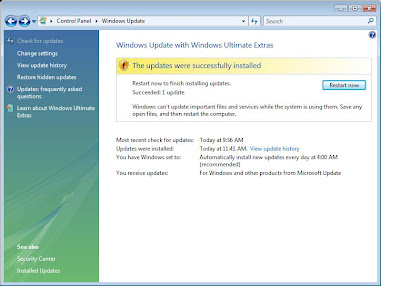
Here's what it looks like after the solution is applied:
Rule of Thumb for future problems on Vista: Look for and/or remove previously installed Hotfixe and reload to see if it will solve the problem.
This update (KB929777) failed twice before I went searching for the answer. I found this posting on Microsoft's TechNet forums:
http://social.technet.microsoft.com/Forums/en-US/itprovistasecurity/thread/6b9f6a7c-1b91-422f-a803-11440418008f/
The post in the middle with the fewest steps seemed to work for me. Here's the gist:
1: Open up "Control Panel" and navigate your way to "Programs and Features".
2: Click "View installed updates" on the left hand side.
3: Find the update KB929777 and uninstall it.
4: Attempt to install the update again in Windows Update
5: Once successful, restart your PC.
Here's what it looks like after the solution is applied:

Rule of Thumb for future problems on Vista: Look for and/or remove previously installed Hotfixe and reload to see if it will solve the problem.
Wednesday, April 18, 2007
TIPS & TRICKS: Microsoft Updates for April 2007
Microsoft, generally, releases their updates to Windows on the second Tuesday of every month. Generally, I don't see many problems. However, after this last round of updates, I've been finding that machines have been slowing down to the point that they are unusable. Another symptom has been an error message with the following message:
svchost.exe - Application Error : The instruction at "0x745f2780" referenced memory at "0x00000070"". The memory could not be "read".
After a bit of research, I've discovered that Microsoft knows about the problem and has a fix for it. Here are the links to their knowledge base articles. The latter is all I needed for my own fixes.
http://support.microsoft.com/kb/916089
http://support.microsoft.com/kb/927891
Happy computing.
svchost.exe - Application Error : The instruction at "0x745f2780" referenced memory at "0x00000070"". The memory could not be "read".
After a bit of research, I've discovered that Microsoft knows about the problem and has a fix for it. Here are the links to their knowledge base articles. The latter is all I needed for my own fixes.
http://support.microsoft.com/kb/916089
http://support.microsoft.com/kb/927891
Happy computing.
Subscribe to:
Posts (Atom)