Learned something new today. Enabling whole-disk encryption via FileVault on OS X each user needs to be given specific permission to get into the machine when initially starting up a machine. This includes both local users, as well as directory-defined or network users. In the case of the network users, the network users must have a mobile account created when logging into the machine for the first time.
Showing posts with label OS X. Show all posts
Showing posts with label OS X. Show all posts
Wednesday, July 23, 2014

Tuesday, June 25, 2013
TIPS & TRICKS: Slow Wake for MacBook Pro
Apparently, Apple notebooks have a standby mode that is a deeper sleep than the standard sleep that happens when you first close the lid. This standby mode kicks in after an hour of normal sleep by default to help save battery power. Good feature to really help save battery drain while the computer is sleeping.
However, there is a draw back. It takes about 10 to 15 seconds after the lid is open before a password can be entered. If I'm a hurry, 10 to 15 seconds seems like an eternity.
Fortunately, there's a way to adjust this behavior. Here's the command to use in terminal:
sudo pmset -a standbydelay 86400
The 86400 is the number seconds in 24 hours. This can be adjusted to what ever works for you. To check the setting:
pmset -g
See the following blog for additional information:
Hope this helps you.
Wednesday, May 08, 2013
TIPS & TRICKS: Software Recommendations
My list of software to try to make my own life more efficient. Reminder: Automate repetitive tasks. Don't get too caught up in the automation itself.
OS X:
- CheatSheet - Free app that summarizes the keyboard shortcuts available for the current application. http://www.cheatsheetapp.com/CheatSheet/
iOS:
- Drafts - Paid note taking app heard about on Mac Power Users podcast. Useful for starting email messages, text messages, reminders, etc. http://agiletortoise.com/drafts/
Sunday, March 10, 2013
TIPS & TRICKS: Viewing Hidden Files in OS X
Initially, I wanted to find a way to transfer music off an old iPod that hadn't been synced to anything for a long time. I have done this many times with a Windows machine and even told people that it's possible to do it on a Mac (OS X). However, I've never actually done it myself.
The basic process is the same on OS X as it is on Windows. Use the OS explorer window to navigate the iPod after making sure that hidden files are visible. On OS X, this is the secret sauce:
A follow-up tip to this one is how to make a hidden folder into a non-hidden folder once it's made visible and to recursively make all subfolders unhidden:
The basic process is the same on OS X as it is on Windows. Use the OS explorer window to navigate the iPod after making sure that hidden files are visible. On OS X, this is the secret sauce:
- Launch Terminal, located at /Applications/Utilities.
- Type or copy/paste the following two commands into the Terminal window, next to the Terminal prompt. Press the return or enter key after you enter each line.
- defaults write com.apple.finder AppleShowAllFiles TRUE
- killall Finder
- If you ever want to make the hidden folders disappear again, just run the code again, but change TRUE to FALSE.
Making hidden files visible in the operating system can be useful for other troubleshooting and modification steps.
A follow-up tip to this one is how to make a hidden folder into a non-hidden folder once it's made visible and to recursively make all subfolders unhidden:
- Using the same terminal window, drag the folder or file into the terminal window. This will put the correct path to the file/folder that needs to be changed to unhidden.
- Using the arrows on the keyboard, backspace to the beginning of the path and type in:
- chflags -R nohidden
- This should give a command that looks something like:
- chflags -R nohidden /Users/username/Desktop/FolderName
- Follow-up the successful command with a:
- killall Finder
Tuesday, November 06, 2012
TIPS & TRICKS: Manually Change Time Machine Backup Schedule
Apple's Time Machine was, by far, the best tool Apple introduced with OS X Leopard (10.5). Backups are always the last thing most users think about. But, it's the first thing people wish they would have had when there's some failure that prevents them from accessing their data. Time Machine's simplicity should have every single person who doesn't already have a backup solution adopt it with fervor.
As great as the tool is for most backup needs, I have discovered a drawback. Time Machine runs a backup once an hour. The constant barrage of data hitting the backup destination can put a toll on the media. In many cases, the media is an external hard drive with physical hard drive. The drives themselves are not nearly as sturdy as they used to be. I've come across users who have had to replace their backup drives inside of 6 months. If you need the once an hour backup interval, then you'll need to put up with this routine maintenance. Think of it as changing the oil filter every time you change your oil in the car.
Fortunately, there is a fix for those people who don't need the backups nearly that frequently. As the saying goes, there's an app for this. However, I am an fan of understanding how the underlying code works. The manual method is this command (all one line):
The 14400 is the number of seconds in 4 hours. The number you choose should be a factor of 3600 seconds (1 hour). For example if you want to do it once every 7 days, you would use 604800. You can also check the change with this command:
Hope this helps you out with extending the life of that backup hard drive.
As great as the tool is for most backup needs, I have discovered a drawback. Time Machine runs a backup once an hour. The constant barrage of data hitting the backup destination can put a toll on the media. In many cases, the media is an external hard drive with physical hard drive. The drives themselves are not nearly as sturdy as they used to be. I've come across users who have had to replace their backup drives inside of 6 months. If you need the once an hour backup interval, then you'll need to put up with this routine maintenance. Think of it as changing the oil filter every time you change your oil in the car.
Fortunately, there is a fix for those people who don't need the backups nearly that frequently. As the saying goes, there's an app for this. However, I am an fan of understanding how the underlying code works. The manual method is this command (all one line):
sudo defaults write /System/Library/LaunchDaemons/com.apple.backupd-auto StartInterval -int 14400The 14400 is the number of seconds in 4 hours. The number you choose should be a factor of 3600 seconds (1 hour). For example if you want to do it once every 7 days, you would use 604800. You can also check the change with this command:
sudo defaults read /System/Library/LaunchDaemons/com.apple.backupd-auto StartIntervalHope this helps you out with extending the life of that backup hard drive.
Thursday, April 05, 2012
RANTS: The Day Has Finally Arrived
People have been saying for some time that Macs are safe and are not susceptible to malware infections. As a result, anti-malware software is not needed. The market more or less followed this trend. But, this has changed. Malware is not something that only PC users have to deal with anymore. I've been asked many times in the past whether anti-virus or other anti-malware was needed. I've always said that it's better to be proactive about protection than to wait until there's a problem. By then, the computer would've already been infected.
Here's a BBC news article about Macs becoming the right size target for attackers to pay attention:
http://www.bbc.co.uk/news/science-environment-17623422
Here's the F-Secure link about how to figure out if your Mac might be infected:
http://www.f-secure.com/v-descs/trojan-downloader_osx_flashback_i.shtml
Hope this helps someone.
Here's a BBC news article about Macs becoming the right size target for attackers to pay attention:
http://www.bbc.co.uk/news/science-environment-17623422
Here's the F-Secure link about how to figure out if your Mac might be infected:
http://www.f-secure.com/v-descs/trojan-downloader_osx_flashback_i.shtml
Hope this helps someone.
Monday, February 27, 2012
TIPS & TRICKS: Imaging Bootcamp Partition on a Mac
I haven't used this tool yet. But, it definitely came from a good recommendation source. OS X is already easy to clone and restore using various tools. The Bootcamp partition has not been quite as easy. Hopefully, this tool makes cloning as easy as the OS X side.
Tuesday, October 25, 2011
RANTS & RAVES: OS X Printing to Windows Print Server
Found a nice write-up of getting OS X printing to Windows Print Servers. This write-up includes advantages and disadvantages of 4 different methods:
http://www.softwareshelf.com/news/printmanager/tips/MacOSX_Printing_via_the_Windows_Print_Server.pdf
If the document no longer exists, let me know as I've saved a copy of the PDF.
- LPD
- Windows Print Sharing
- Windows Print Services for Macintosh; and
- Direct IP printing.
http://www.softwareshelf.com/news/printmanager/tips/MacOSX_Printing_via_the_Windows_Print_Server.pdf
If the document no longer exists, let me know as I've saved a copy of the PDF.
Monday, October 17, 2011
TIPS & TRICKS: Google Chrome Behavior of Green Zoom/Maximize Button in Lion
Apparently, Chrome is still using the pre-Lion behavior of the green button, which is as a zoom button. In Lion, this basically means that when a Chrome window that is not full screen and the green button is pushed, then the Chrome window stretches full screen only vertically and not horizontally. I thought one of the best features of Lion was Apple's redesign of the green button to be a true full screen.
The fix for this is to hold down the shift button while hitting the green button. This will make the Chrome window fill the screen.
The fix for this is to hold down the shift button while hitting the green button. This will make the Chrome window fill the screen.
Tuesday, March 01, 2011
TIPS & TRICKS: OS X Security Tips
Found some good information on how to secure Mac OS X, presented by Sophos:
http://nakedsecurity.sophos.com/2011/01/25/top-tips-for-os-x-security-part-1/
http://nakedsecurity.sophos.com/2011/02/02/top-tips-for-mac-os-x-security-part-2/
http://nakedsecurity.sophos.com/2011/02/21/top-tips-for-mac-os-x-security-part-3/
Sophos also offers free anti-virus for OS X here:
http://www.sophos.com/products/free-tools/free-mac-anti-virus/
http://nakedsecurity.sophos.com/2011/01/25/top-tips-for-os-x-security-part-1/
http://nakedsecurity.sophos.com/2011/02/02/top-tips-for-mac-os-x-security-part-2/
http://nakedsecurity.sophos.com/2011/02/21/top-tips-for-mac-os-x-security-part-3/
Sophos also offers free anti-virus for OS X here:
http://www.sophos.com/products/free-tools/free-mac-anti-virus/
Tuesday, May 25, 2010
RANTS & RAVES: Latest MacBook Pro (with i7 Core Processor) and Snow Leopard
First, Apple has made yet another decision to make life harder for Sysadmins. In reloading a brand new MacBook Pro with i7 Core processor, I discovered that my Snow Leopard (OS X 10.6) images would not work. I further realized that none of my Snow Leopard media (DVDs) worked either. In fact, as of this moment, no retail copy of Snow Leopard sitting on store shelves will work with these newly released MacBook Pros. The only bootable Snow Leopard disk that works right now is the one that came with the machine. As such, I had to build a new image using this media.
Second, I attempted to save some time by partitioning the HD before reloading the OS. I planned to use Bootcamp to install Windows 7 64-bit onto the MacBook Pro. I also found that this step doesn't work. When launching Bootcamp from the application located in Utilities, Bootcamp does not recognize the partition I setup for the Windows partition prior to loading OS X. Luckily, I had already imaged the OS X load and could easily wipe the drive again and just reimage. The raves of this post is, of course, the ability to image without having to start all over. How frustrating would it be have to start over? I don't want to find out.
Hope this helps you save some time.
Happy Computing.
Second, I attempted to save some time by partitioning the HD before reloading the OS. I planned to use Bootcamp to install Windows 7 64-bit onto the MacBook Pro. I also found that this step doesn't work. When launching Bootcamp from the application located in Utilities, Bootcamp does not recognize the partition I setup for the Windows partition prior to loading OS X. Luckily, I had already imaged the OS X load and could easily wipe the drive again and just reimage. The raves of this post is, of course, the ability to image without having to start all over. How frustrating would it be have to start over? I don't want to find out.
Hope this helps you save some time.
Happy Computing.
Wednesday, February 03, 2010
RANTS: Connecting to a Windows 7 machine from RDP on OS X
The basics:
- OS X.4.11
- PowerPC G5 machine
- Remote Desktop Connection Client for Mac v2.0.1
- Connecting to a Windows 7 64-bit machine with latest RDP client
The symptoms:
- Connection can be made to Windows 7 machine
- Mouse functions work normally
- As soon as a key is pressed on the keyboard of the G5, the RDP client on the G5 quits.
- Problem does not seem to be the Windows 7 machine, as I can connect to it from an Intel-based Mac.
Guess:
- Problem likely has to do with that the G5 is a PowerPC processor. Any guesses?
- OS X.4.11
- PowerPC G5 machine
- Remote Desktop Connection Client for Mac v2.0.1
- Connecting to a Windows 7 64-bit machine with latest RDP client
The symptoms:
- Connection can be made to Windows 7 machine
- Mouse functions work normally
- As soon as a key is pressed on the keyboard of the G5, the RDP client on the G5 quits.
- Problem does not seem to be the Windows 7 machine, as I can connect to it from an Intel-based Mac.
Guess:
- Problem likely has to do with that the G5 is a PowerPC processor. Any guesses?
Tuesday, January 12, 2010
TIPS & TRICKS: Connecting to OS X Share from Windows 7
For some reason, I had not yet tried an AFP connection to an OS X server share from Windows 7 yet. So, I tried it today. Opened Computer, clicked on Map network drive and proceeded to map the drive. After providing the correct credentials, Windows 7 would not connect.
What do I do next? Search for an answer online (okay, I googled it). It took me a couple tries, but I finally found the following answer. Go to Administrative Tools > Local Security Policy > Local Policies - Security Options. Find the policy that's called:
Network security: LAN Manager authentication level
Then modify the setting to show Send LM & NTLM responses. Next, in the same location, find the policy that's called:
Network security: Minimum session security for NTLM SSP
Then modify the setting to disable Require 128-bit encryption. In my attempt, I only modified the first setting and was able to get in. The second setting was listed in the answer I found here:
http://www.tomshardware.com/forum/75-63-windows-samba-issue
Basically, regardless of the type of connection (i.e. Samba, AFP, etc.) Windows needs to be able to send the correct type of challenge/response authentication protocol. By default, Windows 7 is not allowed to send the right one/type to OS X. This change in the local policies worked for me.
Happy Computing.
What do I do next? Search for an answer online (okay, I googled it). It took me a couple tries, but I finally found the following answer. Go to Administrative Tools > Local Security Policy > Local Policies - Security Options. Find the policy that's called:
Network security: LAN Manager authentication level
Then modify the setting to show Send LM & NTLM responses. Next, in the same location, find the policy that's called:
Network security: Minimum session security for NTLM SSP
Then modify the setting to disable Require 128-bit encryption. In my attempt, I only modified the first setting and was able to get in. The second setting was listed in the answer I found here:
http://www.tomshardware.com/forum/75-63-windows-samba-issue
Basically, regardless of the type of connection (i.e. Samba, AFP, etc.) Windows needs to be able to send the correct type of challenge/response authentication protocol. By default, Windows 7 is not allowed to send the right one/type to OS X. This change in the local policies worked for me.
Happy Computing.
Thursday, September 24, 2009
RANTS: List of Incompatibilities with Snow Leopard Upgrade
Finally upgraded to OS X.6. Wanted to keep a running log of things that didn't work after the upgrade:
- Printing to a Xerox WorkCentre Pro 238 stopped working, needed to update driver.
- Windows Remote Desktop, needed to delete the old one and download the new one from Microsoft.
- Cisco AnyConnect VPN client, needed to do a manual download of a newer version.
Update 10/3/2009:
- Sophos 7 hasn't been able to update in the past week or so. Ran the installer again and Sophos now updates normally.
- Possible problem with VPN allowing browser content. VPN connects fine and pinging works, but browser never connects. Need to test in a different location...Tested and found that the wireless router I was connected to did not allow a proper VPN connection. Not a Snow Leopard problem.
- Printing to a Xerox WorkCentre Pro 238 stopped working, needed to update driver.
- Windows Remote Desktop, needed to delete the old one and download the new one from Microsoft.
- Cisco AnyConnect VPN client, needed to do a manual download of a newer version.
Update 10/3/2009:
- Sophos 7 hasn't been able to update in the past week or so. Ran the installer again and Sophos now updates normally.
- Possible problem with VPN allowing browser content. VPN connects fine and pinging works, but browser never connects. Need to test in a different location...Tested and found that the wireless router I was connected to did not allow a proper VPN connection. Not a Snow Leopard problem.
Monday, July 20, 2009
TIPS & TRICKS: No video for Skype, Photo Booth, and iChat
In the office, I've been imaging new Macs with an image I have been keeping updated off an external hard drive. I captured the image from a newer Intel machine, though I don't recall which Apple model. It was most likely one of the notebooks.
I used this image to reload a brand new 24" silver iMac. The image process with Carbon Copy Cloner (http://www.bombich.com/software/ccc.html) worked flawlessly. The only thing, I had to beyond the image was update the software, install some Adobe software, and install the iLife suite. Everything else seemed to work fine, until I received a request to install Skype.
The Skype install went fine. However, the testing did not. Photo Booth, which I used because Skype was not working either, with this message:
I checked to make sure that the camera was showing up in System Profiler, which it did. I also tested iChat to see if it would find the built-in camera and that was unsuccessful.
After a few restarts, I decided to call Apple. Unfortunately, they were not much help either. They recommended an Archive & Install mainly because I told them my image came from a different machine. Not wanting to take the time to do that unless absolutely necessary, I decided to reset the PRAM. The key combination is Command-Option-P-R. While starting up the machine before the Apple logo showing up, hit this key combination and hold it all down until, at least, 2 bongs are heard.
This step fixed my problem. Skype, Photo Booth, and iChat were all able to detect the built-in web cam after the PRAM was reset. I also happened to search for the error message and found this link on Apple's Discussion Forums:
http://discussions.apple.com/thread.jspa?threadID=1753144&tstart=0
Hope this helps. Happy computing.
I used this image to reload a brand new 24" silver iMac. The image process with Carbon Copy Cloner (http://www.bombich.com/software/ccc.html) worked flawlessly. The only thing, I had to beyond the image was update the software, install some Adobe software, and install the iLife suite. Everything else seemed to work fine, until I received a request to install Skype.
The Skype install went fine. However, the testing did not. Photo Booth, which I used because Skype was not working either, with this message:
Photo Booth cannot open.
The graphics card installed in this computer does not support Photo Booth.
I checked to make sure that the camera was showing up in System Profiler, which it did. I also tested iChat to see if it would find the built-in camera and that was unsuccessful.
After a few restarts, I decided to call Apple. Unfortunately, they were not much help either. They recommended an Archive & Install mainly because I told them my image came from a different machine. Not wanting to take the time to do that unless absolutely necessary, I decided to reset the PRAM. The key combination is Command-Option-P-R. While starting up the machine before the Apple logo showing up, hit this key combination and hold it all down until, at least, 2 bongs are heard.
This step fixed my problem. Skype, Photo Booth, and iChat were all able to detect the built-in web cam after the PRAM was reset. I also happened to search for the error message and found this link on Apple's Discussion Forums:
http://discussions.apple.com/thread.jspa?threadID=1753144&tstart=0
Hope this helps. Happy computing.
Tuesday, April 21, 2009
RANTS: OS X-targeted Malware is Increasing
http://www.f-secure.com/v-descs/trojan_osx_dnschanger.shtml
As Apple gains marketshare, malware for OS X is on the rise. Here's a quote from a recent email I received:
Please make sure to practice safe surfing. Remember, just because OS X has very few viruses that you've heard of, doesn't mean that your Mac is 100% safe. Nothing is 100%.
Happy "safe" computing.
As Apple gains marketshare, malware for OS X is on the rise. Here's a quote from a recent email I received:
About 35% of [some org] is OS X and 73% Windows yet [some org] has had _more_ OS X boxes infected with the DNS changer than Windows boxes.
Please make sure to practice safe surfing. Remember, just because OS X has very few viruses that you've heard of, doesn't mean that your Mac is 100% safe. Nothing is 100%.
Happy "safe" computing.
Thursday, April 16, 2009
TIPS & TRICKS: Binding OS X Leopard to Active Directory
I neglected to document how I successfully did it the first time around. In trying to retrace my steps, I started with this site:
http://www.makemacwork.com/bind-to-active-directory.htm
After following these steps, I was expecting the login screen of OS X to show blank fields for the username and password. However, I still saw the original list of users.
After poking around the settings a bit more, I realized that there were a couple settings that I changed when binding the machine to the AD the first time. After clicking on Bind... OS X asks for AD credentials that have permission to bind machines to the Active Directory. Just below the username and password fields there are a couple of check boxes that should be left checked. Here's what they should look like:
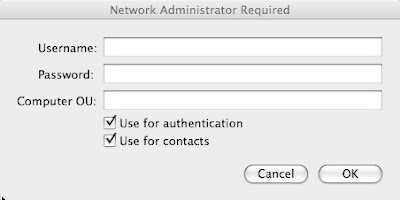
After I unbinded the machine and rebinded with those boxes checked, I was able to login to the machine with my AD credentials. NOTE: You might also be able to specify the directory domain on the Authentication server and contacts lists under Directory Utility > Search Policy without unbinding and rebinding. Just go to the Authentication tab click the plus button and check to see if the directory domain is listed. This can also be done with the contacts as well.
One other note, I would also go into System Preferences > Accounts > Login Options and change Display login window as: to Name and password for security and clarity that the user needs to provide their own username and password.
Happy computing...
http://www.makemacwork.com/bind-to-active-directory.htm
After following these steps, I was expecting the login screen of OS X to show blank fields for the username and password. However, I still saw the original list of users.
After poking around the settings a bit more, I realized that there were a couple settings that I changed when binding the machine to the AD the first time. After clicking on Bind... OS X asks for AD credentials that have permission to bind machines to the Active Directory. Just below the username and password fields there are a couple of check boxes that should be left checked. Here's what they should look like:

After I unbinded the machine and rebinded with those boxes checked, I was able to login to the machine with my AD credentials. NOTE: You might also be able to specify the directory domain on the Authentication server and contacts lists under Directory Utility > Search Policy without unbinding and rebinding. Just go to the Authentication tab click the plus button and check to see if the directory domain is listed. This can also be done with the contacts as well.
One other note, I would also go into System Preferences > Accounts > Login Options and change Display login window as: to Name and password for security and clarity that the user needs to provide their own username and password.
Happy computing...
Thursday, February 19, 2009
TIPS & TRICKS: Leopard Quick Look
In OS X (10.5), there's a feature called Quick Look:
http://www.apple.com/macosx/features/quicklook.html
I knew it was there, but never really bothered to integrate it into my everyday usage. But, I saw yet another tip for it today and decided to see if it will help productivity. The basics:
1. Highlight a file (or folder)
2. Hit the space bar or command y
I love keyboard shortcuts so this will likely stay in my bag of tools, mostly because, in addition to being able to preview contents of a file without waiting for the application to launch (we all know how long it takes for Word or Excel to launch), I can hit the esc key to close it out. Yet another way to avoid needing to reach for the mouse.
http://www.apple.com/macosx/features/quicklook.html
I knew it was there, but never really bothered to integrate it into my everyday usage. But, I saw yet another tip for it today and decided to see if it will help productivity. The basics:
1. Highlight a file (or folder)
2. Hit the space bar or command y
I love keyboard shortcuts so this will likely stay in my bag of tools, mostly because, in addition to being able to preview contents of a file without waiting for the application to launch (we all know how long it takes for Word or Excel to launch), I can hit the esc key to close it out. Yet another way to avoid needing to reach for the mouse.
Wednesday, February 04, 2009
RANT/RAVE: OS X Network Locations
Earlier this evening I worked on a client's Apple MacBook Pro. The machine had many configurations setup by someone else, other than the user. One of these configuration steps included configuring the network locations. First, within a network location (Apple > System Preferences > Network > Location), there can be multiple active network ports. By default Apple includes 4 ports: Airport, Bluetooth, Ethernet, and FireWire. Each of these can be set to inactive simply by selecting the port and clicking the button with the picture of a gear below the list and choosing Make Service Inactive.
This was important because I found that there was 2 network locations set: Airport and Ethernet. The Airport network location had everything else disabled, including Ethernet, FireWire, and Bluetooth. The Ethernet network location had everything else disabled, including Airport, FireWire, and Bluetooth. Initially, I wondered why this was configured this way. It could be inconvenient to have to manually switch network locations just to switch between Ethernet and Airport.
Then I understood why a network port having a dedicated Network Location might be important. Unexpected behavior may result if a Network Location has multiple active network ports. Fortunately, my personal experience has resulted in very few issues, if at all. In fact, Apple OS X's default configuration is for a single location to have all the network ports active simultaneously.
Nevertheless, to avoid problems it might be good practice in specific situations. At the end of the day, there should be a good balance between usability and preventing problems. I would say that this practice of separating the network ports is only good practice is a few situations. For the general user, it's more useful to just keep one network location with all the network ports active, as Apple has done by default.
This was important because I found that there was 2 network locations set: Airport and Ethernet. The Airport network location had everything else disabled, including Ethernet, FireWire, and Bluetooth. The Ethernet network location had everything else disabled, including Airport, FireWire, and Bluetooth. Initially, I wondered why this was configured this way. It could be inconvenient to have to manually switch network locations just to switch between Ethernet and Airport.
Then I understood why a network port having a dedicated Network Location might be important. Unexpected behavior may result if a Network Location has multiple active network ports. Fortunately, my personal experience has resulted in very few issues, if at all. In fact, Apple OS X's default configuration is for a single location to have all the network ports active simultaneously.
Nevertheless, to avoid problems it might be good practice in specific situations. At the end of the day, there should be a good balance between usability and preventing problems. I would say that this practice of separating the network ports is only good practice is a few situations. For the general user, it's more useful to just keep one network location with all the network ports active, as Apple has done by default.
Tuesday, December 30, 2008
TIPS & TRICKS: Connecting to OS X Server from Vista
I ran into trouble connecting to an Apple XServe running OS X.3.9. It worked fine from another OS X.4 machine, from a Windows XP machine. However, from a newly reloaded Vista Ultimate machine, I could not map the same network drive. I found on Apple's website a fix that modified LAN Manager Authentication settings. Here's the link:
http://discussions.apple.com/thread.jspa?messageID=8540006�
Since I, begrudgingly, manage several Vista machines I setup a Group Policy with the following setting:
Computer Configruation > Windows Settings > Security Settings > Local Policies > Security Options > Network Security: LAN Manager Authentication level. (By default this read "Send NTLMv2 response only.") > Send LM & NTLM -- use NTLMv2 session security if negotiated.
After making the change on the Group Policy side, I forced the Vista machine to grab the update. After the update, I reattempted to map the network drive and it worked just as it does on my Windows XP boxes.
Now to figure out if I opened up any unnecessary holes in our security scheme. Happy computing.
http://discussions.apple.com/thread.jspa?messageID=8540006�
Since I, begrudgingly, manage several Vista machines I setup a Group Policy with the following setting:
Computer Configruation > Windows Settings > Security Settings > Local Policies > Security Options > Network Security: LAN Manager Authentication level. (By default this read "Send NTLMv2 response only.") > Send LM & NTLM -- use NTLMv2 session security if negotiated.
After making the change on the Group Policy side, I forced the Vista machine to grab the update. After the update, I reattempted to map the network drive and it worked just as it does on my Windows XP boxes.
Now to figure out if I opened up any unnecessary holes in our security scheme. Happy computing.
Subscribe to:
Posts (Atom)