I often come across situations where I need to download a full installer of some piece of software without having to jump through hoops. Skype is a prime example. Often times, I want to download the latest installer without having to sign into any particular Skype account, except that Skype wants me to sign-in to my Skype account before they allow me to download. Usually, I'm trying to reinstall the software without having to provide any credentials, or I'm trying to update an OS image.
Fortunately, I found the link to download Skype for Windows version:
http://www.skype.com/en/download-skype/skype-for-windows/
Here's Skype for Mac:
http://www.skype.com/en/download-skype/skype-for-mac/
Note: It seems that the links above will base the download on what platform you are downloading from. For example, if you are downloading from a Windows machine, both the Windows link & the Mac link above will download an .exe file.
Another piece of software I frequently need is Adobe Flash. In this case, I generally need a full version rather than the stub you get when you go through the visible links on the main Adobe site. Here's the Adobe Flash download link:
http://www.adobe.com/products/flashplayer/distribution3.html
Will add more as I find them.
2014_02_18 Update: Here's the Google Chrome Full Offline Installer that will install Chrome for all users on Windows:
http://www.google.com/chrome/eula.html?system=true&standalone=1
Didn't see one for Mac.
2014_10_04 Update: Here's the free Mac Sophos Anti-Virus installer:
http://downloads.sophos.com/home-edition/savosx_90_he.zip
Showing posts with label Sophos. Show all posts
Showing posts with label Sophos. Show all posts
Monday, August 12, 2013

Tuesday, March 01, 2011
TIPS & TRICKS: OS X Security Tips
Found some good information on how to secure Mac OS X, presented by Sophos:
http://nakedsecurity.sophos.com/2011/01/25/top-tips-for-os-x-security-part-1/
http://nakedsecurity.sophos.com/2011/02/02/top-tips-for-mac-os-x-security-part-2/
http://nakedsecurity.sophos.com/2011/02/21/top-tips-for-mac-os-x-security-part-3/
Sophos also offers free anti-virus for OS X here:
http://www.sophos.com/products/free-tools/free-mac-anti-virus/
http://nakedsecurity.sophos.com/2011/01/25/top-tips-for-os-x-security-part-1/
http://nakedsecurity.sophos.com/2011/02/02/top-tips-for-mac-os-x-security-part-2/
http://nakedsecurity.sophos.com/2011/02/21/top-tips-for-mac-os-x-security-part-3/
Sophos also offers free anti-virus for OS X here:
http://www.sophos.com/products/free-tools/free-mac-anti-virus/
Tuesday, December 30, 2008
TIPS & TRICKS: Windows Update KB929777 Fails with Error 8000FFFF
This is a newly reloaded Windows Vista Ultimate build that was added to our Active Directory, loaded with Sophos Anti-Virus from our Management Console, and all other Windows Updates up to this point applied.
This update (KB929777) failed twice before I went searching for the answer. I found this posting on Microsoft's TechNet forums:
http://social.technet.microsoft.com/Forums/en-US/itprovistasecurity/thread/6b9f6a7c-1b91-422f-a803-11440418008f/
The post in the middle with the fewest steps seemed to work for me. Here's the gist:
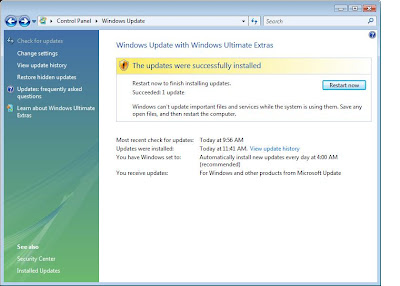
Here's what it looks like after the solution is applied:
Rule of Thumb for future problems on Vista: Look for and/or remove previously installed Hotfixe and reload to see if it will solve the problem.
This update (KB929777) failed twice before I went searching for the answer. I found this posting on Microsoft's TechNet forums:
http://social.technet.microsoft.com/Forums/en-US/itprovistasecurity/thread/6b9f6a7c-1b91-422f-a803-11440418008f/
The post in the middle with the fewest steps seemed to work for me. Here's the gist:
1: Open up "Control Panel" and navigate your way to "Programs and Features".
2: Click "View installed updates" on the left hand side.
3: Find the update KB929777 and uninstall it.
4: Attempt to install the update again in Windows Update
5: Once successful, restart your PC.
Here's what it looks like after the solution is applied:

Rule of Thumb for future problems on Vista: Look for and/or remove previously installed Hotfixe and reload to see if it will solve the problem.
TIPS & TRICKS: Deploying Sophos Anti-Virus to Vista
Using Sophos Enterprise Console 3.0.0.2321 to deploy Sophos to Vista did not work out of the box. Sophos gives a work-around here:
http://www.sophos.com/support/knowledgebase/article/15027.html
In my own testing, I found that steps 1 & 2 were sufficient and did not require a reboot to take effect. However, I do not know how much of it was also due to our AD Group Policies. I did realize that when I tried to deploy from the Console yesterday, our Group Policies had not propagated down to the workstation yet. Today, I see that they have come down to the machine. Nevertheless, I was unable to deploy until I took the first two steps Sophos recommended.
http://www.sophos.com/support/knowledgebase/article/15027.html
In my own testing, I found that steps 1 & 2 were sufficient and did not require a reboot to take effect. However, I do not know how much of it was also due to our AD Group Policies. I did realize that when I tried to deploy from the Console yesterday, our Group Policies had not propagated down to the workstation yet. Today, I see that they have come down to the machine. Nevertheless, I was unable to deploy until I took the first two steps Sophos recommended.
Monday, December 29, 2008
TIPS & TRICKS: Sophos Error 3057
Updated this post:
http://acctu.blogspot.com/2007/08/fix-sophos-stand-alone-installation.html
About 2/3 through the installation, I came across this message:
Sophos now has a knowledge base article on it:
http://www.sophos.com/support/knowledgebase/article/22862.html
However, the article is not clear at all on how to hack the registry to get it to install properly. Here are the steps that worked for me:
1. Run Regedit. If you don't know what this is, I would suggest seeking the help of someone who does. Any wrong setting made with this tool could cripple your machine.
2. Navigate to HKEY_LOCAL_MACHINE > Software.
3. Right-click on the software key and select Permissions.
4. Explicitly add your currently logged-in user with full permissions.
5. Close out and reinstall Sophos.
This worked for me without the steps listed in my previous post on the problem. Now off to retrace the steps to install from the Management Console. Happy computing.
http://acctu.blogspot.com/2007/08/fix-sophos-stand-alone-installation.html
About 2/3 through the installation, I came across this message:
Error 3057. There was an unexpected error while attempting to create, repair or delete a user account. Contact your support personnel.
Sophos now has a knowledge base article on it:
http://www.sophos.com/support/knowledgebase/article/22862.html
However, the article is not clear at all on how to hack the registry to get it to install properly. Here are the steps that worked for me:
1. Run Regedit. If you don't know what this is, I would suggest seeking the help of someone who does. Any wrong setting made with this tool could cripple your machine.
2. Navigate to HKEY_LOCAL_MACHINE > Software.
3. Right-click on the software key and select Permissions.
4. Explicitly add your currently logged-in user with full permissions.
5. Close out and reinstall Sophos.
This worked for me without the steps listed in my previous post on the problem. Now off to retrace the steps to install from the Management Console. Happy computing.
Wednesday, August 08, 2007
TIPS & TRICKS: Sophos Stand-Alone Installation Error 3057
In trying to install the Sophos Anti-Virus onto a Windows Vista machine using a stand-alone installer, I ran into an error message towards the end of the installation. An error message popped up that said the following:
Error 3057: There was an unexpected error while attempting to create, repair or delete a user account. Contact your support personnel.
Well, I am the support personnel. Where do I go for help? For once, tech support over the phone actually worked. I called Sophos and they had a fix. It was registry modification, which didn't sit well with me because that usually means it'll affect many users for us. But, that's another problem for another day.
For now, here's the modification:
1. Open Regedit
2. Open HKEY_LOCAL_MACHINE
3. Open Software
4. Check the Permissions for Software to make sure the Administrators group is explicitly listed and has full permissions. There are a few other keys to check for permissions also. They are:
HKLM>Software>Classes
HKLM>Software>Classes>Interface
HKLM>Software>Classes>Interface>TypeLib
HKLM>Software>Sophos
But, the one that needed to modified for me was the first one.
5. Next, open Computer Management
6. Go to Users
7. Delete any entries that start with "SophosSAU..."
8. Finally, reattempt the reinstallation and it should work now.
Update: Found that if the HKLM>Software registry shows the Everyone group with full permissions and nothing else, then the above fix key works. However, if the permissions already shows the Administrators group, then the problem lies elsewhere.
Error 3057: There was an unexpected error while attempting to create, repair or delete a user account. Contact your support personnel.
Well, I am the support personnel. Where do I go for help? For once, tech support over the phone actually worked. I called Sophos and they had a fix. It was registry modification, which didn't sit well with me because that usually means it'll affect many users for us. But, that's another problem for another day.
For now, here's the modification:
1. Open Regedit
2. Open HKEY_LOCAL_MACHINE
3. Open Software
4. Check the Permissions for Software to make sure the Administrators group is explicitly listed and has full permissions. There are a few other keys to check for permissions also. They are:
HKLM>Software>Classes
HKLM>Software>Classes>Interface
HKLM>Software>Classes>Interface>TypeLib
HKLM>Software>Sophos
But, the one that needed to modified for me was the first one.
5. Next, open Computer Management
6. Go to Users
7. Delete any entries that start with "SophosSAU..."
8. Finally, reattempt the reinstallation and it should work now.
Update: Found that if the HKLM>Software registry shows the Everyone group with full permissions and nothing else, then the above fix key works. However, if the permissions already shows the Administrators group, then the problem lies elsewhere.
Subscribe to:
Posts (Atom)