Had an interesting request about denying internet access to a particular user account on a Windows machine. This exercise showed me again that is usually more than one way to accomplish something. The first hurdle was that this needed to be done on different versions of Windows. It was already done on a Windows XP machine via NTFS permissions. I had to find a way to do it on Windows Vista Home Premium and Windows 7 Enterprise.
On Windows Vista Home Premium (HP), the process was actually fairly easy. Windows Vista HP has Parental Controls in it, which helped us accomplish our goal. Specifically, it was the Vista Web Filtering tools built-in to the Parental Controls. First, turn on the Parental Controls found in Control Panel. Next click through to the Web Filtering tool and enable the sites allowed option. The key to make this work is to make sure to NOT list any sites to be allowed. This will block all connections via a web browser. What's more, I tested this through Firefox in the account controlled by Parental Controls as well and it worked too.
Windows 7 did away with the Web Filter tools in Parental Controls. Had to find another way to do it. A Google search yielded the path of using a proxy address to control the flow. The nice thing about this solution is that proxy configurations are now user-specific, which means it only affects the one user and not all users. Here are the steps:
1. While in the user account that needs to be limited, setup a proxy server address in Internet Options > Connections > LAN settings. I used 127.0.0.1.
2. Log out and login to an account with administrative access.
3. Launch Local Group Policy Editor (gpedit.msc).
4. Under User Configuration > Administrative Templates > Windows Components > Internet Explorer > Browser Menus, enable the Tools menu: Disable Internet Options... menu option. This will disable access to Internet Options from Internet Explorer.
5. In the same window for Local Group Policy Editor, go to User Configuration > Administrative Templates and click on Control Panel.
6. Open the option for Hide specified Control Panel items and enable it. Then click on the Show button.
7. In a blank field under the Value column, type in Microsoft.InternetOptions. This disables access to the Internet Options area from the Windows Control Panel.
8. Hit OK, OK, and close out the Local Group Policy Editor.
A few pertinent notes here: we were only concerned with blocking browser access. There are, of course, other ways to get connected, but that's a task for another day. Also, these machines were not joined to any domain, only setup as stand-alone machines. Finally, the locking out of Internet Options at the Internet Explorer level and the Control Panel level is effective for all users, unlike the proxy setting that only affects the one user. Also, always make sure to test before deploying.
Update (2012_02_02): Before locking out Internet Options, check this setting. In Internet Options > Connections > LAN Settings, make sure to uncheck Automatically detect settings. This ensures that the proxy settings are used every time (Thanks to my colleague, Erin for pointing this out.)
Happy Computing.
Showing posts with label Vista. Show all posts
Showing posts with label Vista. Show all posts
Thursday, March 10, 2011

Monday, March 01, 2010
TIPS & TRICKS: Vista and Multiple Simultaneous Network Connections
I've been observing Windows connection problems via wireless for quite some time now. I'm hoping this might be a fix for many of those problems. Basically, there are multiple connections to the same wireless network. This could, potentially, cause some confusion by the OS.
Vista has a wireless profile manager. However, there is yet another place where wireless connections are stored. This is the network location manager. This stores the previously used wireless networks even if a profile was not created. You should be able to find this under Network and Sharing Center > Customize > Manage or delete network locations. This will allow for the deletion (or merging) of duplicate network locations.
Note: I have not yet had a chance to test this with Windows 7. However, I suspect the behavior is similar.
Here's where I originally found this solution and the complete steps:
http://www.annoyances.org/exec/show/article04-500
Happy Computing.
UPDATE: Found it in Windows 7. In Network and Sharing Center, under View your active networks, click on the icon (not the text). The next window will be the Network Properties, where you'll find Merge or delete network locations. The follow the same steps as previously noted.
Vista has a wireless profile manager. However, there is yet another place where wireless connections are stored. This is the network location manager. This stores the previously used wireless networks even if a profile was not created. You should be able to find this under Network and Sharing Center > Customize > Manage or delete network locations. This will allow for the deletion (or merging) of duplicate network locations.
Note: I have not yet had a chance to test this with Windows 7. However, I suspect the behavior is similar.
Here's where I originally found this solution and the complete steps:
http://www.annoyances.org/exec/show/article04-500
Happy Computing.
UPDATE: Found it in Windows 7. In Network and Sharing Center, under View your active networks, click on the icon (not the text). The next window will be the Network Properties, where you'll find Merge or delete network locations. The follow the same steps as previously noted.
Tuesday, January 12, 2010
TIPS & TRICKS: Installing Windows 7 on Dell Optiplex 755
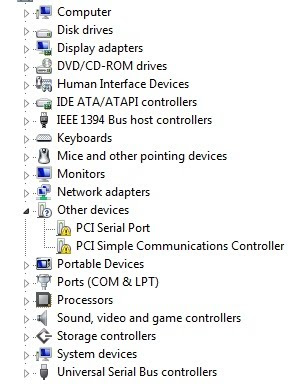
Just ran through a clean installation of Windows 7 Enterprise 64-bit on a Dell Optiplex 755. Took a little more than 30 minutes. After the setup completed and I got to the Windows 7 desktop, I popped open Device Manager to see what drivers were missing. There were only 2 items needing drivers (PCI Serial Port & PCI Simple Communications Controller).
As I usually do, I went over to the Dell Support site to find the drivers. I put in the service tag of my machine and discovered that Dell, apparently, is not supporting Windows 7 running on an Optiplex 755. They had no drivers available for Windows 7, only XP and Vista. I thought for a moment and wondered if I should have backed up my previous Vista installation. Luckily, I found I was in better shape than I thought.
First, I realized that Windows 7 had drivers for the most crucial items in Device Manager (i.e. network connection, various controllers, audio/video, optical drives, etc.). Second, I searched and found others who had the same problem:
http://en.community.dell.com/forums/t/19299853.aspx
The 2 missing drivers were for components necessary for the Intel Management Engine, which can be disabled via the BIOS tool (CTRL-P). If the Intel Management Engine is disabled then the 2 components missing drivers will not appear in Device Manager.
Just in case, I decided to use the Vista drivers for the these two components, even though the Intel Management Engine will be disabled when I'm through with the setup. The installation worked fine.
Now, I'm off to check a whole bunch of other apps, including ADUC and Filemaker Pro, which had started to fail under Vista.
Happy Computing.

As I usually do, I went over to the Dell Support site to find the drivers. I put in the service tag of my machine and discovered that Dell, apparently, is not supporting Windows 7 running on an Optiplex 755. They had no drivers available for Windows 7, only XP and Vista. I thought for a moment and wondered if I should have backed up my previous Vista installation. Luckily, I found I was in better shape than I thought.
First, I realized that Windows 7 had drivers for the most crucial items in Device Manager (i.e. network connection, various controllers, audio/video, optical drives, etc.). Second, I searched and found others who had the same problem:
http://en.community.dell.com/forums/t/19299853.aspx
The 2 missing drivers were for components necessary for the Intel Management Engine, which can be disabled via the BIOS tool (CTRL-P). If the Intel Management Engine is disabled then the 2 components missing drivers will not appear in Device Manager.
Just in case, I decided to use the Vista drivers for the these two components, even though the Intel Management Engine will be disabled when I'm through with the setup. The installation worked fine.
Now, I'm off to check a whole bunch of other apps, including ADUC and Filemaker Pro, which had started to fail under Vista.
Happy Computing.
Thursday, June 18, 2009
RANTS: Finally, Active Directory Users and Computers for Vista
It sure took MS a long time to get this out, considering Server 2008 has been available for awhile. In any case, I'm installing it now and am excited to finally be able to administer from my Vista box, though I'll probably be upgrading to Win7 soon.
Here's the official MS link:
http://support.microsoft.com/kb/941314
Here's the official MS link:
http://support.microsoft.com/kb/941314
Thursday, January 08, 2009
TIPS & TRICKS: Vista WiFi Connectivity Problems
Found this article
http://windowssecrets.com/comp/081211#story1
that has a simple write up on why so many Vista users are having trouble with wireless connectivity. From the description of the fix listed here,:
http://support.microsoft.com/kb/928233/en-us
this problem extends to wired connections as well. Remember that editing the registry could irreparably harm your computer. Please be careful and ask a qualified professional (or at least someone who knows what they are doing) for help.
Hope this helps someone. Good luck and happy computing.
http://windowssecrets.com/comp/081211#story1
that has a simple write up on why so many Vista users are having trouble with wireless connectivity. From the description of the fix listed here,:
http://support.microsoft.com/kb/928233/en-us
this problem extends to wired connections as well. Remember that editing the registry could irreparably harm your computer. Please be careful and ask a qualified professional (or at least someone who knows what they are doing) for help.
Hope this helps someone. Good luck and happy computing.
Tuesday, December 30, 2008
TIPS & TRICKS: Connecting to OS X Server from Vista
I ran into trouble connecting to an Apple XServe running OS X.3.9. It worked fine from another OS X.4 machine, from a Windows XP machine. However, from a newly reloaded Vista Ultimate machine, I could not map the same network drive. I found on Apple's website a fix that modified LAN Manager Authentication settings. Here's the link:
http://discussions.apple.com/thread.jspa?messageID=8540006�
Since I, begrudgingly, manage several Vista machines I setup a Group Policy with the following setting:
Computer Configruation > Windows Settings > Security Settings > Local Policies > Security Options > Network Security: LAN Manager Authentication level. (By default this read "Send NTLMv2 response only.") > Send LM & NTLM -- use NTLMv2 session security if negotiated.
After making the change on the Group Policy side, I forced the Vista machine to grab the update. After the update, I reattempted to map the network drive and it worked just as it does on my Windows XP boxes.
Now to figure out if I opened up any unnecessary holes in our security scheme. Happy computing.
http://discussions.apple.com/thread.jspa?messageID=8540006�
Since I, begrudgingly, manage several Vista machines I setup a Group Policy with the following setting:
Computer Configruation > Windows Settings > Security Settings > Local Policies > Security Options > Network Security: LAN Manager Authentication level. (By default this read "Send NTLMv2 response only.") > Send LM & NTLM -- use NTLMv2 session security if negotiated.
After making the change on the Group Policy side, I forced the Vista machine to grab the update. After the update, I reattempted to map the network drive and it worked just as it does on my Windows XP boxes.
Now to figure out if I opened up any unnecessary holes in our security scheme. Happy computing.
TIPS & TRICKS: Windows Update KB929777 Fails with Error 8000FFFF
This is a newly reloaded Windows Vista Ultimate build that was added to our Active Directory, loaded with Sophos Anti-Virus from our Management Console, and all other Windows Updates up to this point applied.
This update (KB929777) failed twice before I went searching for the answer. I found this posting on Microsoft's TechNet forums:
http://social.technet.microsoft.com/Forums/en-US/itprovistasecurity/thread/6b9f6a7c-1b91-422f-a803-11440418008f/
The post in the middle with the fewest steps seemed to work for me. Here's the gist:
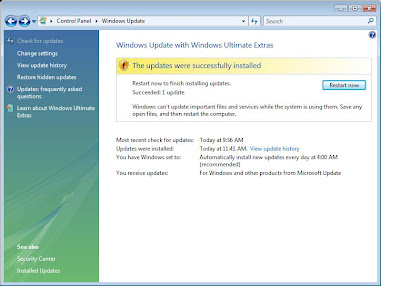
Here's what it looks like after the solution is applied:
Rule of Thumb for future problems on Vista: Look for and/or remove previously installed Hotfixe and reload to see if it will solve the problem.
This update (KB929777) failed twice before I went searching for the answer. I found this posting on Microsoft's TechNet forums:
http://social.technet.microsoft.com/Forums/en-US/itprovistasecurity/thread/6b9f6a7c-1b91-422f-a803-11440418008f/
The post in the middle with the fewest steps seemed to work for me. Here's the gist:
1: Open up "Control Panel" and navigate your way to "Programs and Features".
2: Click "View installed updates" on the left hand side.
3: Find the update KB929777 and uninstall it.
4: Attempt to install the update again in Windows Update
5: Once successful, restart your PC.
Here's what it looks like after the solution is applied:

Rule of Thumb for future problems on Vista: Look for and/or remove previously installed Hotfixe and reload to see if it will solve the problem.
TIPS & TRICKS: Deploying Sophos Anti-Virus to Vista
Using Sophos Enterprise Console 3.0.0.2321 to deploy Sophos to Vista did not work out of the box. Sophos gives a work-around here:
http://www.sophos.com/support/knowledgebase/article/15027.html
In my own testing, I found that steps 1 & 2 were sufficient and did not require a reboot to take effect. However, I do not know how much of it was also due to our AD Group Policies. I did realize that when I tried to deploy from the Console yesterday, our Group Policies had not propagated down to the workstation yet. Today, I see that they have come down to the machine. Nevertheless, I was unable to deploy until I took the first two steps Sophos recommended.
http://www.sophos.com/support/knowledgebase/article/15027.html
In my own testing, I found that steps 1 & 2 were sufficient and did not require a reboot to take effect. However, I do not know how much of it was also due to our AD Group Policies. I did realize that when I tried to deploy from the Console yesterday, our Group Policies had not propagated down to the workstation yet. Today, I see that they have come down to the machine. Nevertheless, I was unable to deploy until I took the first two steps Sophos recommended.
Thursday, October 04, 2007
RANTS: Windows Vista Wireless Connection
I came across a Gateway notebook running Windows Vista, which has trouble connecting to some access points (it worked on some but not others). I wish I could say that this was specific to this machine, but it seems to be a widespread Vista problem. There are different theories as to the cause, but the symptoms are the same:
1. Windows shows that the internal wireless card is connected to the wireless network.
2. But, machine doesn't receive and IP address.
3. Instead it gets an autoconfigured address beginning with 169.x.x.x.
4. The machine shows its access as "Local only"
I've tried all kinds of resets, including ARP cache, TCP/IP stack, DNS flush, and IP renew. I've also tried disabling IPv6 and the registry hacks documented by Microsoft here:
http://support.microsoft.com/kb/928233
and configuration settings, also documented by Microsoft here:
http://support.microsoft.com/kb/928152
A simple search of Vista wireless problems documents the countless number of people having this issue. The machine does connect with other access points, but the one where I need it to work is failing. How long do we need to wait for a fix?
Update: Just came across a new suggestion: disable IPv6.
1. Windows shows that the internal wireless card is connected to the wireless network.
2. But, machine doesn't receive and IP address.
3. Instead it gets an autoconfigured address beginning with 169.x.x.x.
4. The machine shows its access as "Local only"
I've tried all kinds of resets, including ARP cache, TCP/IP stack, DNS flush, and IP renew. I've also tried disabling IPv6 and the registry hacks documented by Microsoft here:
http://support.microsoft.com/kb/928233
and configuration settings, also documented by Microsoft here:
http://support.microsoft.com/kb/928152
A simple search of Vista wireless problems documents the countless number of people having this issue. The machine does connect with other access points, but the one where I need it to work is failing. How long do we need to wait for a fix?
Update: Just came across a new suggestion: disable IPv6.
Wednesday, October 03, 2007
TIPS & TRICKS: Frequently Used Programs list is reset to defaults during every logon in Windows Vista
In Windows Vista, when the start menu is clicked, there's a list of programs, which reflect the most recently used programs. I came across a machine that reset this list to a default list. The default list included Welcome Center, Windows Media Center, Windows Media Player, Windows Photo Gallery, Windows DVD Maker, Windows Calendar, and Windows Meeting Space.
I tried clearing it by, first removing all the existing icons manually, then by clearing the list through unchecking the box for "Store and display a list of recently opened programs" for Start Menu Properties. Neither method withstood a restart.
The cause turned out to be an improperly set registry value (thanks a lot Gateway). The registry value is called StartMenuInit. Here are the instructions:
- Click Start, type regedit.exe and press ENTER
- Navigate to the following location:
HKEY_CURRENT_USER \ Software \ Microsoft \ Windows \ CurrentVersion \ Explorer \ Advanced
- In the right-pane, create a new DWORD value named StartMenuInit
- Double-click StartMenuInit and set 3 its data
- Close Regedit.exe
Hope that helps someone. Good luck.
I tried clearing it by, first removing all the existing icons manually, then by clearing the list through unchecking the box for "Store and display a list of recently opened programs" for Start Menu Properties. Neither method withstood a restart.
The cause turned out to be an improperly set registry value (thanks a lot Gateway). The registry value is called StartMenuInit. Here are the instructions:
- Click Start, type regedit.exe and press ENTER
- Navigate to the following location:
HKEY_CURRENT_USER \ Software \ Microsoft \ Windows \ CurrentVersion \ Explorer \ Advanced
- In the right-pane, create a new DWORD value named StartMenuInit
- Double-click StartMenuInit and set 3 its data
- Close Regedit.exe
Hope that helps someone. Good luck.
Wednesday, August 08, 2007
TIPS & TRICKS: Sophos Stand-Alone Installation Error 3057
In trying to install the Sophos Anti-Virus onto a Windows Vista machine using a stand-alone installer, I ran into an error message towards the end of the installation. An error message popped up that said the following:
Error 3057: There was an unexpected error while attempting to create, repair or delete a user account. Contact your support personnel.
Well, I am the support personnel. Where do I go for help? For once, tech support over the phone actually worked. I called Sophos and they had a fix. It was registry modification, which didn't sit well with me because that usually means it'll affect many users for us. But, that's another problem for another day.
For now, here's the modification:
1. Open Regedit
2. Open HKEY_LOCAL_MACHINE
3. Open Software
4. Check the Permissions for Software to make sure the Administrators group is explicitly listed and has full permissions. There are a few other keys to check for permissions also. They are:
HKLM>Software>Classes
HKLM>Software>Classes>Interface
HKLM>Software>Classes>Interface>TypeLib
HKLM>Software>Sophos
But, the one that needed to modified for me was the first one.
5. Next, open Computer Management
6. Go to Users
7. Delete any entries that start with "SophosSAU..."
8. Finally, reattempt the reinstallation and it should work now.
Update: Found that if the HKLM>Software registry shows the Everyone group with full permissions and nothing else, then the above fix key works. However, if the permissions already shows the Administrators group, then the problem lies elsewhere.
Error 3057: There was an unexpected error while attempting to create, repair or delete a user account. Contact your support personnel.
Well, I am the support personnel. Where do I go for help? For once, tech support over the phone actually worked. I called Sophos and they had a fix. It was registry modification, which didn't sit well with me because that usually means it'll affect many users for us. But, that's another problem for another day.
For now, here's the modification:
1. Open Regedit
2. Open HKEY_LOCAL_MACHINE
3. Open Software
4. Check the Permissions for Software to make sure the Administrators group is explicitly listed and has full permissions. There are a few other keys to check for permissions also. They are:
HKLM>Software>Classes
HKLM>Software>Classes>Interface
HKLM>Software>Classes>Interface>TypeLib
HKLM>Software>Sophos
But, the one that needed to modified for me was the first one.
5. Next, open Computer Management
6. Go to Users
7. Delete any entries that start with "SophosSAU..."
8. Finally, reattempt the reinstallation and it should work now.
Update: Found that if the HKLM>Software registry shows the Everyone group with full permissions and nothing else, then the above fix key works. However, if the permissions already shows the Administrators group, then the problem lies elsewhere.
Subscribe to:
Posts (Atom)