If you know me, you'll know that I routinely use private browsing all the time. I don't care to have the browser remember any of my personal data or what sites I've visited. If I really wanted to remember something, then I will bookmark or blog the page. This means that when I use Google Chrome, I'm using its Incognito mode all the time.
One drawback to Incognito is that it also doesn't remember the screen location of the last window you used. In other words, I want the Incognito Chrome window to open in the same place on my screen every time I open a new window. This is actually a good feature because Incognito's purpose is to remember NOTHING. This should also include locally stored settings like screen location.
To get the window to open in the same place, just open a normal Chrome window, move it to the place you want it, close that normal window. Next time an Incognito window is opened, it should open in the last location where the normal window was closed.
Happy Computing.
Friday, June 10, 2011

Thursday, March 10, 2011
TIPS & TRICKS: Denying Access to Browsers for Specific Users
Had an interesting request about denying internet access to a particular user account on a Windows machine. This exercise showed me again that is usually more than one way to accomplish something. The first hurdle was that this needed to be done on different versions of Windows. It was already done on a Windows XP machine via NTFS permissions. I had to find a way to do it on Windows Vista Home Premium and Windows 7 Enterprise.
On Windows Vista Home Premium (HP), the process was actually fairly easy. Windows Vista HP has Parental Controls in it, which helped us accomplish our goal. Specifically, it was the Vista Web Filtering tools built-in to the Parental Controls. First, turn on the Parental Controls found in Control Panel. Next click through to the Web Filtering tool and enable the sites allowed option. The key to make this work is to make sure to NOT list any sites to be allowed. This will block all connections via a web browser. What's more, I tested this through Firefox in the account controlled by Parental Controls as well and it worked too.
Windows 7 did away with the Web Filter tools in Parental Controls. Had to find another way to do it. A Google search yielded the path of using a proxy address to control the flow. The nice thing about this solution is that proxy configurations are now user-specific, which means it only affects the one user and not all users. Here are the steps:
1. While in the user account that needs to be limited, setup a proxy server address in Internet Options > Connections > LAN settings. I used 127.0.0.1.
2. Log out and login to an account with administrative access.
3. Launch Local Group Policy Editor (gpedit.msc).
4. Under User Configuration > Administrative Templates > Windows Components > Internet Explorer > Browser Menus, enable the Tools menu: Disable Internet Options... menu option. This will disable access to Internet Options from Internet Explorer.
5. In the same window for Local Group Policy Editor, go to User Configuration > Administrative Templates and click on Control Panel.
6. Open the option for Hide specified Control Panel items and enable it. Then click on the Show button.
7. In a blank field under the Value column, type in Microsoft.InternetOptions. This disables access to the Internet Options area from the Windows Control Panel.
8. Hit OK, OK, and close out the Local Group Policy Editor.
A few pertinent notes here: we were only concerned with blocking browser access. There are, of course, other ways to get connected, but that's a task for another day. Also, these machines were not joined to any domain, only setup as stand-alone machines. Finally, the locking out of Internet Options at the Internet Explorer level and the Control Panel level is effective for all users, unlike the proxy setting that only affects the one user. Also, always make sure to test before deploying.
Update (2012_02_02): Before locking out Internet Options, check this setting. In Internet Options > Connections > LAN Settings, make sure to uncheck Automatically detect settings. This ensures that the proxy settings are used every time (Thanks to my colleague, Erin for pointing this out.)
Happy Computing.
On Windows Vista Home Premium (HP), the process was actually fairly easy. Windows Vista HP has Parental Controls in it, which helped us accomplish our goal. Specifically, it was the Vista Web Filtering tools built-in to the Parental Controls. First, turn on the Parental Controls found in Control Panel. Next click through to the Web Filtering tool and enable the sites allowed option. The key to make this work is to make sure to NOT list any sites to be allowed. This will block all connections via a web browser. What's more, I tested this through Firefox in the account controlled by Parental Controls as well and it worked too.
Windows 7 did away with the Web Filter tools in Parental Controls. Had to find another way to do it. A Google search yielded the path of using a proxy address to control the flow. The nice thing about this solution is that proxy configurations are now user-specific, which means it only affects the one user and not all users. Here are the steps:
1. While in the user account that needs to be limited, setup a proxy server address in Internet Options > Connections > LAN settings. I used 127.0.0.1.
2. Log out and login to an account with administrative access.
3. Launch Local Group Policy Editor (gpedit.msc).
4. Under User Configuration > Administrative Templates > Windows Components > Internet Explorer > Browser Menus, enable the Tools menu: Disable Internet Options... menu option. This will disable access to Internet Options from Internet Explorer.
5. In the same window for Local Group Policy Editor, go to User Configuration > Administrative Templates and click on Control Panel.
6. Open the option for Hide specified Control Panel items and enable it. Then click on the Show button.
7. In a blank field under the Value column, type in Microsoft.InternetOptions. This disables access to the Internet Options area from the Windows Control Panel.
8. Hit OK, OK, and close out the Local Group Policy Editor.
A few pertinent notes here: we were only concerned with blocking browser access. There are, of course, other ways to get connected, but that's a task for another day. Also, these machines were not joined to any domain, only setup as stand-alone machines. Finally, the locking out of Internet Options at the Internet Explorer level and the Control Panel level is effective for all users, unlike the proxy setting that only affects the one user. Also, always make sure to test before deploying.
Update (2012_02_02): Before locking out Internet Options, check this setting. In Internet Options > Connections > LAN Settings, make sure to uncheck Automatically detect settings. This ensures that the proxy settings are used every time (Thanks to my colleague, Erin for pointing this out.)
Happy Computing.
Tuesday, March 01, 2011
TIPS & TRICKS: OS X Security Tips
Found some good information on how to secure Mac OS X, presented by Sophos:
http://nakedsecurity.sophos.com/2011/01/25/top-tips-for-os-x-security-part-1/
http://nakedsecurity.sophos.com/2011/02/02/top-tips-for-mac-os-x-security-part-2/
http://nakedsecurity.sophos.com/2011/02/21/top-tips-for-mac-os-x-security-part-3/
Sophos also offers free anti-virus for OS X here:
http://www.sophos.com/products/free-tools/free-mac-anti-virus/
http://nakedsecurity.sophos.com/2011/01/25/top-tips-for-os-x-security-part-1/
http://nakedsecurity.sophos.com/2011/02/02/top-tips-for-mac-os-x-security-part-2/
http://nakedsecurity.sophos.com/2011/02/21/top-tips-for-mac-os-x-security-part-3/
Sophos also offers free anti-virus for OS X here:
http://www.sophos.com/products/free-tools/free-mac-anti-virus/
Thursday, February 24, 2011
TIPS & TRICKS: Installing Language Packs in Windows 7
Okay there's plenty of postings on instructions for installing language packs in Windows 7. Here's a couple of Microsoft's instructions:
http://support.microsoft.com/kb/972813
http://windows.microsoft.com/en-us/windows7/products/features/language-packs
All these instructions indicate the best way to obtain the language packs are through Microsoft Update that is built-in to Windows 7. These instructions are great, except for one missing step. When you get to the Microsoft Update window on a new machine, there isn't a link for Optional Updates, where the language packs reside.
To get there, you'll need to first click on the link that says "Check online for updates from Microsoft Update". After the machine checks for updates, it will show the link for the Optional Updates.
Hope this helps you save some time. Happy Computing.
http://support.microsoft.com/kb/972813
http://windows.microsoft.com/en-us/windows7/products/features/language-packs
All these instructions indicate the best way to obtain the language packs are through Microsoft Update that is built-in to Windows 7. These instructions are great, except for one missing step. When you get to the Microsoft Update window on a new machine, there isn't a link for Optional Updates, where the language packs reside.
To get there, you'll need to first click on the link that says "Check online for updates from Microsoft Update". After the machine checks for updates, it will show the link for the Optional Updates.
Hope this helps you save some time. Happy Computing.
Tuesday, January 11, 2011
TIPS & TRICKS: Save As Popup for Outlook 2010
User got a new MacBook Pro on which I installed Bootcamp and Parallels. User boots into OS X, uses Parallels to start the Bootcamp partition of Windows 7 Enterprise 64-bit. On that Windows 7 installation is Office 2010. In migrating over the user's almost 10GB worth of email data, I suggested we dump all of that archived email into Exchange. That's a lot of email data, I know. But, we had the space and figured we'd give it a go.
User opens up his PST files in Outlook 2010 and starts to move things into the Exchange area. After the first 1+ GB of data, he starts to get this window:

This annoying popup that came up every few minutes or so. Here are the things I tried:
- I checked to see if this would happen in another user's account on the same machine. It did not.
- I had him login to another machine to see if the problem would occur. It did not.
- I had him try just accepting the download for awhile. It did not stop.
- I created another Outlook profile to see if would continue. It did not.
- I tried to reinstall Outlook to see if it would stop the problem. It did not.
- I deleted his entire Windows user profile and created a new profile to see if it would stop the popups. It did not.
- Finally, I found this thread online: http://social.answers.microsoft.com/Forums/en-US/outlooksend/thread/5bf5f5a4-e36b-48f0-a28c-eaa94518bbf2
Basically, the problem is probably a combination of one or more email messages in his account that is trying to interact with Microsoft's new Social Connector called People Pane. Since he didn't need this feature, I disabled it in Outlook > View > People Pane > Off. The popups all went away.
I guess it's one of those things where old data meets new software.
User opens up his PST files in Outlook 2010 and starts to move things into the Exchange area. After the first 1+ GB of data, he starts to get this window:

This annoying popup that came up every few minutes or so. Here are the things I tried:
- I checked to see if this would happen in another user's account on the same machine. It did not.
- I had him login to another machine to see if the problem would occur. It did not.
- I had him try just accepting the download for awhile. It did not stop.
- I created another Outlook profile to see if would continue. It did not.
- I tried to reinstall Outlook to see if it would stop the problem. It did not.
- I deleted his entire Windows user profile and created a new profile to see if it would stop the popups. It did not.
- Finally, I found this thread online: http://social.answers.microsoft.com/Forums/en-US/outlooksend/thread/5bf5f5a4-e36b-48f0-a28c-eaa94518bbf2
Basically, the problem is probably a combination of one or more email messages in his account that is trying to interact with Microsoft's new Social Connector called People Pane. Since he didn't need this feature, I disabled it in Outlook > View > People Pane > Off. The popups all went away.
I guess it's one of those things where old data meets new software.
Friday, October 08, 2010
RANTS: Apple Migration Assistant
Just had (luckily) only my second user data loss in my IT career. The first experience helps guide how I operate with other people's data today. I can't have too many backups or can't be too careful.
Fortunately, this second experience was not a complete repeat of my first experience, though I definitely could have used extra backups here. I had a user who had a disk corruption on his MacBook Pro. Nothing I could to to recover, except reload the entire machine. I loaded a clean copy of OS X on an external hard drive. From there, I booted off the external hard drive off the disabled MacBook Pro. Then I ran Migration Assistant from the external hard drive and pointed it to the internal hard drive on the MacBook Pro. At this point, I assumed that the external hard drive had all the files from the internal hard drive. I wiped the internal hard drive. I reloaded the internal hard drive with a fresh copy of OS X. I connected up the external hard drive again and ran Migration Assistant from the internal hard drive to copy over all the files.
At this point, I figured I was just about done. I tested logging into a user account and reconfigured a few things on the new reload. User even logged in and found his files on the desktop he needed. A day or two later, he discovered that his mail was no where to found. Long story short, Migration Assistant did not copy over the contents of Mail at all. I checked the external hard drive and found nothing. All his mail inside of Mail was lost. I felt terrible, even if this user was quite understanding.
Now that I think of it, the hard drive corruption could have caused Migration Assistant to fail to copy over the contents of Mail. I, then, have to wonder how many other files were lost.
Yet another hard lesson learned. Don't rely on one process. Even the method/solution should be backed up, not just the data.
(Not so) Happy Computing.
Update: 10/28/2010, revisiting this machine, I figured it that it wasn't my fault that the data did not come over. Migration Assistant failed due to the drive corruption. Granted, I should have checked it before wiping the drive and reinstalling. The way I found out was that the user did a search on the freshly rebuilt OS with migrated data and found some of the messages he needed. Turned out the messages were moved over to a folder at the root of the drive probably because the messages were sitting in an area that was affected by the corruption. The folder was actually created by DiskWarrior when it attempted to recover the original build. Whew!
Fortunately, this second experience was not a complete repeat of my first experience, though I definitely could have used extra backups here. I had a user who had a disk corruption on his MacBook Pro. Nothing I could to to recover, except reload the entire machine. I loaded a clean copy of OS X on an external hard drive. From there, I booted off the external hard drive off the disabled MacBook Pro. Then I ran Migration Assistant from the external hard drive and pointed it to the internal hard drive on the MacBook Pro. At this point, I assumed that the external hard drive had all the files from the internal hard drive. I wiped the internal hard drive. I reloaded the internal hard drive with a fresh copy of OS X. I connected up the external hard drive again and ran Migration Assistant from the internal hard drive to copy over all the files.
At this point, I figured I was just about done. I tested logging into a user account and reconfigured a few things on the new reload. User even logged in and found his files on the desktop he needed. A day or two later, he discovered that his mail was no where to found. Long story short, Migration Assistant did not copy over the contents of Mail at all. I checked the external hard drive and found nothing. All his mail inside of Mail was lost. I felt terrible, even if this user was quite understanding.
Now that I think of it, the hard drive corruption could have caused Migration Assistant to fail to copy over the contents of Mail. I, then, have to wonder how many other files were lost.
Yet another hard lesson learned. Don't rely on one process. Even the method/solution should be backed up, not just the data.
(Not so) Happy Computing.
Update: 10/28/2010, revisiting this machine, I figured it that it wasn't my fault that the data did not come over. Migration Assistant failed due to the drive corruption. Granted, I should have checked it before wiping the drive and reinstalling. The way I found out was that the user did a search on the freshly rebuilt OS with migrated data and found some of the messages he needed. Turned out the messages were moved over to a folder at the root of the drive probably because the messages were sitting in an area that was affected by the corruption. The folder was actually created by DiskWarrior when it attempted to recover the original build. Whew!
Friday, October 01, 2010
TIPS & TRICKS: Changing Power Settings for Non-Administrative User via Registry
Okay, so this is more of a note to myself. Actually, this whole blog is a giant note to myself. But, I hope someone else finds it useful too.
I have a user who insists on purchasing using a notebook with a docking solution, just so she can leave the notebook in the dock about 95% of the time and remote into it. I'm not even going to get into how much sense that makes. The problem here is that the notebook goes to sleep as it should. But, that doesn't work well for someone who needs to remote in (Wake On LAN is disabled). She's also a standard user with not administrative access. The registry setting to control power settings is located here:
HKEY_CURRENT_USER\Control Panel\PowerCfg\PowerPolicies
I'm going to try adjusting this at a later time. I'm hoping that temporarily giving her administrative rights and making the change at this setting will make the desired power settings stick permanently.
If anyone else tries, this please let me know how it works for you.
Happy Computing.
I have a user who insists on purchasing using a notebook with a docking solution, just so she can leave the notebook in the dock about 95% of the time and remote into it. I'm not even going to get into how much sense that makes. The problem here is that the notebook goes to sleep as it should. But, that doesn't work well for someone who needs to remote in (Wake On LAN is disabled). She's also a standard user with not administrative access. The registry setting to control power settings is located here:
HKEY_CURRENT_USER\Control Panel\PowerCfg\PowerPolicies
I'm going to try adjusting this at a later time. I'm hoping that temporarily giving her administrative rights and making the change at this setting will make the desired power settings stick permanently.
If anyone else tries, this please let me know how it works for you.
Happy Computing.
Thursday, August 19, 2010
TIPS & TRICKS: Use for grep
I'm not going to remember this one, so here it is:
grep username /var/aliases
It's a tool I could have used in the office awhile back, but glad that I have it now.
Update 4/9/2012:
another one:
grep searchterm /var/home/role/hostmast/new-raddb/vpn-users
grep username /var/aliases
It's a tool I could have used in the office awhile back, but glad that I have it now.
Update 4/9/2012:
another one:
grep searchterm /var/home/role/hostmast/new-raddb/vpn-users
Friday, July 16, 2010
RANTS / TIPS: Vulnerable Home Routers
Home routers have been vulnerable in the past and will likely be vulnerable in the future, especially when most people don't know how to secure them right out of the box. This article:
http://www.notebooks.com/2010/07/15/how-to-secure-your-router-against-a-hack-compromising-many-popular-routers/
talks about how a vulnerability in many home routers makes them susceptible to a potential attack. The interesting thing about this particular method is that it can affect so many different routers, rather than target a particular make or model.
The gist:
1. Make sure your router has a very strong password. Remember this password is the one used to access the controls of the router and not necessarily your wifi password.
2. Make sure firmware on the router is the latest from the manufacturer.
Happy Computing.
http://www.notebooks.com/2010/07/15/how-to-secure-your-router-against-a-hack-compromising-many-popular-routers/
talks about how a vulnerability in many home routers makes them susceptible to a potential attack. The interesting thing about this particular method is that it can affect so many different routers, rather than target a particular make or model.
The gist:
1. Make sure your router has a very strong password. Remember this password is the one used to access the controls of the router and not necessarily your wifi password.
2. Make sure firmware on the router is the latest from the manufacturer.
Happy Computing.
Tuesday, May 25, 2010
RANTS & RAVES: Latest MacBook Pro (with i7 Core Processor) and Snow Leopard
First, Apple has made yet another decision to make life harder for Sysadmins. In reloading a brand new MacBook Pro with i7 Core processor, I discovered that my Snow Leopard (OS X 10.6) images would not work. I further realized that none of my Snow Leopard media (DVDs) worked either. In fact, as of this moment, no retail copy of Snow Leopard sitting on store shelves will work with these newly released MacBook Pros. The only bootable Snow Leopard disk that works right now is the one that came with the machine. As such, I had to build a new image using this media.
Second, I attempted to save some time by partitioning the HD before reloading the OS. I planned to use Bootcamp to install Windows 7 64-bit onto the MacBook Pro. I also found that this step doesn't work. When launching Bootcamp from the application located in Utilities, Bootcamp does not recognize the partition I setup for the Windows partition prior to loading OS X. Luckily, I had already imaged the OS X load and could easily wipe the drive again and just reimage. The raves of this post is, of course, the ability to image without having to start all over. How frustrating would it be have to start over? I don't want to find out.
Hope this helps you save some time.
Happy Computing.
Second, I attempted to save some time by partitioning the HD before reloading the OS. I planned to use Bootcamp to install Windows 7 64-bit onto the MacBook Pro. I also found that this step doesn't work. When launching Bootcamp from the application located in Utilities, Bootcamp does not recognize the partition I setup for the Windows partition prior to loading OS X. Luckily, I had already imaged the OS X load and could easily wipe the drive again and just reimage. The raves of this post is, of course, the ability to image without having to start all over. How frustrating would it be have to start over? I don't want to find out.
Hope this helps you save some time.
Happy Computing.
Thursday, May 06, 2010
TIPS & TRICKS: Software Licensing Manager
Learned to how to obtain more detailed information about Windows 7 activation. There's a tool built into Windows 7 called Software Licensing Manager. Running it in a Windows 7 command prompt with admin rights will yield information like:
- Activation ID
- Installation ID
- Partial Product Key
- License status
- Remaining Windows rearm count
This last piece of information is important to Windows 7 imaging. I've found that if this rearm count gets to zero (start with 3 on a fresh install), then Windows will no longer boot properly.
The command to use at the command prompt to retrieve this information is slmgr /dlv. There are other parameters that can be applied, but /dlv is the most detailed. After running the command, a Windows Script Host window will be displayed with the information.
Hope this helps you. Happy Computing.
- Activation ID
- Installation ID
- Partial Product Key
- License status
- Remaining Windows rearm count
This last piece of information is important to Windows 7 imaging. I've found that if this rearm count gets to zero (start with 3 on a fresh install), then Windows will no longer boot properly.
The command to use at the command prompt to retrieve this information is slmgr /dlv. There are other parameters that can be applied, but /dlv is the most detailed. After running the command, a Windows Script Host window will be displayed with the information.
Hope this helps you. Happy Computing.
Wednesday, May 05, 2010
RANT: Got hacked.
Not me, thankfully. But, I did feel the effects of someone else getting hacked. Does the name Fred Cabasa ring a bell for anyone? I have no recollection about how I know this person. I even have this person in my contacts, but it was before I started noting down how I met people. Thus, this person had his information (i.e. email account(s), phone, computer, etc.) compromised in some way and I received some of the consequences.
How do I know that this person was compromised? I've got a fairly good idea of how spammers work and an email that seems like it's coming from someone I know is no real indicator. In this case, however, I received additional information leading me to believe that this person should really be careful about his personal information from here on out. Here's the message:

First, the email message only contained a link and no other text in the body of the message. The sender was Fred Cabasa using an email address I had on file for him, separately. The message also looked like it was sent to a small number of people at the beginning of the alphabet. Finally, the real tell-tale-sign about this message was that it included another email address of mine that I no longer use.
There's one other way that indicated Fred got hacked. I received a junk text message on my cell phone. This was no ordinary text message. This text message contained the same link as in the email I described earlier.
There are a million ways people could have obtained this information: from hacking his computer, to something as simple as finding his old cell phone or other device that contains this information Fred might have disposed of without properly wiping the data.
Moral of the story? Don't give your personal contact information out to anyone, ever. Wait, check that comment. Some times my paranoia gets the best of me. Seriously though, I think the moral of the story here is to make sure you protect your data and your devices. It's too easy to obtain information these days. If we all do our part (even if we don't care about our own information), we'll also protect those people who could be affected by information theft.
Hope this helps you. Happy Computing.
How do I know that this person was compromised? I've got a fairly good idea of how spammers work and an email that seems like it's coming from someone I know is no real indicator. In this case, however, I received additional information leading me to believe that this person should really be careful about his personal information from here on out. Here's the message:

First, the email message only contained a link and no other text in the body of the message. The sender was Fred Cabasa using an email address I had on file for him, separately. The message also looked like it was sent to a small number of people at the beginning of the alphabet. Finally, the real tell-tale-sign about this message was that it included another email address of mine that I no longer use.
There's one other way that indicated Fred got hacked. I received a junk text message on my cell phone. This was no ordinary text message. This text message contained the same link as in the email I described earlier.
There are a million ways people could have obtained this information: from hacking his computer, to something as simple as finding his old cell phone or other device that contains this information Fred might have disposed of without properly wiping the data.
Moral of the story? Don't give your personal contact information out to anyone, ever. Wait, check that comment. Some times my paranoia gets the best of me. Seriously though, I think the moral of the story here is to make sure you protect your data and your devices. It's too easy to obtain information these days. If we all do our part (even if we don't care about our own information), we'll also protect those people who could be affected by information theft.
Hope this helps you. Happy Computing.
Tuesday, May 04, 2010
TIPS & TRICKS: Blackberry Enterprise Activation Duplicates
A user with a Blackberry connecting up to our Blackberry Enterprise Server was having trouble with syncing between Exchange and her mobile device. The device was originally configured over the wireless without ever plugging in to a machine and/or any desktop software. Everything had been functioning normally until recently. The Blackberry was not syncing over new appointments or contacts, though email was flowing normally. One other aspect was that there was an assistant to the user who also helped enter in contacts and appointments to the user's Exchange account. The appointments and contacts entered by the assistant were also not syncing onto the Blackberry. However, the information was showing up fine in the Exchange account through both Outlook Web Access and Outlook on a Windows machine.
One possible reason was that Exchange accounts were recently migrated from one store to another. A possible fix for this problem was to rerun an Blackberry Enterprise Activation to see if the Blackberry would reestablish the sync for contacts and calendar items. This did not work. The problem persisted.
The most drastic solution would be to wipe the Blackberry and rerun the Blackberry Enterprise Activation as if the Blackberry just came from the factory. However, I wanted to avoid this as the user had data residing on the Blackberry that was not backed up, especially since we did not create a connection between the Blackberry and any desktop software.
I finally figured out that there were duplicate contact lists and calendar lists. Somehow the Blackberry lost connection to the BES and when it did reestablish itself, it did not recognize that there was an existing list of contact items and calendar items. This is why there were only duplicates on the Blackberry, but not inside of Exchange. After some testing, I figured out which one of the calendar and contact lists were the actively synced lists and which were the ones with the lost connection. I configured the contact and calendar lists that lost the sync connection to no longer display (I may have even found a way to delete those lists after further investigation). This removed the duplicates. it's likely that a wipe and running of Enterprise Activation would have solved this problem. But, since we needed to find a more manual method, configuring the broken lists of contacts and calendars did the trick this time around.
Here's where I got my inspiration this time around:
http://www.blackberryforums.com/bes-admin-corner/122095-duplicate-contacts-after-new-enterprise-activation.html
Hope this helps you. Happy Computing.
One possible reason was that Exchange accounts were recently migrated from one store to another. A possible fix for this problem was to rerun an Blackberry Enterprise Activation to see if the Blackberry would reestablish the sync for contacts and calendar items. This did not work. The problem persisted.
The most drastic solution would be to wipe the Blackberry and rerun the Blackberry Enterprise Activation as if the Blackberry just came from the factory. However, I wanted to avoid this as the user had data residing on the Blackberry that was not backed up, especially since we did not create a connection between the Blackberry and any desktop software.
I finally figured out that there were duplicate contact lists and calendar lists. Somehow the Blackberry lost connection to the BES and when it did reestablish itself, it did not recognize that there was an existing list of contact items and calendar items. This is why there were only duplicates on the Blackberry, but not inside of Exchange. After some testing, I figured out which one of the calendar and contact lists were the actively synced lists and which were the ones with the lost connection. I configured the contact and calendar lists that lost the sync connection to no longer display (I may have even found a way to delete those lists after further investigation). This removed the duplicates. it's likely that a wipe and running of Enterprise Activation would have solved this problem. But, since we needed to find a more manual method, configuring the broken lists of contacts and calendars did the trick this time around.
Here's where I got my inspiration this time around:
http://www.blackberryforums.com/bes-admin-corner/122095-duplicate-contacts-after-new-enterprise-activation.html
Hope this helps you. Happy Computing.
Tuesday, April 20, 2010
TIPS & TRICKS: Login to Windows 7 Without Knowing Machine Name
When Windows 7 is joined to a domain, the default login prompt automatically allows a domain user to login to the machine with just username/password. However, a local account user would need to know the name of the machine to login to the machine (i.e. machinename\user).
At least that's what I thought, until now. I don't always remember the name of the computer that I'm working on. The workaround the login prompt and not knowing the machine name is to substitute a period for the computer name. For example, if my machine name is PC-1 and my username is bobama, then for the username field, I would enter:
.\bobama (instead of PC-1\bobama)
Hope this helps someone. Happy computing.
At least that's what I thought, until now. I don't always remember the name of the computer that I'm working on. The workaround the login prompt and not knowing the machine name is to substitute a period for the computer name. For example, if my machine name is PC-1 and my username is bobama, then for the username field, I would enter:
.\bobama (instead of PC-1\bobama)
Hope this helps someone. Happy computing.
Friday, April 16, 2010
TIPS & TRICKS: Microsoft Outlook Unable to Open
PROBLEM:
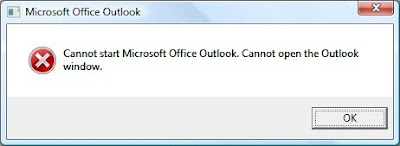
Attempted to launch Outlook 2007. Received an error message of:
Here's a screen shot:
Outlook, like most other programs, can be run from a command line, albeit Microsoft's version. This usually means that there should be options in launching Outlook. Originally, I wanted to start Outlook in Safe Mode. This works by holding the CTRL key down while clicking on the Outlook icon, not a command line. However, this did not work and I received the same message.
THE FIX:
Still not quite a command line option, but close. With Outlook and the error message gone, click on Start > Run (or Start, and type run in the search field in Windows Vista and 7). Type outlook.exe /resetnavpane.
This solved my problem. If your problem is different, here's a site that has a list of different options:
http://www.howto-outlook.com/howto/commandlineswitches.htm
Be careful, though. I would find a way to backup your data in Outlook before attempting something you are not certain about. Most of the commands will not affect your data, but it's better to be safe.
Attempted to launch Outlook 2007. Received an error message of:
Cannot start Microsoft Office Outlook. Cannot open the Outlook window.
Here's a screen shot:

Outlook, like most other programs, can be run from a command line, albeit Microsoft's version. This usually means that there should be options in launching Outlook. Originally, I wanted to start Outlook in Safe Mode. This works by holding the CTRL key down while clicking on the Outlook icon, not a command line. However, this did not work and I received the same message.
THE FIX:
Still not quite a command line option, but close. With Outlook and the error message gone, click on Start > Run (or Start, and type run in the search field in Windows Vista and 7). Type outlook.exe /resetnavpane.
This solved my problem. If your problem is different, here's a site that has a list of different options:
http://www.howto-outlook.com/howto/commandlineswitches.htm
Be careful, though. I would find a way to backup your data in Outlook before attempting something you are not certain about. Most of the commands will not affect your data, but it's better to be safe.
Tuesday, March 23, 2010
TIPS & TRICKS: ARD, AppleScript and Logging into a Remote Mac
Received this handy tip:
Not that I would enter in a password into a script permanently. But, for a quick run of the script using a dedicated account for this purpose could be useful when combined with other routines.
Thanks Tony! Happy Computing.
This script example shows how to combine AppleScript with Apple Remote Desktop's "Send UNIX Command" to enter a username and password at the login window of a Mac you control.
osascript -e 'tell application "System Events" to keystroke "REPLACE_WITH_YOUR_USERNAME"';
osascript -e 'tell application "System Events" to keystroke tab';
osascript -e 'tell application "System Events" to delay 0.5';
osascript -e 'tell application "System Events" to keystroke "REPLACE_WITH_YOUR_PASSWORD"';
osascript -e 'tell application "System Events" to delay 0.5';
osascript -e 'tell application "System Events" to keystroke return';
Replace the two strings with your username and password. Note: there are some single and double quotes in the script above, so edit carefully.
Not that I would enter in a password into a script permanently. But, for a quick run of the script using a dedicated account for this purpose could be useful when combined with other routines.
Thanks Tony! Happy Computing.
Tuesday, March 09, 2010
RANTS: HTC Android Phone Comes with Malware Pre-Installed
Straight-from-the-factory, Android mobile device from HTC comes with a bot client, a worm, and a password stealing tool. How do we protect ourselves when we can't even trust a brand new device to be clean? I've always been an advocate of wiping anything and everything before using it. It takes a bit more time to setup, but you'll be sure that you'll have a clean device from the beginning. Here's the full story:
http://threatpost.com/en_us/blogs/htc-phones-pre-installed-mariposa-bot-client-030910
http://threatpost.com/en_us/blogs/htc-phones-pre-installed-mariposa-bot-client-030910
Monday, March 01, 2010
TIPS & TRICKS: Vista and Multiple Simultaneous Network Connections
I've been observing Windows connection problems via wireless for quite some time now. I'm hoping this might be a fix for many of those problems. Basically, there are multiple connections to the same wireless network. This could, potentially, cause some confusion by the OS.
Vista has a wireless profile manager. However, there is yet another place where wireless connections are stored. This is the network location manager. This stores the previously used wireless networks even if a profile was not created. You should be able to find this under Network and Sharing Center > Customize > Manage or delete network locations. This will allow for the deletion (or merging) of duplicate network locations.
Note: I have not yet had a chance to test this with Windows 7. However, I suspect the behavior is similar.
Here's where I originally found this solution and the complete steps:
http://www.annoyances.org/exec/show/article04-500
Happy Computing.
UPDATE: Found it in Windows 7. In Network and Sharing Center, under View your active networks, click on the icon (not the text). The next window will be the Network Properties, where you'll find Merge or delete network locations. The follow the same steps as previously noted.
Vista has a wireless profile manager. However, there is yet another place where wireless connections are stored. This is the network location manager. This stores the previously used wireless networks even if a profile was not created. You should be able to find this under Network and Sharing Center > Customize > Manage or delete network locations. This will allow for the deletion (or merging) of duplicate network locations.
Note: I have not yet had a chance to test this with Windows 7. However, I suspect the behavior is similar.
Here's where I originally found this solution and the complete steps:
http://www.annoyances.org/exec/show/article04-500
Happy Computing.
UPDATE: Found it in Windows 7. In Network and Sharing Center, under View your active networks, click on the icon (not the text). The next window will be the Network Properties, where you'll find Merge or delete network locations. The follow the same steps as previously noted.
Thursday, February 25, 2010
RAVES: Apple to Replace HD in some MacBooks
Though not an official recall, this is the primary reason why Apple Support has rated so high in recent years. Don't get me wrong. Apple is far from perfect, but I think they are closer than some other manufacturers.
Here's the NY Times article:
http://gadgetwise.blogs.nytimes.com/2010/02/19/apple-to-replace-bad-hard-drives/?em
Hope this helps you. Happy Computing.
Here's the NY Times article:
http://gadgetwise.blogs.nytimes.com/2010/02/19/apple-to-replace-bad-hard-drives/?em
Hope this helps you. Happy Computing.
Wednesday, February 03, 2010
RANTS: Connecting to a Windows 7 machine from RDP on OS X
The basics:
- OS X.4.11
- PowerPC G5 machine
- Remote Desktop Connection Client for Mac v2.0.1
- Connecting to a Windows 7 64-bit machine with latest RDP client
The symptoms:
- Connection can be made to Windows 7 machine
- Mouse functions work normally
- As soon as a key is pressed on the keyboard of the G5, the RDP client on the G5 quits.
- Problem does not seem to be the Windows 7 machine, as I can connect to it from an Intel-based Mac.
Guess:
- Problem likely has to do with that the G5 is a PowerPC processor. Any guesses?
- OS X.4.11
- PowerPC G5 machine
- Remote Desktop Connection Client for Mac v2.0.1
- Connecting to a Windows 7 64-bit machine with latest RDP client
The symptoms:
- Connection can be made to Windows 7 machine
- Mouse functions work normally
- As soon as a key is pressed on the keyboard of the G5, the RDP client on the G5 quits.
- Problem does not seem to be the Windows 7 machine, as I can connect to it from an Intel-based Mac.
Guess:
- Problem likely has to do with that the G5 is a PowerPC processor. Any guesses?
Subscribe to:
Posts (Atom)