Being a Windows user first, I've always loved being able to tab through to all the different links in a web browser. When I hit tab, the selection will highlight each link on the web page. I was also able to discover that alt-tab does the same thing in Safari on Mac OS X.
My gripe is that I can't do this in Firefox on the Mac. Is it that hard to do? I suppose if I had programming skills, I could go and try it myself. But I'm still learning those skills and would love it if this simple feature could already be available, especially when the alt-tab function isn't even used in Firefox.
To be fair, I can see that if it's added on the Mac side, then the Windows side would likely have it too. This would take away Windows ability to switch between applications. Trade-offs I suppose.
Friday, April 20, 2007

Wednesday, April 18, 2007
TIPS & TRICKS: Microsoft Updates for April 2007
Microsoft, generally, releases their updates to Windows on the second Tuesday of every month. Generally, I don't see many problems. However, after this last round of updates, I've been finding that machines have been slowing down to the point that they are unusable. Another symptom has been an error message with the following message:
svchost.exe - Application Error : The instruction at "0x745f2780" referenced memory at "0x00000070"". The memory could not be "read".
After a bit of research, I've discovered that Microsoft knows about the problem and has a fix for it. Here are the links to their knowledge base articles. The latter is all I needed for my own fixes.
http://support.microsoft.com/kb/916089
http://support.microsoft.com/kb/927891
Happy computing.
svchost.exe - Application Error : The instruction at "0x745f2780" referenced memory at "0x00000070"". The memory could not be "read".
After a bit of research, I've discovered that Microsoft knows about the problem and has a fix for it. Here are the links to their knowledge base articles. The latter is all I needed for my own fixes.
http://support.microsoft.com/kb/916089
http://support.microsoft.com/kb/927891
Happy computing.
Friday, January 19, 2007
TIPS & TRICKS: Missing Microsoft Equation Editor in Office 2004
Had a student come in today and report that Microsoft Equation was missing from the Word application. This normally shows up in Word under the Insert > Object menu. I suppose this isn't a frequently occurring problem so I didn't find anything online about how to get it back in. But, rest assured, it's easier than solving a Rubik's Cube for a Cube champion.
As long as you have the original install CD, the file for Equation Editor resides in Microsoft Office 2004 > Office. Just copy the file called Equation Editor to the same location where you have Office 2004 installed on your computer (usually, Macintosh HD > Applications > Microsoft Office 2004 > Office). I even did it with Word open and it worked. I would recommend shutting Word down and the reopening it when done. But that's it.
Good luck.
As long as you have the original install CD, the file for Equation Editor resides in Microsoft Office 2004 > Office. Just copy the file called Equation Editor to the same location where you have Office 2004 installed on your computer (usually, Macintosh HD > Applications > Microsoft Office 2004 > Office). I even did it with Word open and it worked. I would recommend shutting Word down and the reopening it when done. But that's it.
Good luck.
Wednesday, January 03, 2007
TIPS & TRICKS: svchost.exe -- application error the instruction at "0x745f2780"
A faculty member went home before the end-of-the-year holiday break with a brand new machine that I installed our software packages on. The machine worked perfectly when it left here. It just came back here today and he reports that the machine receives the following message:
svchost.exe -- application error the instruction at "0x745f2780" reference memory at "0x00000000". the memory could not be 'read'
There was also another message, but this was the pertinent one. As soon as the error message was closed, the machine became unusable. Since it was working just fine before it left my possession, I assumed that he installed something to break the Windows install.
I first tried booting into Safe Mode. It booted with no problems. I then turned off all startup items and booted the machine into normal Windows. Error message still came up. This was going to be a problem with the core OS. Not wanting to waste more time, I searched the web for the error message. The first hit was this [swigartconsulting.blogs.com].
Amazing, that the first hit gave me the solution. Apparently, the problem was corruption in the Windows Update process. The easy solution to try was to turn off Automatic Updates, run Windows Updates (or Microsoft Updates), then turn Automatic Updates back on. There's also a more in-depth fix listed on the website above. However, the easy one worked for me.
svchost.exe -- application error the instruction at "0x745f2780" reference memory at "0x00000000". the memory could not be 'read'
There was also another message, but this was the pertinent one. As soon as the error message was closed, the machine became unusable. Since it was working just fine before it left my possession, I assumed that he installed something to break the Windows install.
I first tried booting into Safe Mode. It booted with no problems. I then turned off all startup items and booted the machine into normal Windows. Error message still came up. This was going to be a problem with the core OS. Not wanting to waste more time, I searched the web for the error message. The first hit was this [swigartconsulting.blogs.com].
Amazing, that the first hit gave me the solution. Apparently, the problem was corruption in the Windows Update process. The easy solution to try was to turn off Automatic Updates, run Windows Updates (or Microsoft Updates), then turn Automatic Updates back on. There's also a more in-depth fix listed on the website above. However, the easy one worked for me.
Tuesday, December 12, 2006
TIPS & TRICKS: Windows File Sharing Without Internet Access
I came across a special case of connecting 2 machines, OS X and Windows XP, to do file sharing. The Windows machine needs to be able to share its files to the OS X machine but not have internet access.
First make sure all the standard File Sharing protocols are setup on each machine. On the OS X machine make sure that Windows Sharing is turned on and a separate account for network file sharing is setup.
On the Windows side, make sure that the Windows Firewall (and/or any other firewall) allows File and Printer Sharing. Then, designate a folder to be shared. I would also create a separate account for sharing here too.
The most important part of this process is manually assigning the Windows machine a valid IP address (usually one that the router will normally handout) and subnet, but leave out the gateway address.
First make sure all the standard File Sharing protocols are setup on each machine. On the OS X machine make sure that Windows Sharing is turned on and a separate account for network file sharing is setup.
On the Windows side, make sure that the Windows Firewall (and/or any other firewall) allows File and Printer Sharing. Then, designate a folder to be shared. I would also create a separate account for sharing here too.
The most important part of this process is manually assigning the Windows machine a valid IP address (usually one that the router will normally handout) and subnet, but leave out the gateway address.
Wednesday, November 22, 2006
TIPS & TRICKS: Clearing saved credentials in Windows XP
In the office, we have students connecting to our server for file sharing. This connection also doubles as authentication for printing. However, we had a student who had printing setup using one of our admin's credentials. Those credentials got saved and constantly let's the user print as someone other than herself. So I had to find a way to clear those credentials. Here's the command:
rundll32.exe keymgr.dll, KRShowKeyMgr
Here's a link [windowsnetworking.com].
rundll32.exe keymgr.dll, KRShowKeyMgr
Here's a link [windowsnetworking.com].
Saturday, November 11, 2006
RANT: Wireless keyboard/mice and KVMs
I consult. My clients look to me to give recommendations that are simple, but above all reliable. Why isn't there a KVM solution out there that will work reliably with wireless keyboard and mice? I would think that with all the data that can be crammed onto electrical circuit boards these days, someone would come up with a kvm switch that has all the data it needs to handle any keyboard/mouse combination. I can understand if there are some extra buttons that may not function without extra steps or software. But we all know that there are many basic functions on a keyboard and mouse that are standard across all units (i.e. 104 keys on the keyboard, right/left click and scroll on a mouse).
I'm doing some work for a general contractor at his house. We're putting in a new machine, but keeping his old machine. Since both machines need to be functional and easily accessible via a single keyboard/mouse/display, I need to find a KVM solution. The display has DVI. They have a wireless keyboard/mouse set. I'm looking for a KVM solution that has DVI and USB capabilities.
Belkin makes one in their SOHO series. I've seen nothing but bad reviews. "Stay away!" is what I've been told on that one. Since I purchased that one while picking up a couple other things for them, I'm going to have to return it. I've tried KVMs from IOGEAR but haven't had much success with anything other than standard keyboard/mice and VGA display connections. Since I use a higher-end Avocent switch in my server room at the office, I checked them out. But, they've said that wireless keyboard/mice aren't supported.
In the end, I'm going to have to replace the current wireless keyboard/mouse with wired equivalents (keyboard needs to be ergonomic), use the VGA connection on the display, and go with a basic KVM. I'll probably go with a Microsoft Natural Ergonomic Keyboard 4000, standard USB optical mouse that came with the new machine, VGA connection from the display, and a yet-to-be-decided KVM (I haven't even addressed the fact that a printer needs to be shared and single audio would be nice too).
I'm doing some work for a general contractor at his house. We're putting in a new machine, but keeping his old machine. Since both machines need to be functional and easily accessible via a single keyboard/mouse/display, I need to find a KVM solution. The display has DVI. They have a wireless keyboard/mouse set. I'm looking for a KVM solution that has DVI and USB capabilities.
Belkin makes one in their SOHO series. I've seen nothing but bad reviews. "Stay away!" is what I've been told on that one. Since I purchased that one while picking up a couple other things for them, I'm going to have to return it. I've tried KVMs from IOGEAR but haven't had much success with anything other than standard keyboard/mice and VGA display connections. Since I use a higher-end Avocent switch in my server room at the office, I checked them out. But, they've said that wireless keyboard/mice aren't supported.
In the end, I'm going to have to replace the current wireless keyboard/mouse with wired equivalents (keyboard needs to be ergonomic), use the VGA connection on the display, and go with a basic KVM. I'll probably go with a Microsoft Natural Ergonomic Keyboard 4000, standard USB optical mouse that came with the new machine, VGA connection from the display, and a yet-to-be-decided KVM (I haven't even addressed the fact that a printer needs to be shared and single audio would be nice too).
Thursday, October 19, 2006
TIPS & TRICKS: 100% CPU and spoolsv.exe
As soon as your Windows XP machine boots up, you find that the CPU cycles (from Task Manager) reaches 100% and slows the machine to a crawl. Under Processes you see that the culprit is a service called spoolsv.exe. This process is a necessary process that helps send print jobs to a printer.
Before we say that this problem is due to a virus, take a look at all your print queues in Printers & Faxes. Look for any print jobs sitting in any of the queues that have errors in them. Delete those print jobs if you don't need them. These print jobs are the likely cause of the 100% CPU utilization.
Next make sure that none of the print queues are shared out on your computer. Usually, you can determine this by seeing if there is a hand under the printer icon. If there is a hand, right click on the printer icon and choose Sharing. Disable print sharing. This is necessary because this prevents other users on your local network from accidentally printing to the queues on your computer.
Finally, there is a possibility that the spoolsv.exe service could be harboring a virus. That's another tip. For now try this. Good luck.
Before we say that this problem is due to a virus, take a look at all your print queues in Printers & Faxes. Look for any print jobs sitting in any of the queues that have errors in them. Delete those print jobs if you don't need them. These print jobs are the likely cause of the 100% CPU utilization.
Next make sure that none of the print queues are shared out on your computer. Usually, you can determine this by seeing if there is a hand under the printer icon. If there is a hand, right click on the printer icon and choose Sharing. Disable print sharing. This is necessary because this prevents other users on your local network from accidentally printing to the queues on your computer.
Finally, there is a possibility that the spoolsv.exe service could be harboring a virus. That's another tip. For now try this. Good luck.
Tuesday, October 10, 2006
TIPS & TRICKS: Error in trying update Windows XP after installing Microsoft Update
Here's the error message I received:
"The website has encountered a problem and cannot display the page you are trying to view..."
Apparently, there are many error codes that might go along with it. It will show to the upper right of the above message. There may be other issues on the machine generating the error, including firewall issues and other blocks. But, the fix that worked for me was using the ipconfig /flushdns command.
Here's how to run it...
- Hit Start
- Click on Run
- Type "cmd" in the Run dialogue box
- When the command window comes up, type ipconfig /flushdns at the command prompt and hit enter
- Close the command window
Try running Windows Update (or Microsoft Update) again. Good luck.
"The website has encountered a problem and cannot display the page you are trying to view..."
Apparently, there are many error codes that might go along with it. It will show to the upper right of the above message. There may be other issues on the machine generating the error, including firewall issues and other blocks. But, the fix that worked for me was using the ipconfig /flushdns command.
Here's how to run it...
- Hit Start
- Click on Run
- Type "cmd" in the Run dialogue box
- When the command window comes up, type ipconfig /flushdns at the command prompt and hit enter
- Close the command window
Try running Windows Update (or Microsoft Update) again. Good luck.
Friday, October 06, 2006
TIPS & TRICKS: FAT32, HFS+, and Copying Files
Sometimes I feel the need to go run into a wall. In attempting to backup a PowerMac G4 to an external HD, I found that I encountered errors in copying. The biggest annoyance with drag and drop method of backing up files on any system is poorly named files and folders. On both Mac OS and Windows, when such files and folders are encountered the OS stops the copying process and doesn't back up anything beyond the problematic file/folder. Often times I'd love for it to just skip the file and continue copying. I'd much rather have most everything and miss one file then skipping all those files.
The first problem I came across in OS X.3 were file names that containted a foward slash ("/"). Some OSs understand this character as part of a path to a location (i.e. HD/You Folder/Another Folder/A File.doc). This can be fixed with just renaming the file/folder by removing the character. In fact, there are utilites out there, depending on your OS, can help you find all those potential naming problems and fix them before the copy process. I've never used one because the problems I've run across are relatively small in number and can be done by hand.
The second problem that caused me some frustration was not quite as obvious. The error message I received was:
"You cannot copy the item Icon... because the name is too long or includes characters that the disk cannot display"
I kept going through files trying to find the culprit file and removing it. Needless to say, there were too many. It was not going to work with the previous method of renaming the file. However, I was on the wrong path all together. What I finally got around to figuring out was that the external HD I was using was formatted FAT32, instead of the Mac OS HFS+ format.
After I found another drive and reformatted it for exclusive use on Mac OS, everything copied over without a hitch. The problem really resided in that I keep my drives formatted FAT32 because I want to be able to use it across both Mac OS and Windows. However, some files in Mac OS just won't copy properly onto FAT32 to prevent problems.
Moral of the story, pay attention to the source as well as the destination.
The first problem I came across in OS X.3 were file names that containted a foward slash ("/"). Some OSs understand this character as part of a path to a location (i.e. HD/You Folder/Another Folder/A File.doc). This can be fixed with just renaming the file/folder by removing the character. In fact, there are utilites out there, depending on your OS, can help you find all those potential naming problems and fix them before the copy process. I've never used one because the problems I've run across are relatively small in number and can be done by hand.
The second problem that caused me some frustration was not quite as obvious. The error message I received was:
"You cannot copy the item Icon... because the name is too long or includes characters that the disk cannot display"
I kept going through files trying to find the culprit file and removing it. Needless to say, there were too many. It was not going to work with the previous method of renaming the file. However, I was on the wrong path all together. What I finally got around to figuring out was that the external HD I was using was formatted FAT32, instead of the Mac OS HFS+ format.
After I found another drive and reformatted it for exclusive use on Mac OS, everything copied over without a hitch. The problem really resided in that I keep my drives formatted FAT32 because I want to be able to use it across both Mac OS and Windows. However, some files in Mac OS just won't copy properly onto FAT32 to prevent problems.
Moral of the story, pay attention to the source as well as the destination.
Tuesday, September 05, 2006
TIPS & TRICKS: Creating Signatures In Outlook
howto-outlook.com: Creating Signatures
I was searching for how to make Outlook show images in an HTML email and came across this website that shows how to create signatures and what occurs in Outlook when a signature is created. For me, the most important tip was to make sure that the image/logo to be included in the signature should be in the same folder as the actual signature file.
I haven't had a chance to search the rest of the website, but it seems like a good place to look for Outlook questions. I may have to pass this along to my users here at the office.
I was searching for how to make Outlook show images in an HTML email and came across this website that shows how to create signatures and what occurs in Outlook when a signature is created. For me, the most important tip was to make sure that the image/logo to be included in the signature should be in the same folder as the actual signature file.
I haven't had a chance to search the rest of the website, but it seems like a good place to look for Outlook questions. I may have to pass this along to my users here at the office.
Saturday, September 02, 2006
RANT: Motorola i870 on Nextel Service
I've had the i870 for several months now. Basic usage of the phone seems to work without any problems. It's the extras services that are giving me some problems. Specifically, any internet-related services including websites and AIM yield some sort of problem.
Basic usage of the phone is an improvement over the i60 I had before. Sound quality and volume are better. Nice to have a color screen and a better lit keypad, not to mention bigger keys. It took me a little time to get it, but I eventually got the data cable for it and loaded some ringtones on there too. I still wouldn't trade picture quality with a real camera, but it's nice to take a random pic every so often and low quality video too.
I haven't hit any storage limits, but the phone only includes a 32MB card. I generally set the phone to take pics at the highest resolution. I've only got about 10-15 pics on the card, 8-10 ringtones, and a couple of minute-long videos.
Now on to the problems. In the beginning, I tried as many of the online features I could find. For me, the 2 that really stood out as useful were the internet and instant messaging via AIM. My first impression of internet usage on the phone has not changed much with further usage. First, the Nextel system basically makes it feel like surfing on a dialup connection. I can't remember the last time I used a dialup connection but the phone connection is significantly slower than any broadband connection I've used recently. Also, the small screen creates a tough viewing situation, especially for websites that aren't optimized for mobile phones. Also, I've found visiting some sites yields a "500: Web service error", followed by a "1019: Compile error". I've tried many different things to see if it would solve the problem, including resetting the phone, restarting internet connection, and testing it on a different device.
Next, I logged into AIM. The first thing I noticed was that my exisiting buddy lists did not transfer over. To alleviate this problem, I found that I had to add buddies I had previously onto a new list called Mobile Device. If I didn't, then I couldn't see whether someone was online while using the phone. Furthermore, in the beginning I was able to receive messages from others without incident. But, recently, I've discovered that some special characters causes the phone to either receive the "Web service error" or have the message get truncated. Any message I receive that has an apostrophe (i.e. that's) will cause the message to get cut off starting at the apostrophe. This becomes quite frustrating, making the service almost useless.
With these 2 problems, I've tried visiting a regular Nextel store for answers. There I was able to test the internet problem and found that it seemed to work okay on the store model. At this point, I decided that the problem was with my phone. The CSR at the store suggested that I give Customer Service a call. I spent hours on the phone and was pushed up to level 3 support. They couldn't figure out my problem and suggested that I visit the Nextel service center to have them check out the phone. At the service center, I briefly explained my problems to them (where I found that a particular website that always generated the Web service error now worked fine) and left them the phone to check out. When I returned to the service center, I was given a completely new phone. Not surprisingly, the AIM problem did not resolve itself.
Ultimately, I'm sure I'll run into the Web service errors with other sites again. The AIM problem still perisists, which Nextel service center techs want to blame on the network. Either way, it doesn't work as it should. Whether it's the hardware or the network, it's still a problem that Nextel should take responsibility for if they are getting people to pay for their service. At this point, I don't feel like they own this problem. I'm left to fend for myself. If it weren't for the need for the radio service, I'd switch away from this service all together.
Basic usage of the phone is an improvement over the i60 I had before. Sound quality and volume are better. Nice to have a color screen and a better lit keypad, not to mention bigger keys. It took me a little time to get it, but I eventually got the data cable for it and loaded some ringtones on there too. I still wouldn't trade picture quality with a real camera, but it's nice to take a random pic every so often and low quality video too.
I haven't hit any storage limits, but the phone only includes a 32MB card. I generally set the phone to take pics at the highest resolution. I've only got about 10-15 pics on the card, 8-10 ringtones, and a couple of minute-long videos.
Now on to the problems. In the beginning, I tried as many of the online features I could find. For me, the 2 that really stood out as useful were the internet and instant messaging via AIM. My first impression of internet usage on the phone has not changed much with further usage. First, the Nextel system basically makes it feel like surfing on a dialup connection. I can't remember the last time I used a dialup connection but the phone connection is significantly slower than any broadband connection I've used recently. Also, the small screen creates a tough viewing situation, especially for websites that aren't optimized for mobile phones. Also, I've found visiting some sites yields a "500: Web service error", followed by a "1019: Compile error". I've tried many different things to see if it would solve the problem, including resetting the phone, restarting internet connection, and testing it on a different device.
Next, I logged into AIM. The first thing I noticed was that my exisiting buddy lists did not transfer over. To alleviate this problem, I found that I had to add buddies I had previously onto a new list called Mobile Device. If I didn't, then I couldn't see whether someone was online while using the phone. Furthermore, in the beginning I was able to receive messages from others without incident. But, recently, I've discovered that some special characters causes the phone to either receive the "Web service error" or have the message get truncated. Any message I receive that has an apostrophe (i.e. that's) will cause the message to get cut off starting at the apostrophe. This becomes quite frustrating, making the service almost useless.
With these 2 problems, I've tried visiting a regular Nextel store for answers. There I was able to test the internet problem and found that it seemed to work okay on the store model. At this point, I decided that the problem was with my phone. The CSR at the store suggested that I give Customer Service a call. I spent hours on the phone and was pushed up to level 3 support. They couldn't figure out my problem and suggested that I visit the Nextel service center to have them check out the phone. At the service center, I briefly explained my problems to them (where I found that a particular website that always generated the Web service error now worked fine) and left them the phone to check out. When I returned to the service center, I was given a completely new phone. Not surprisingly, the AIM problem did not resolve itself.
Ultimately, I'm sure I'll run into the Web service errors with other sites again. The AIM problem still perisists, which Nextel service center techs want to blame on the network. Either way, it doesn't work as it should. Whether it's the hardware or the network, it's still a problem that Nextel should take responsibility for if they are getting people to pay for their service. At this point, I don't feel like they own this problem. I'm left to fend for myself. If it weren't for the need for the radio service, I'd switch away from this service all together.
Friday, July 14, 2006
TIPS & TRICKS: Trouble with Sleeping Feature on an iMac
apple.com: iMac (Early 2006), iMac (Mid 2006), Mac mini (Early 2006): How to reset the System Management Controller
No more logic board resets. Just power-cycling the machine, including unplugging the input devices, will supposedly do the job now.
No more logic board resets. Just power-cycling the machine, including unplugging the input devices, will supposedly do the job now.
Monday, July 10, 2006
TIPS & TRICKS: Combining PDFs using Automator in OS X
The more I use Automator the more I appreciate the power of OS X.
Using Adobe Acrobat, there's a built-in feature that allows for the inserting of PDF pages from other files. However, on my Mac I want to avoid installing Acrobat (personal preference). But, I'd still like the feature of being able to combine PDF files. Enter Automator. I was able to create a workflow that allows me to just highlight specific PDF files (without them being even open), and choose the Automator action to combine them. Here's a Macworld article with simple instructions:
http://www.macworld.com/2005/09/features/tigertips3/index1.php
Or the text here:
- In Automator’s Library column, click on Finder
- Drag Get Specified Finder Items from the Action column into the Workflow area on the right of the Automator window
- Next, drag the Sort Finder Items action into the Workflow area, below the already-placed action. If you don’t want to sort by name, click on the pop-up menus to choose another criterion and sort order
- Click on PDF in the Library column, and then drag Combine PDF Pages from the Action column and place it at the bottom of the Workflow area
- Select the Finder in the Library column again, and drag the Open Finder Items from the Action column to the bottom of the Workflow area
- To turn this Automator action into something you can use directly from the Finder, choose File: Save As Plug-In
- Give your action a meaningful name (Combine PDFs, for instance). Leave the Plug-in For pop-up menu set to Finder, and click on Save
- To put it to use, quit Automator and switch to the Finder.
- Select each of your PDFs, using the shift and/or Command keys as necessary to select them all, and then control-click on one of the selected files
- Choose Automator: Combine PDFs (or whatever you called it) from the pop-up menu; then just sit back and wait a bit
- Depending on the size of the PDFs, and how many PDFs you chose, the process will take from a few seconds to a few minutes
- Select File: Save to save it to the location of your choice
Using Adobe Acrobat, there's a built-in feature that allows for the inserting of PDF pages from other files. However, on my Mac I want to avoid installing Acrobat (personal preference). But, I'd still like the feature of being able to combine PDF files. Enter Automator. I was able to create a workflow that allows me to just highlight specific PDF files (without them being even open), and choose the Automator action to combine them. Here's a Macworld article with simple instructions:
http://www.macworld.com/2005/09/features/tigertips3/index1.php
Or the text here:
- In Automator’s Library column, click on Finder
- Drag Get Specified Finder Items from the Action column into the Workflow area on the right of the Automator window
- Next, drag the Sort Finder Items action into the Workflow area, below the already-placed action. If you don’t want to sort by name, click on the pop-up menus to choose another criterion and sort order
- Click on PDF in the Library column, and then drag Combine PDF Pages from the Action column and place it at the bottom of the Workflow area
- Select the Finder in the Library column again, and drag the Open Finder Items from the Action column to the bottom of the Workflow area
- To turn this Automator action into something you can use directly from the Finder, choose File: Save As Plug-In
- Give your action a meaningful name (Combine PDFs, for instance). Leave the Plug-in For pop-up menu set to Finder, and click on Save
- To put it to use, quit Automator and switch to the Finder.
- Select each of your PDFs, using the shift and/or Command keys as necessary to select them all, and then control-click on one of the selected files
- Choose Automator: Combine PDFs (or whatever you called it) from the pop-up menu; then just sit back and wait a bit
- Depending on the size of the PDFs, and how many PDFs you chose, the process will take from a few seconds to a few minutes
- Select File: Save to save it to the location of your choice
Tuesday, July 04, 2006
TIPS & TRICKS: Screen Capture using built-in tools
Have you ever wanted to take a picture of what's on your screen to show someone what you're talking about? A basic feature of modern OS's is to be able to do just that.
In Windows XP:
1. Find the Print Screen or Prt Scn button usually located on the upper left side fo the keyboard.
2. Hit the key once.
3. Find and open Paint, usually found in Start>All Programs>Accessories.
4. Paste into Paint, either with CTRL V or go up to Edit and select the Paste option.
5. Finally save the file as a JPG by going up to File>Save As, making sure to change the file format to JPG before saving.
ADDITIONAL NOTE: You can also do a capture of just the current window, instead of the entire screen. In step 2, hit the ALT before hitting the Print Screen button. Then follow the rest of the directions as indicated.
In OS X (taken from OS X Help):
- To take a picture of the whole screen, press Command-Shift-3. (Command a.k.a. Apple Key)
- To take a picture of part of the screen, press Command-Shift-4, then drag to select the area you want in the picture.
- To take a picture of a window, the menu bar, the Dock, or other area, press Command-Shift-4, then press the Space bar. Move the pointer over the area you want so that it's highlighted, then click. If you decide you want to drag to select the area, press the Space bar again.
- If you press Command-Shift-4 and decide you don't want to take the screen shot, press the Escape key.
- Screen shots are saved as files on the desktop. If you want to put the screen shot in the Clipboard, rather than create a file, hold down the Control key when you press the other keys. You can then paste the picture into a document.
- You can also take pictures of the screen using the Grab application (in the Utilities folder).
In Windows XP:
1. Find the Print Screen or Prt Scn button usually located on the upper left side fo the keyboard.
2. Hit the key once.
3. Find and open Paint, usually found in Start>All Programs>Accessories.
4. Paste into Paint, either with CTRL V or go up to Edit and select the Paste option.
5. Finally save the file as a JPG by going up to File>Save As, making sure to change the file format to JPG before saving.
ADDITIONAL NOTE: You can also do a capture of just the current window, instead of the entire screen. In step 2, hit the ALT before hitting the Print Screen button. Then follow the rest of the directions as indicated.
In OS X (taken from OS X Help):
- To take a picture of the whole screen, press Command-Shift-3. (Command a.k.a. Apple Key)
- To take a picture of part of the screen, press Command-Shift-4, then drag to select the area you want in the picture.
- To take a picture of a window, the menu bar, the Dock, or other area, press Command-Shift-4, then press the Space bar. Move the pointer over the area you want so that it's highlighted, then click. If you decide you want to drag to select the area, press the Space bar again.
- If you press Command-Shift-4 and decide you don't want to take the screen shot, press the Escape key.
- Screen shots are saved as files on the desktop. If you want to put the screen shot in the Clipboard, rather than create a file, hold down the Control key when you press the other keys. You can then paste the picture into a document.
- You can also take pictures of the screen using the Grab application (in the Utilities folder).
Tuesday, June 13, 2006
TIPS & TRICKS: Apple Cinema Display Backlight Problem
mac-guild.org - Apple 17" Studio Display Backlight Problem
Owners of Apple Cinema displays know that they are generally purchased at a premium compared to other brands. It's tough to let go of a monitor that you spent so much of your hard-earned cash on. This is a post on how to fix one problem that seems to have plagued many of the 17 and 20" owners.
A gentleman by the name of Bill Catambay was kind enough to share his experiences online. As a result, I will not try to completely recreate my own experience. You can see his post above. I will, however, share with you a couple things that I found in repairing the 20" Cinema Display on my desk. Before I start, here's a quick excerpt from Bill's site:
This article is meant for any owner of an Apple 17" LCD Studio Display (or possibly other LCD displays). Specifically, it is a discussion related to a known problem with the display involving the backlight inverter. Before my display suffered the problem, I never even heard of a backlight inverter. Understanding the symptoms is the first step in deciding whether you have any need to learn what a backlight inverter is (let alone how to replace one).
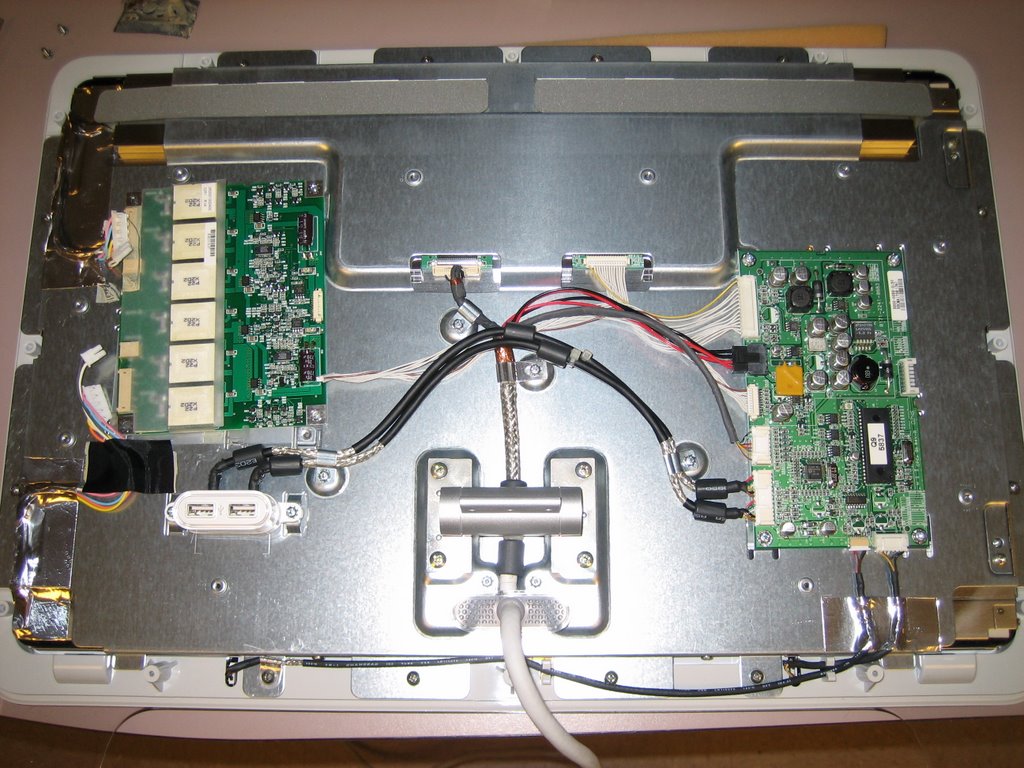
In opening up my display, there's a few more screws but the idea is the same on Bill's site. What I found helpful was that I didn't need to take off the tape strips once the covers had been removed. You could get at the two screws holding the final mesh panel down just by flipping the tape up just a tad. Here's a picture of the display after getting down to the guts:
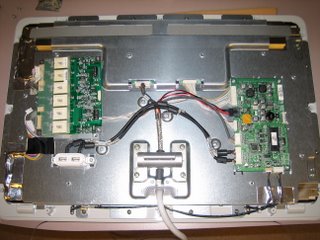
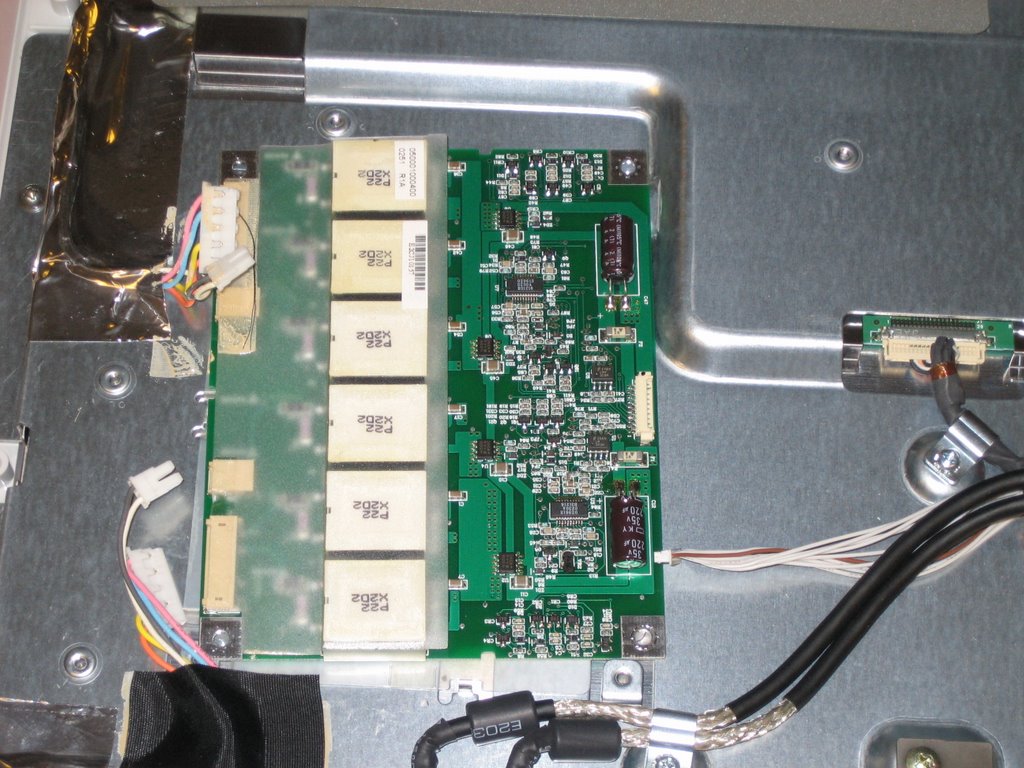
In swapping out the cards, I found that the side with the 4 connectors, the replacement board has each connector, in both sets of 2, swapped. Not tough to figure out, except that the existing tape will need to be removed and reapplied. Here's a picture of the old board after connectors and screws were removed:
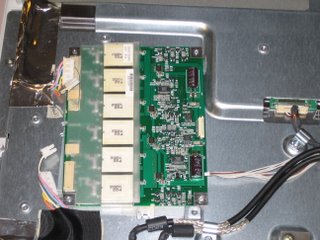
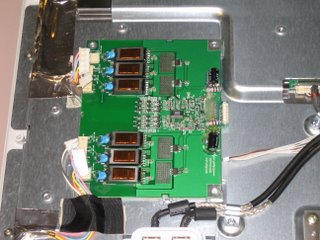
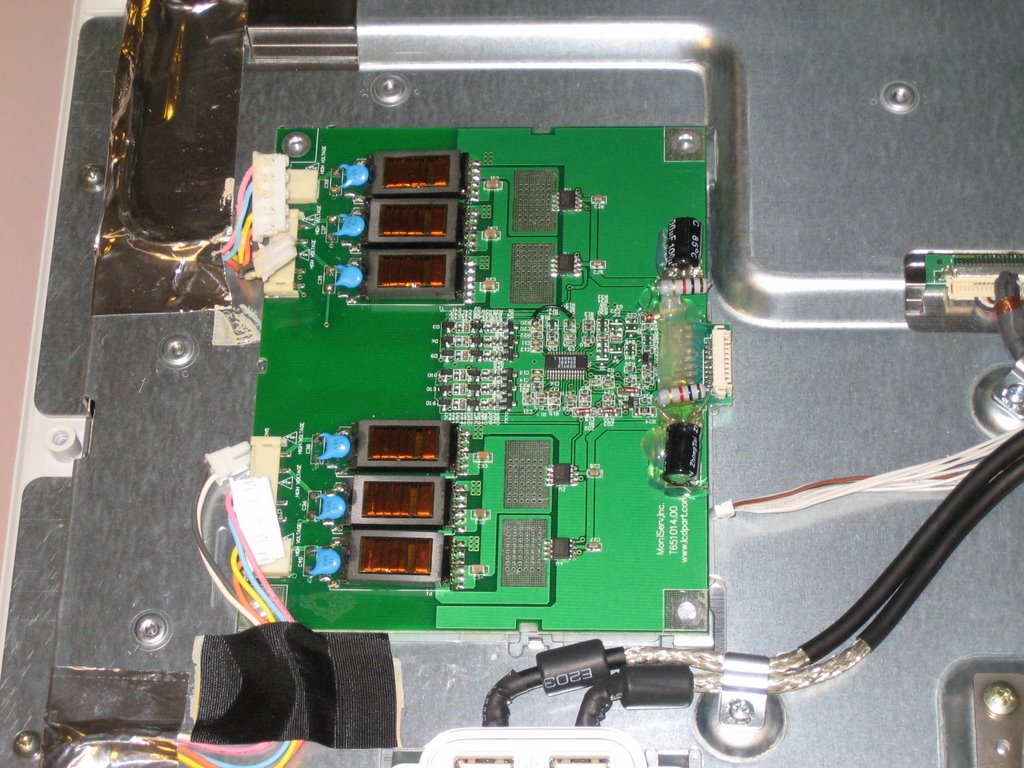
And a picture of the replacement board before attaching the cables and screws:
Oh and since we're on the subject of the existing tape, I found this underneath one of the pieces of tape when removing the original board:
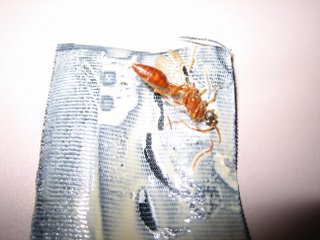
Pretty groady. I wonder if this was on there while the display was originally being assembled. I find it hard to believe if it got in there during normal usage. And, I do doubt that this was the cause of my backlight problem, but you always wonder don't do you?
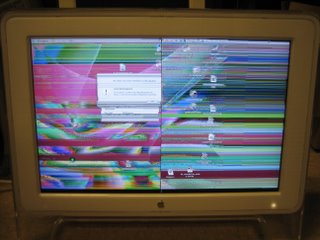
Finally, after putting everything back together, I forgot that ADC connectors would work best when the machine is rebooted and not if they are hot-swapped. Otherwise, you might get this:
Good luck and feel free to leave a comment if you have further questions.
Owners of Apple Cinema displays know that they are generally purchased at a premium compared to other brands. It's tough to let go of a monitor that you spent so much of your hard-earned cash on. This is a post on how to fix one problem that seems to have plagued many of the 17 and 20" owners.
A gentleman by the name of Bill Catambay was kind enough to share his experiences online. As a result, I will not try to completely recreate my own experience. You can see his post above. I will, however, share with you a couple things that I found in repairing the 20" Cinema Display on my desk. Before I start, here's a quick excerpt from Bill's site:
This article is meant for any owner of an Apple 17" LCD Studio Display (or possibly other LCD displays). Specifically, it is a discussion related to a known problem with the display involving the backlight inverter. Before my display suffered the problem, I never even heard of a backlight inverter. Understanding the symptoms is the first step in deciding whether you have any need to learn what a backlight inverter is (let alone how to replace one).
In opening up my display, there's a few more screws but the idea is the same on Bill's site. What I found helpful was that I didn't need to take off the tape strips once the covers had been removed. You could get at the two screws holding the final mesh panel down just by flipping the tape up just a tad. Here's a picture of the display after getting down to the guts:
In swapping out the cards, I found that the side with the 4 connectors, the replacement board has each connector, in both sets of 2, swapped. Not tough to figure out, except that the existing tape will need to be removed and reapplied. Here's a picture of the old board after connectors and screws were removed:
And a picture of the replacement board before attaching the cables and screws:
Oh and since we're on the subject of the existing tape, I found this underneath one of the pieces of tape when removing the original board:
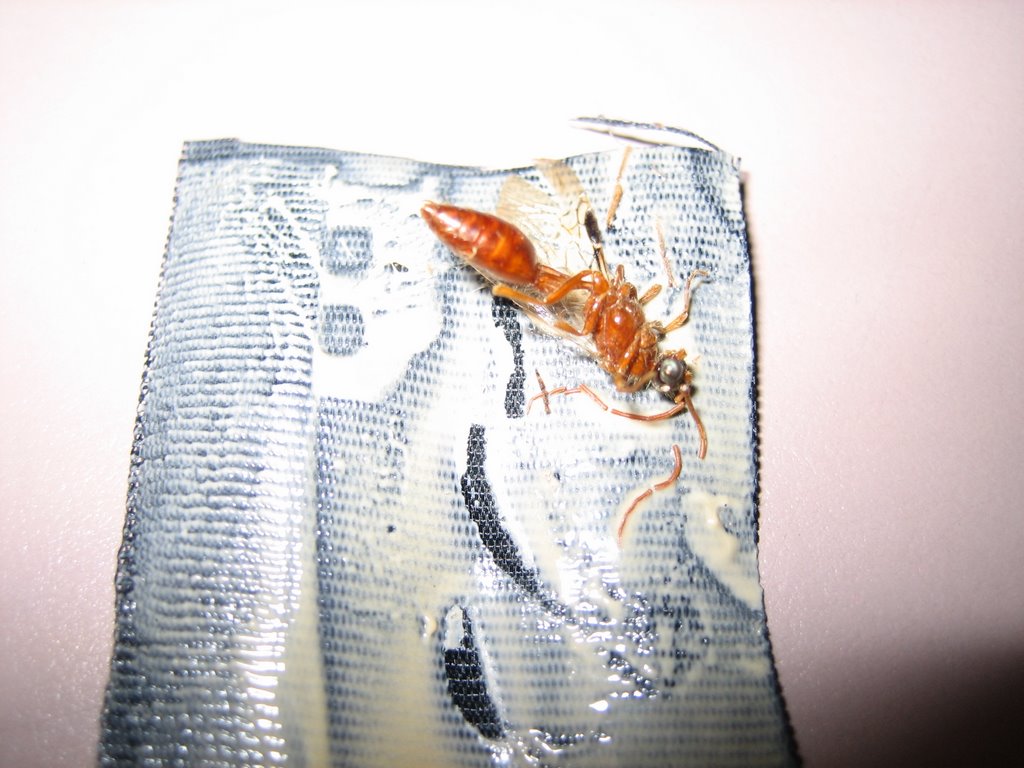
Pretty groady. I wonder if this was on there while the display was originally being assembled. I find it hard to believe if it got in there during normal usage. And, I do doubt that this was the cause of my backlight problem, but you always wonder don't do you?
Finally, after putting everything back together, I forgot that ADC connectors would work best when the machine is rebooted and not if they are hot-swapped. Otherwise, you might get this:

Good luck and feel free to leave a comment if you have further questions.
Thursday, May 18, 2006
TIPS & TRICKS: Nextel SIM Check
To check the SIM number with the phone on, hit the following:
1. #
2. *
3. Menu button
4. Right arrow button
1. #
2. *
3. Menu button
4. Right arrow button
Monday, May 08, 2006
TIPS & TRICKS: Using Sysprep and Ghost to Clone Windows XP Installs
I've created images countless times for my machines. However, I've never been able to successfully create an image using Microsoft's Sysprep and Symantec's Ghost, though the Ghost part of it works fine. Here are some of the problems I've run into along the way:
- After customizing user profiles and copying/applying to Default User, running Sysprep negates all of those customized settings and applies to all users the settings in the Administrator's Profile (something I don't want).
- Though I use a VLA license and check the box in the Sysprep window to "Skip activation", the setup still calls for me to enter a product key
- Sysprep continues to install factory icons (i.e. Tour Windows XP, Windows Media Player, etc.) for each new profile created, even though I customized the Default User to not have it. This could be related to Sysprep ignoring the customized Default User profile I created before running Sysprep or it could be some other setting in Windows that scripts in those icons. If so, anyone have any idea how to modify it?
Microsoft Hotfix: http://support.microsoft.com/kb/887816
Just ran the hotfix and it didn't seem to work. However, I ran the hotfix first then created Default User profile.
Just discovered that Sysprep with the hotfix works when using the mini-setup option. I've started to customize a sysprep.inf file for a fully automated install.
The sysprep.inf file works great, including automatically inputting in the license key, which also skips the activation process typically needed. My sysprep.inf file also adds the machine to our AD forest. I do end up having to go back into the machine and changing the computer name after it's been added to the AD, but that's a small step compared to having to go through the entire mini-setup.
- After customizing user profiles and copying/applying to Default User, running Sysprep negates all of those customized settings and applies to all users the settings in the Administrator's Profile (something I don't want).
- Though I use a VLA license and check the box in the Sysprep window to "Skip activation", the setup still calls for me to enter a product key
- Sysprep continues to install factory icons (i.e. Tour Windows XP, Windows Media Player, etc.) for each new profile created, even though I customized the Default User to not have it. This could be related to Sysprep ignoring the customized Default User profile I created before running Sysprep or it could be some other setting in Windows that scripts in those icons. If so, anyone have any idea how to modify it?
Microsoft Hotfix: http://support.microsoft.com/kb/887816
Just ran the hotfix and it didn't seem to work. However, I ran the hotfix first then created Default User profile.
Just discovered that Sysprep with the hotfix works when using the mini-setup option. I've started to customize a sysprep.inf file for a fully automated install.
The sysprep.inf file works great, including automatically inputting in the license key, which also skips the activation process typically needed. My sysprep.inf file also adds the machine to our AD forest. I do end up having to go back into the machine and changing the computer name after it's been added to the AD, but that's a small step compared to having to go through the entire mini-setup.
Wednesday, May 03, 2006
TIPS & TRICKS: Getting Palm User to Sync with Exchange on a Machine without Admin Access
Ran into trouble yesterday trying to figure out why a user of mine with a Palm m505 couldn't sync properly with her machine. When I originally installed her Palm Desktop 4.02, I didn't have a problem syncing and also tested as her and it worked beautifully. It turned out to be a 2 part problem.
First, her profile would not recognize the cradle as being plugged in via USB. When I right-clicked on the Hotsync icon in the taskbar tray, only Local Serial showed. I proceeded to try to reinstall the Palm Desktop software and conduits using the Run As command, since the user does not have admin access to install software. That seemed to work, until I rebooted and retested. Before the reboot, the Local USB option showed up. After rebooting, the Local USB option disappeared again.
Next, I tried to reinstall the software under my own profile. Again, the Local USB option came back after the reinstall. It also remained after rebooting. However, logging into her limited access profile yielded the same problematic result. The Local USB option would not stay.
Then I noticed that the driver that Windows needs to recognize the cradle was being installed into the System32 folder. That gave me the idea of enabling her account as admin. I installed the software again under her profile, this time with her as admin. Local USB showed up again and also remained after reboot. Success...or so I thought.
After removing her admin access, I got a new error message involving the software's inability to link the categories of data between the Palm and Outlook/Exchange. Great! If it's not one thing, it's another. Nevertheless, I did manage to keep the Local USB option from disappearing.
The second part of the problem, stumped me for awhile, until I realized that the when her user account had admin access, everything worked flawlessly. That brought me to thinking that something needed access that she couldn't provide as a limited user. This version of the Palm Desktop software installs its necessary software outside of the standard Program Files folder. It creates a Palm folder at the root of C and gets everything it needs from there during syncing. I decided to give her full access to that folder, whether she's admin or not. Then, voila, the error message took care of itself.
So to sum up, the Palm Desktop software should be installed as the user who's going to use it if they are not going to be admin. It should be installed by switching the limited user to admin, install the software, then switching them back to limited user. Then give them full access to the Palm folder, which will work without having to pass permissions all the way through the folder.
Note: Most times, I just installed the software on top of the existing software. I did try once to remove the software first, reboot, and then try to install the software from scratch. None of this made a difference.
First, her profile would not recognize the cradle as being plugged in via USB. When I right-clicked on the Hotsync icon in the taskbar tray, only Local Serial showed. I proceeded to try to reinstall the Palm Desktop software and conduits using the Run As command, since the user does not have admin access to install software. That seemed to work, until I rebooted and retested. Before the reboot, the Local USB option showed up. After rebooting, the Local USB option disappeared again.
Next, I tried to reinstall the software under my own profile. Again, the Local USB option came back after the reinstall. It also remained after rebooting. However, logging into her limited access profile yielded the same problematic result. The Local USB option would not stay.
Then I noticed that the driver that Windows needs to recognize the cradle was being installed into the System32 folder. That gave me the idea of enabling her account as admin. I installed the software again under her profile, this time with her as admin. Local USB showed up again and also remained after reboot. Success...or so I thought.
After removing her admin access, I got a new error message involving the software's inability to link the categories of data between the Palm and Outlook/Exchange. Great! If it's not one thing, it's another. Nevertheless, I did manage to keep the Local USB option from disappearing.
The second part of the problem, stumped me for awhile, until I realized that the when her user account had admin access, everything worked flawlessly. That brought me to thinking that something needed access that she couldn't provide as a limited user. This version of the Palm Desktop software installs its necessary software outside of the standard Program Files folder. It creates a Palm folder at the root of C and gets everything it needs from there during syncing. I decided to give her full access to that folder, whether she's admin or not. Then, voila, the error message took care of itself.
So to sum up, the Palm Desktop software should be installed as the user who's going to use it if they are not going to be admin. It should be installed by switching the limited user to admin, install the software, then switching them back to limited user. Then give them full access to the Palm folder, which will work without having to pass permissions all the way through the folder.
Note: Most times, I just installed the software on top of the existing software. I did try once to remove the software first, reboot, and then try to install the software from scratch. None of this made a difference.
Saturday, April 29, 2006
Subscribe to:
Posts (Atom)